Alienware 720M Tri-Mode Wireless Gaming Mouse (AW720M) Usage and Troubleshooting Guide
Summary: The following article provides information about the Alienware 720M Tri-Mode Wireless Gaming Mouse. Reference each section to learn more about the features of the AW720M Tri-Mode Wireless Gaming Mouse and how to use it. ...
This article applies to
This article does not apply to
This article is not tied to any specific product.
Not all product versions are identified in this article.
Instructions
Table of Contents:
- What is in the Alienware 720M Tri-Mode Wireless Gaming Mouse box
- Mouse Features
- Setting up your Alienware 720M Tri-Mode Wireless Gaming Mouse
- Installing the Alienware Command Center (AWCC) and Alienware Gaming Peripheral Driver
- Troubleshooting
- Additional Information

Figure 1: Work faster and smarter with the Alienware 720M Tri-Mode Wireless Gaming Mouse
What is in the Alienware 720M Tri-Mode Wireless Gaming Mouse box

Figure 2: Alienware 720M Tri-Mode Wireless Gaming Mouse Box Contents
| 1 | Alienware 720M Tri-Mode Wireless Gaming Mouse | 2 | USB charging cable |
| 3 | Clip | 4 | USB wireless dongle |
| 5 | Dongle extender | 6 | USB-C magnetic dongle for charging |
| 7 | Documents |
Alienware 720M Tri-Mode Wireless Gaming Mouse Features

Figure 3: Alienware 720M Tri-Mode Wireless Gaming Mouse top, bottom, and side views
| 1 | Left button | 2 | Scroll wheel |
| 3 | Right button | 4 | Mode button |
| 5 | DPI adjustment button | 6 | DPI indicator |
| 7 | Power button | 8 | USB-C port |
| 9 | Forward button | 10 | Backward button |
Magnetic Snap Charging Function
The magnetic snap head supports fast charging (5V-900mA).
Adjustable DPI
Press the DPI adjustment button to instantly change the mouse tracking resolution.
Figure 4: Alienware 720M Tri-Mode Wireless Gaming Mouse Adjustable DPI
 |
800: Blue |
 |
1200: Green (default) |
 |
1600: Yellow |
 |
2400: Purple |
 |
3200: Red |
NOTE: Change the default DPI settings and customize the DPI stages with the Alienware Command Center (AWCC) application.
Setting up your Alienware 720M Wired Gaming Mouse
NOTE:
- The mouse supports both wired and wireless mode.
- Your mouse has a rechargeable battery. For best results, ensure that the battery is fully charged before using it for the first time.
- To improve battery life, turn off the power switch when the mouse is not used.
- When using magnetic charging, turn on the power switch to ensure seamless connectivity.
Connecting the Alienware 720M Tri-Mode Wireless Gaming Mouse
- Remove the clip, dongle extender, USB wireless dongle, and USB-C magnetic dongle from the accessory box.

Figure 5: Accessory box - Remove the protective sheet at the bottom of the mouse.

Figure 6: Protective sheet at the bottom of the mouse - Slide the power button down to turn on the mouse.

Figure 7: Slide the power button
To connect using Wireless mode (2.4 GHz)
Laptop
- Slide the mode button to 2.4G.

Figure 8: Switch for Wireless mode (2.4 GHz) - Connect the USB wireless dongle to a USB port on your laptop.
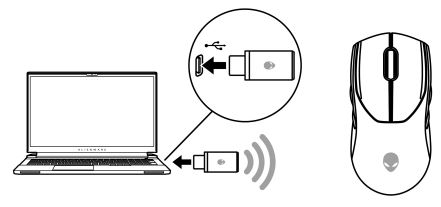
Figure 9: Connect the USB wireless dongle
Desktop
- Slide the mode button to 2.4G.

Figure 10: Switch for Wireless mode (2.4 GHz) - Connect the USB-C end of the USB charging cable to the bottom port of the dongle extender. Insert the USB wireless dongle to the top port of the dongle extender.
- Connect the other end of the USB charging cable to an available port on your computer.

Figure 11: Connect the USB wireless dongle
To connect using Wireless mode (Bluetooth)
- Slide the mode button down to ‹
 ›. Slide the button down and hold it for three seconds. The DPI LED blinks indicating your wireless mouse is in pairing mode.

Figure 12: Bluetooth pairing mode - Pair your wireless mouse with your Bluetooth-enabled computer.
To connect using USB charging cable
NOTE: The battery starts charging automatically in wired mode.
- Connect the USB-C end of the USB charging cable to the USB-C port on the mouse.
- Connect the other end of the USB charging cable to an available USB port on your desktop or laptop.

Figure 13: Connect USB charging cable to USB port on your desktop or laptop
Installing the Alienware Command Center (AWCC) and Alienware Gaming Peripheral Driver
To control the features and options requires the AWCC and Alienware Gaming Peripheral driver. The latest versions are available directly from the Dell Support Site. For more information, see the instructions below.
NOTE:
- AWCC requires Windows 10 version 16299 or later.
- It is recommended to update Windows and the drivers for your computer before installing the Alienware Command Center. For more information, see Microsoft Knowledge Base article: Windows Update: FAQ
and Dell Knowledge Base article: Drivers & Downloads FAQs
- When your computer is preinstalled with AWCC v.5.2.45.0 or later, install the Alienware Gaming Peripheral driver. Once installed, configure your Alienware 720M Gaming Mouse. For more information, see Dell Knowledge Base article: Alienware Command Center Quick Guide
- When your computer is not preinstalled with v.5.2.45.0 or later, perform the following steps to install the latest AWCC and Alienware Gaming Peripheral driver. AWCC v.5.2.42 or later can co-exist with older versions of AWCC on the same computer. Continue to use the older version to configure your computer.
Installing AWCC through Windows Update
- Connect your Alienware peripheral to your computer through the USB port. The AWCC application is downloaded and installed automatically. AWCC installation may take up to 10 minutes to complete.
- Go to the program folder to ensure that the AWCC installation is complete.
- Launch AWCC and perform the following steps to download the additional software components:
- In the Settings window, click Windows Update, and then click Check for updates to check the Alienware driver update progress.
- If the driver update is not responding in your computer, install AWCC from the Dell Support website.
Installing AWCC from the Dell Support website
- Ensure that the computer is connected to the Internet.
- Go to the Alienware Wired Gaming Mouse AW720M Drivers page.
- Select the operating system installed on your computer.
- Locate the latest Alienware Command Center Application.
- Click Download and save the file to your computer.
- Open File Explorer and browse to the location where the downloaded file is saved.
- Double-click the Alienware Command Center Application setup file and follow the on-screen instructions to complete the installation process.
Troubleshooting
| Problems | Possible solutions |
|---|---|
| The mouse is not functioning. |
Turn ON the power turn on the bottom of the mouse and try again. |
| The mouse is not functioning. |
|
| Mouse lights do not turn on. |
|
| The mouse is not running based on the configuration selected in the Alienware Command Center (AWCC) application. |
|
| Resolving cursor issues. |
|
| Resolving mouse button issues |
|
| Troubleshooting a slow-moving cursor |
|
| Troubleshooting cursor lagging |
Cursor lagging might be due to wireless interference on the USB wireless dongle. Use the dongle extender to connect the USB dongle to the laptop or desktop. |
| Troubleshooting lift off distance (LOD) surface calibration issues |
The LOD surface calibration depends on the surface characteristics and does not work on all surfaces. Using a dark-colored fabric mouse pad improves LOD calibration. |
Additional Information
Dell AW720M Alienware Wired Gaming Mouse Support Site
Learn how to use and troubleshoot problems with the AW720M in use with your computer. Find information about Troubleshooting steps, How-To guides, and relevant Support Videos for assistance.
For the User Guide, browse to the Dell Alienware Wired Gaming Mouse AW720M Online Manual Page, located in the Manuals and Documents section.
Affected Products
Alienware Tri-Mode Wireless Gaming Mouse AW720MArticle Properties
Article Number: 000198072
Article Type: How To
Last Modified: 22 Jul 2025
Version: 3
Find answers to your questions from other Dell users
Support Services
Check if your device is covered by Support Services.