PowerStore: Uploading an HTTP's Management Certificate Signed by Public PKI Fails
Summary: Uploading a signed certificate to PowerStore results in errors: Failed to update certificate in the credential store. Verify your certificate chain (0xE09010010013), and Certificate does not contain SAN with IP address or DNS name (0xE090A0010009). ...
Symptoms
Failed to update certificate in credential store. Please verify your certificate chain (0xE09010010013).
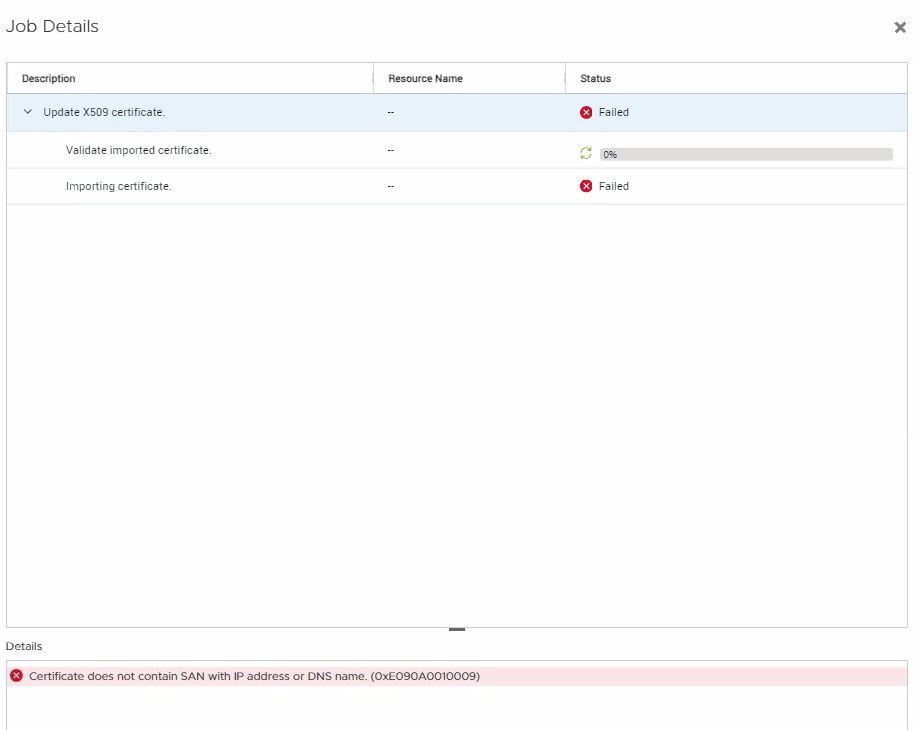
Certificate does not contain SAN with IP address or DNS name (0xE090A0010009).
Image of Error 0xE09010010013:
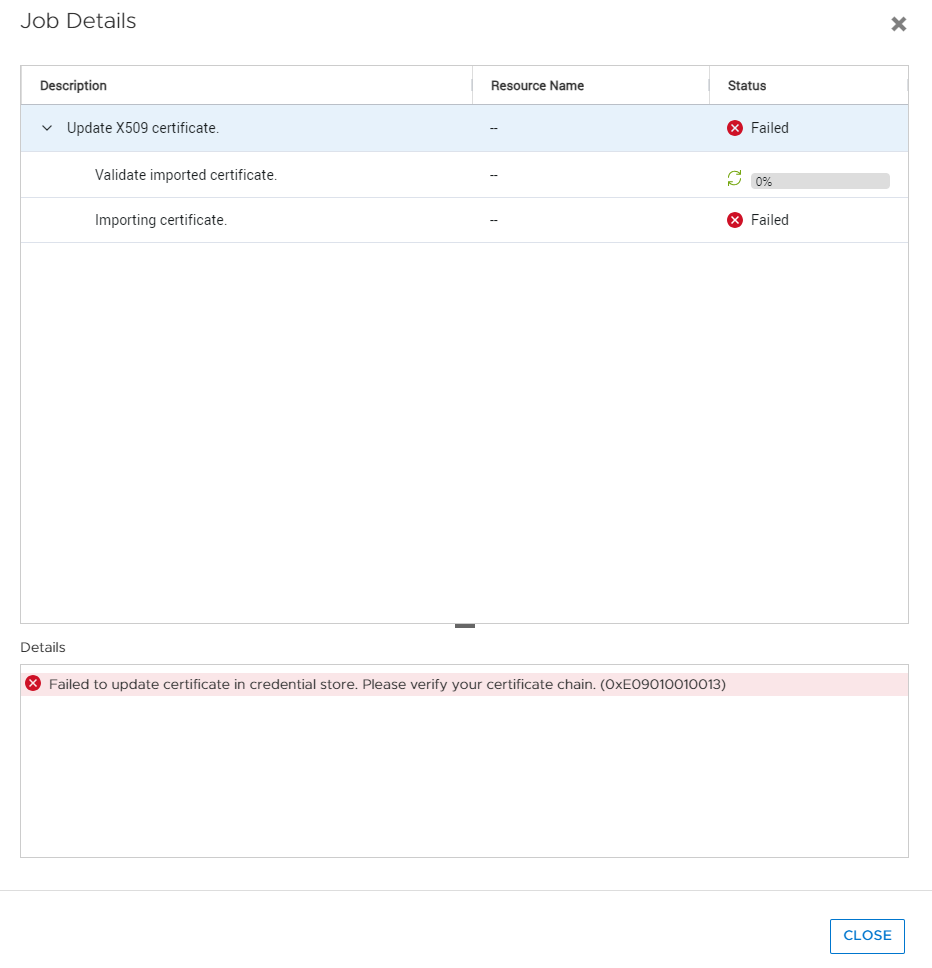
Image of Error 0xE090A0010009:
Cause
When it comes to PKI, they generally do not allow IP addresses in SAN for public certificates. Public PKI typically issue certificates that are meant for public domains or web servers.
Private PKI is typically able to generate certificates with SAN that include any number of IPv4 addresses, IPv6 Addresses, and Fully Qualified Domain Names (FQDN). They are intended to provide certificate services internally in an organization (intranet) and not to the public (Internet).
Resolution
Verify that the SAN includes the Cluster IPv4 Address, IPv6 Address, and DNS Name of the PowerStore.
Find this information using one of the following methods:
- In the Microsoft Certificate Utility:
.crt or .pem extension. In the command prompt or Powershell, use certutil.exe:
certutil.exe -dump CertificateName.pem
- In a Linux shell using OpenSSL:
openssl x509 -in certificateName.pem -text -noout
If the SAN does not have all three of the required fields, contact your certificate provider and request that the certificate is signed and ensure they include all the required information. If they cannot provide a certificate with that information, you must generate these certificates through a Private PKI provider or create a local PKI that can sign these certificates.
If there are still issues and all the certificate information looks correct, you can reach out to Dell Support to assist with the certificate issue.