PowerEdge: Resetting Changing iDRAC Password Remotely Using RACADM Tools
Summary: This article explains how to reset or change the iDRAC password remotely using Dell RACADM tools on Windows Server. This method is useful when the iDRAC password has been forgotten and downtime is not an option. ...
This article applies to
This article does not apply to
This article is not tied to any specific product.
Not all product versions are identified in this article.
Instructions
This article explains how to reset or change the iDRAC password remotely using Dell RACADM tools on Windows Server 2019. This method is useful when the iDRAC password has been forgotten and downtime is not an option.
Environment
- Server Model: Dell PowerEdge R350 (example)
- Operating System: Windows Server 2019
- Tools Required: Dell iDRAC Tools (RACADM)
- Download Link: https://www.dell.com/support/home/drivers/driversdetails?driverid=82kgw&oscode=ws19l&productcode=poweredge-r350
Prerequisites
- Administrative access to the Windows Server hosting the RACADM tools
- Network connectivity to the iDRAC interface.
Procedure
Step 1: Download and Extract iDRAC Tools.
- Download the iDRAC Tools package from the Dell support site.
- Browse to the downloaded file and double-click to extract.
- Specify the location to extract files (default: C:\openmanage)
- Click Unzip to complete extraction.
Step 2: Install iDRAC Tools.
- Navigate to the extracted folder (C:\openmanage).
- Run iDRACTools_x64.msi to install RACADM and IPMI Tool for Windows.
- Once installation completes, search for iDRAC UI Launcher from the Start menu.
- This opens a command prompt window for RACADM commands.
Step 3: Navigate to RACADM Directory.
- Open Command Prompt.
- Change the directory to the RACADM installation path:
cd "C:\Program Files\Dell\SysMgt\IDRACTools\racadm"
Step 4: Reset or Change iDRAC Password
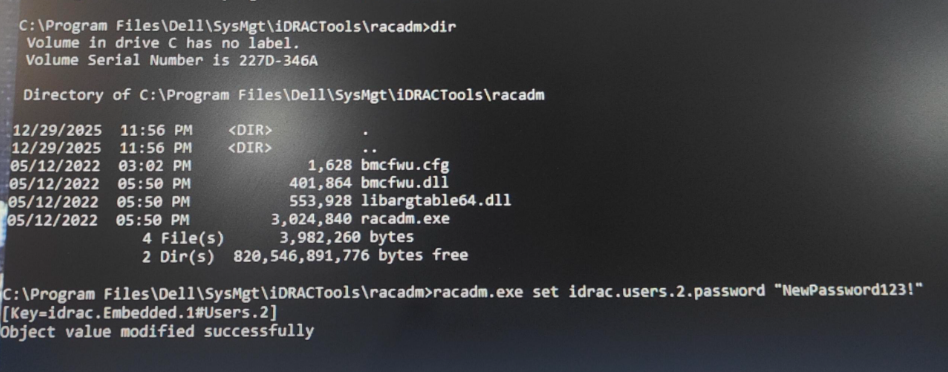
- Run the following command to reset the password for user ID 2 (default root/admin account):
racadm.exe set idrac.users.2.password "NewPassword123!" (Any password)
- Expected output:
Object value modified successfully.
Step 5: Verify Access.
- Open the iDRAC UI in a browser.
- Log in using the updated credentials.
- Confirm successful access and functionality.
Example output shared below:
Affected Products
Rack Servers, PowerEdge R350Article Properties
Article Number: 000409855
Article Type: How To
Last Modified: 06 Jan 2026
Version: 1
Find answers to your questions from other Dell users
Support Services
Check if your device is covered by Support Services.