ECS: How to Activate License from a Transformational Licensing Agreement (TLA)
Summary: Steps to activate Elastic Cloud Storage licenses from a Transformational Licensing Agreement (TLA) in Software Licensing Central (SLC)
Instructions
Pre-requisite:
Users who require access to the Dell Digital Locker or Software Licensing Central (SLC) should register for a Support Account on Support | Dell US.
Internal users who require access to Software Licensing Central (SLC) should submit a MyAccess Ticket Internally.
Instructions:
Enter the TLA License Authorization Code (LAC) or Sales order number in the Activate Tab in Software Licensing Central (SLC).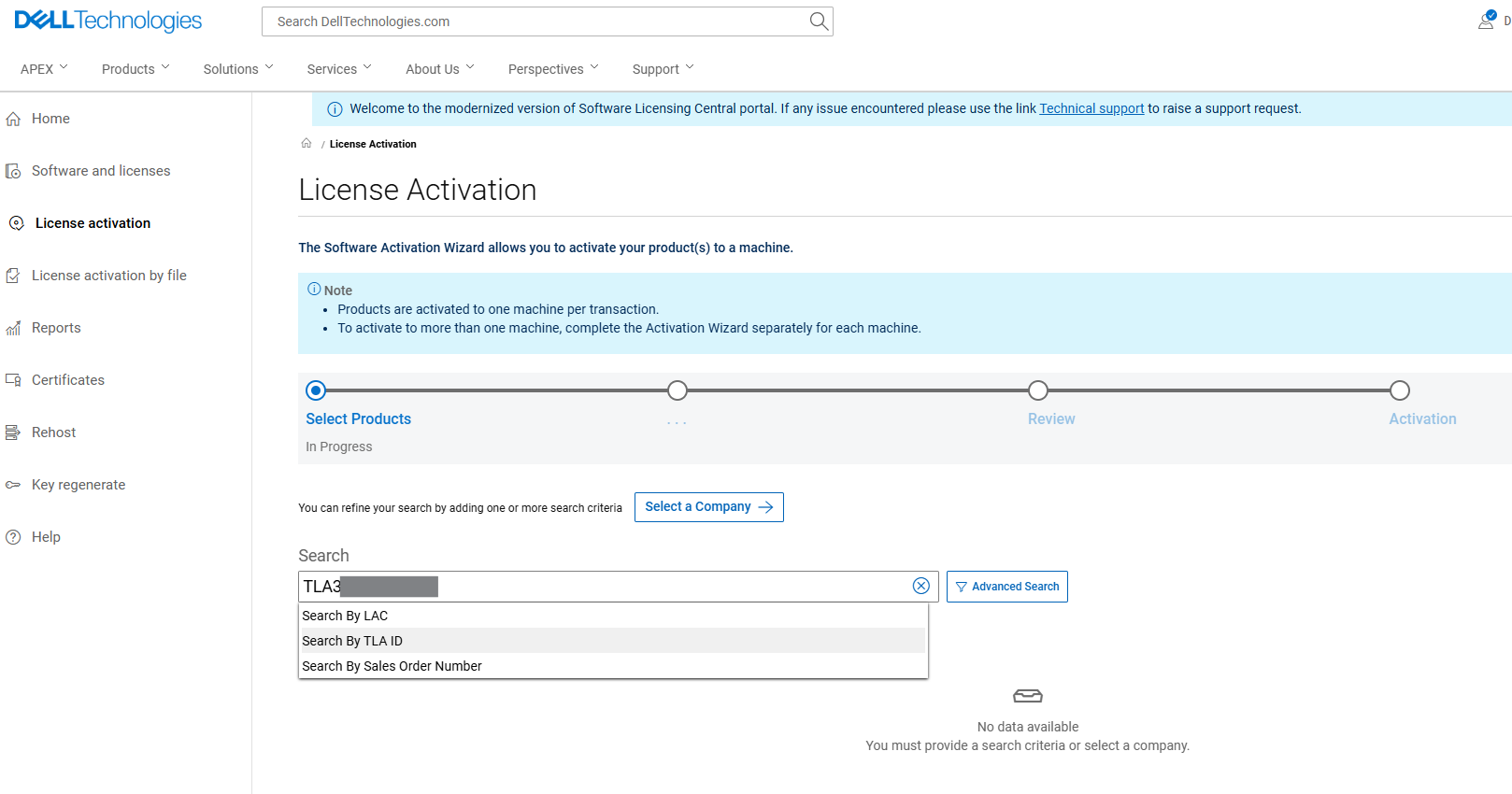
Search can be limited by selecting Elastic Cloud Storage in the Product line.
Select Search.
On the Subsequent page, select the required products for Activation. 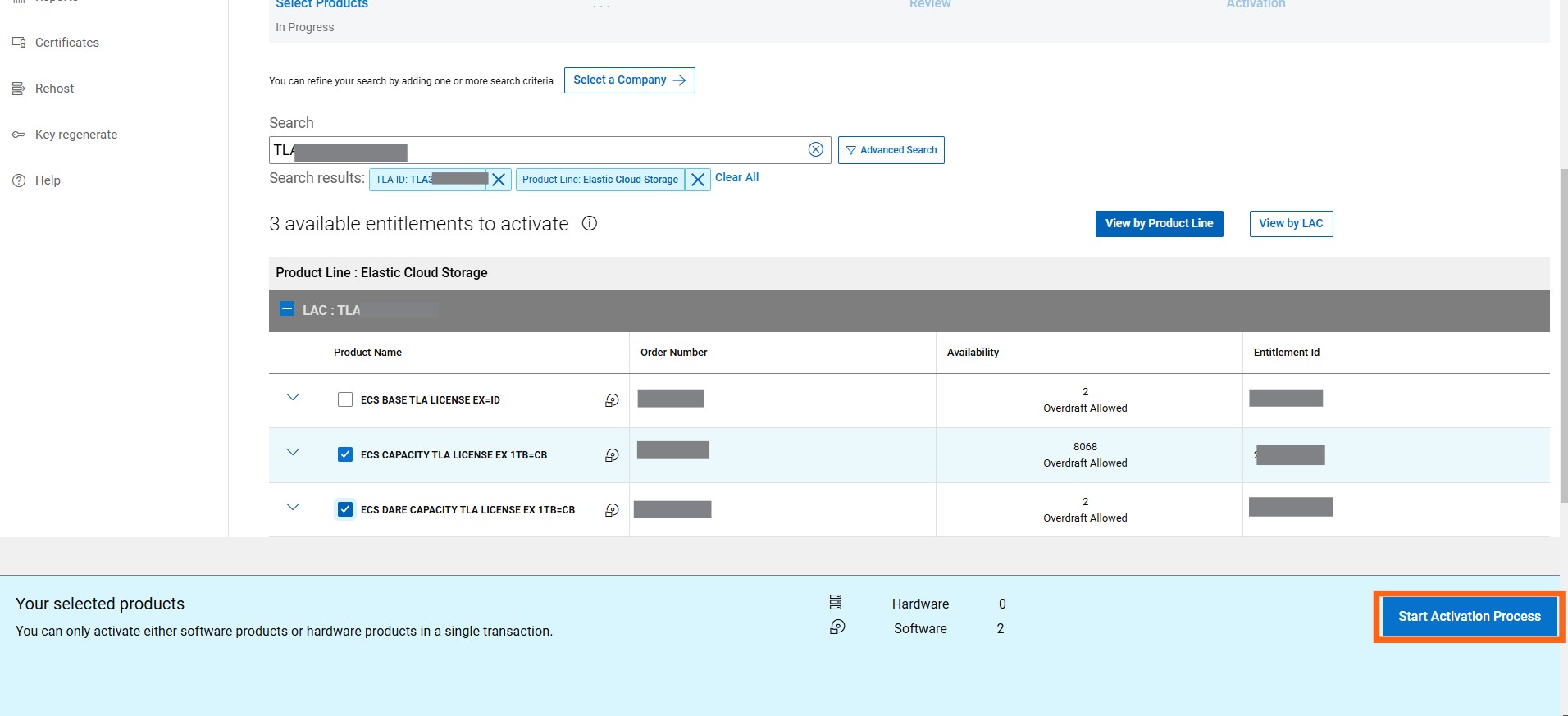
Click Start the Activation Process.
Following this, select Next: Select a Machine on the Company and Site page. 
Following this, the Select A Machine page permits searching and selecting an existing machine. Alternatively, user can create a new machine using the Add A New Machine Option.
Note: A new machine is created for a new Elastic Cloud Storage activation. An existing machine is selected to expand an existing license.
For new machines, the machine name is user-defined. It is recommended to use the ECS Serial number of the Hardware. Once entered, click Save Machine and Continue.
To view a list of all available machines, click the SEARCH button in the 'Search Machines' section. If several machines exist, you can use the search criteria to filter the list of machines. Once you locate and select the machine, click NEXT: ENTER DETAILS
On the following page, you are required to enter all the relevant product-specific details such as quantity and locking ID.
Quantity: Enter the required quantity for each entitlement.
Note: The contracted quantity is outlined on this page, however overdraft is enabled for TLA activations.
Locking ID: Enter the ECS Serial Number in the Locking ID field.
In the above step, you can add capacity only to existing machines without changing the locking ID.
Also you can add a Node Serial number to the cluster along the capacity; do this by adding the Serial number and click the + button.
Select Next: Review
The system asks to review your selection before confirming the activation using the Activate button.
You can enter additional email addresses here and add notes to the transaction.
The Subsequent page shows the completed activation. From here, you can download the ECS license file directly.
The license is sent to the email profile of the user who activated it.