Dell Unity: How To Gather The Necessary Information For A Unity Performance Analysis
Summary: This article shows how to gather logs and data for diagnosing performance issues on Unity arrays.
This article applies to
This article does not apply to
This article is not tied to any specific product.
Not all product versions are identified in this article.
Instructions
Issue
-
Poor Read or Write (or both) performance or high response times for connected hosts.
-
Response times for host applications have increased or are unacceptably high.
-
Performance problems on a Dell Unity array, which requires performance analysis.
Performance issues can have several causes. These include: network configuration, congestion, host configuration, hardware faults, disk contention (several busy LUNs sharing the same drives), or the storage array being at its maximum utilization.
Unity Technical Support cannot fully investigate and troubleshoot Performance issues until the following have been provided:
- Service Data File (Data Collect)
- UPA files (Unity Performance Archives)
- A detailed description of the symptoms experienced in the production environment
Failure to promptly provide the information in this Dell Knowledgebase Article (KB) can result in longer resolution times.
The details of the performance issues (symptoms, timestamps, and so on) are crucial so that the engineer knows where to focus (times, LUNs, hosts. and so on), rather than spending several hours to find the issue (not the cause). Without this detail, hours may be spent searching for an issue only to be able to analyze the general performance statistics.
Scope
Customer Support Services investigate performance cases to identify issues that are affecting customer sites. Performance tuning (to achieve peak performance for a host or application) and reconfiguration is a task for a Storage Administrator or a Solutions Architect - this is not handled in a Break-Fix Service Request.
Service Requests that do not involve a defined problem, such as requesting a report of the current level of workload on an array, are outside the charter of Break-Fix Support. For self-help or those needing help with determining the level of workload on an array can use the LiveOptics service. See the following article for detailed information about this option:
Data And Information Requirements For A Detailed Performance Analysis
For each event, Technical Support needs the following logs and information which cover the incident period:
- Service Data Files (also known as Data Collects), generated shortly after the issue occurred.
- If Replication is in use, then Data Collects and UPA files from both arrays is needed.
- Unity UPA files (Unity Performance Archives), which cover the whole period when the problem was occurring.
- Host Grabs and Switch logs may also be required if the problem appears to be outside of the array.
- Unity Network Traces may also be required.
BLOCK ISSUES
- Provide a clear and detailed problem description:
- When did the problem happen? (Date, Time, and Time Zone)
- Which LUNs are affected?
- This is important to narrow down the search.
- Is Data Reduction or Advanced Deduplication enabled on the LUNs experiencing issues? Is Data Reduction enabled for other LUNs? (See the Unity Best Practices White Paper - CPU Utilization section - page 9)
- Is Replication in use? Provide information about the RPO for Replication and if the performance issue improves if Replication is paused.
- Is there or was there at any time active Data Unavailable?
- Is anything else running at the specified time? (Backup, Jobs, Batches, Virus Scans, Host Disk Optimization (TRIM/UNMAP) and so on)
- If something is not working as it should, did it ever work? Or is this part of a new implementation/setup? Were there any new applications or hosts added recently?
- How is performance being measured or what is the impact? Delays or errors on the host side? Are end users reporting slowness?
- Any recent changes in the SAN environment (hosts, switches, array)?
- Impact (Affected applications, # of affected servers, # of affected users, and so on)
- How often does the problem happen? (Constantly/Regularly / One-Time/Randomly)
- What are the names of the affected hosts?
- What topology is used? FC, iSCSI or Ethernet? (If using iSCSI all hosts MUST have TCP Delayed ACK disabled.
- If the issue may be around connectivity, Support may request a topology diagram.
- Does a known problem exist in the network simultaneously or has the network been upgraded recently? Also check that iSCSI is not used on the internal LAN and any switches used must be Enterprise class switches.
FILE ISSUES
- Provide a clear and detailed problem description:
- What are the specific protocols involved?
- Example: NFS (version), CIFS (version), NDMP, iSCSI, FTP, and so on
- Is the issue related to a specific export/share, filesystem/LUN?
- What time of day does the issue occur? (Date, Time, and Time Zone)
- What is the active workload at the time?
- Example: login, logout, backup, batch jobs, so on
- What hosts are involved?
- Example: Backup, VMs, workstations, servers, so on?
- Specific details on the application.
- What does the Network configuration look like?
- Provide specific interface/NIC detail.
- Are the network interfaces isolated on separate NICs?
- Example: Replication traffic on its dedicated NIC
Collecting Service Data File (Data Collect)
To gather Service Data File (Data Collect), see LKB 000023676. The output files from running Service datafile on the array are necessary to show the detailed array configuration and any events which occurred on the array. Support recommends that customers gather the Service Data File (Data Collect) as soon as possible after the event occurs.
Keep in mind that the Service datafile contains the last complete UPA file (one hour) and any available -tmp.archive UPA file. Often, this is not enough information for a proper performance review and additional UPAs are required.
To find the UPA file within the Service Data File (Data Collect), go to spx\cmd_outputs\metrics\
-
spx= Primary SP -
Example: If SPA is the active SP, the UPA is under
spa\cmd_outputs\metrics
Collecting UPA Files
- Support may ask for additional UPA files.
- Unlike the Service Data File (Data Collect), the array stores at up to 48 hours of UPA files.
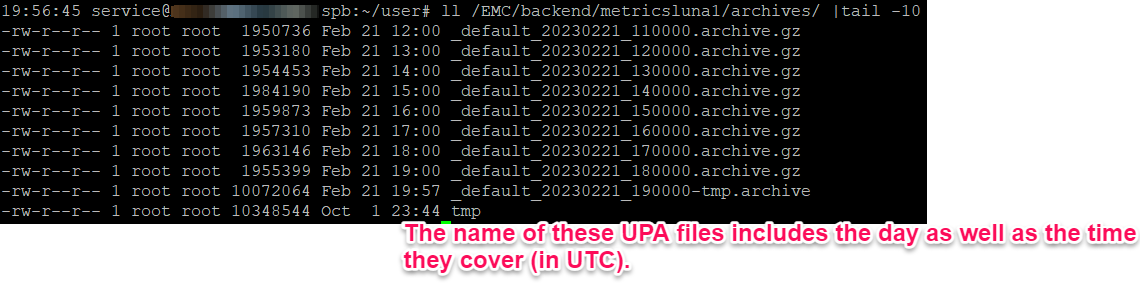
- The UPA files look like the below example. Each file name contains the date and time of the first data point in the file. The interval is 10 seconds and covers one hour minus 10 seconds. The date and times in the filenames are UTC/GMT.
- The last UPA file in the example below is the most current archive (
-tmp.archive). This contains the current performance data and can be copied from the array (using SSH/CLI only) to look at the most current data. Support can use this file to see performance events without waiting until the next hour.
- The last UPA file in the example below is the most current archive (
Example of UPA files stored on the Dell Unity array:01/05/2017 10:59 AM 11,017,216 _default_20170105_150000.archive
01/05/2017 11:59 AM 11,017,216 _default_20170105_160000.archive
01/05/2017 01:00 PM 11,017,216 _default_20170105_170000.archive
01/05/2017 01:59 PM 10,983,424 _default_20170105_180000.archive
01/05/2017 02:45 PM 8,308,736 _default_20170105_190000-tmp.archive
There are two methods (CLI and Unisphere/GUI) that can be used to gather UPA files:
Using Unisphere/GUI
Option 1: Unisphere List

Option 2: Unisphere Time Range
Using SSH/CLI
Option 1: Unisphere List
This option is only available for Unity OE 4.2 and higher. All available UPAs may not be listed here. There is a limitation to the UI (Unisphere) and only some available files can be listed. If the required UPA file is not listed, move to Option 2 or use SSH/CLI.
Option 2: Unisphere Time Range
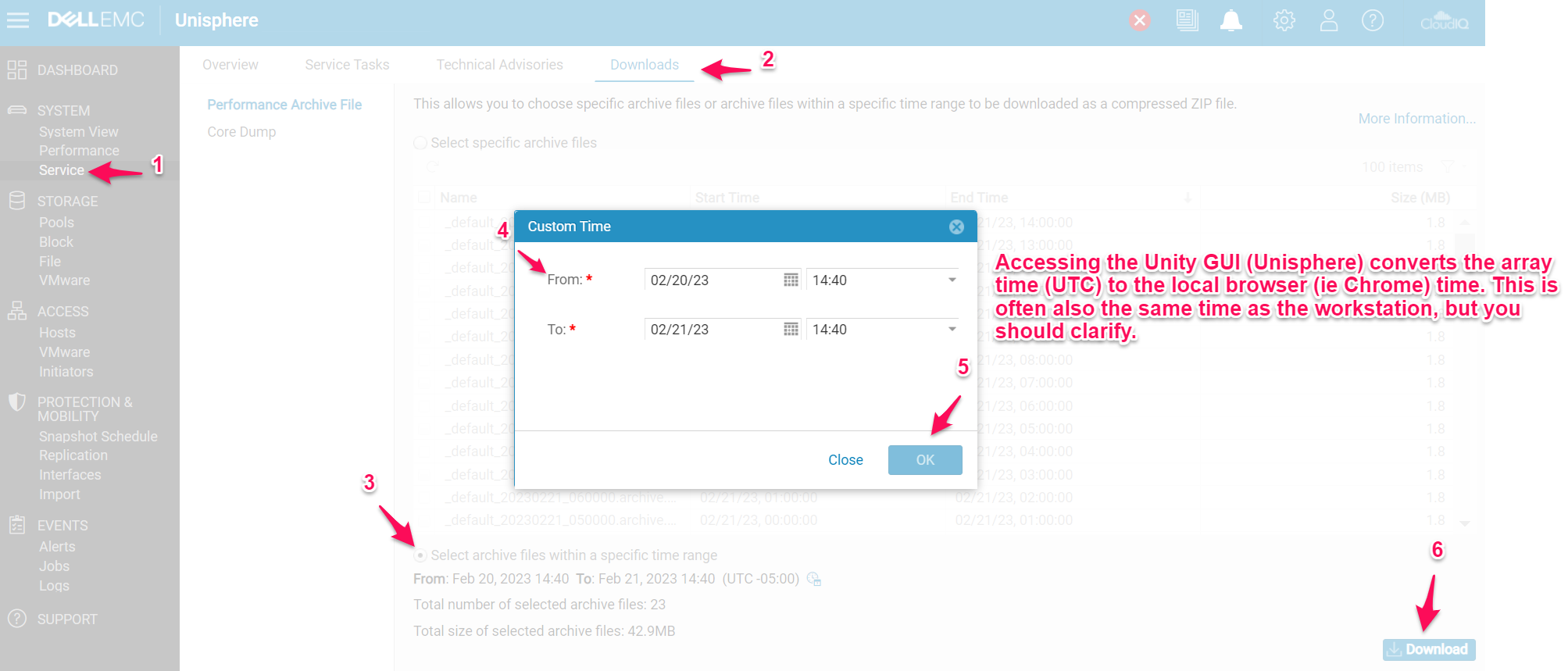
- You can select a time range for the system to pull available UPAs.
- Confirm the issue time prior to gathering logs so that only the necessary logs are downloaded.
- Keep in mind, the Customer Time range is in the local browser time and is often the same as the current workstation time.
- This option is only available for Unity OE 4.2 and higher
Using SSH/CLI
CLI can also be used to access more UPAs that are on the Unity array (but that are not listed in the UI (Unisphere) per Option 1.
-
Log in with the service user and the service password
-
Copy the wanted logs to
/cores/service/userfrom/EMC/backend/metricsluna1/archives -
Download these logs using WinSCP or a similar tool
-
If the array is on OE 4.5.X or newer, change the file protocol to SCP
-
Login with the service user and the service password
-
ll /EMC/backend/metricsluna1/archives/
cp /EMC/backend/metricsluna1/archives/_default_20230221_180000.archive.gz /cores/service/user
Note: If you are only gathering current UPAs, you may want to |tail-10 as there are dozens of UPA files available on the backend; however, you can list them all out.
Host Data Collection
Host Grab (or EMC Report) output files may be needed, especially if the issue is unique to specific hosts.
-
Go to https://www.dell.com/support/home/ (Dell Support Site) and search for the Grab Utility for the correct host OS (Example: ESXi host grab)
-
Download the utility and the README file.
-
Follow the README file to run the utility for the host operating system chosen.
Switch Logs
If the performance issue only exists on certain paths, switch logs may be required. See the following LKB for instructions (based on the model being used):
Brocade/Connectrix
Cisco
Network Trace Captures (TCP Dump)
Some File Performances issues may be related to network issues. In order to fully determine the cause of a problem, support may request network traces.
Dell Unity: How to capture a TCP/IP network trace from the array. (User Correctable)
Additional Information
Refer to this video:
Affected Products
Dell EMC Unity 300F, Dell EMC Unity 350F, Dell EMC Unity 400, Dell EMC Unity 400F, Dell EMC Unity 450F, Dell EMC Unity 500, Dell EMC Unity 500F, Dell EMC Unity 550F, Dell EMC Unity 600, Dell EMC Unity 600FProducts
Dell EMC Unity, Dell Unity 450F DC, Dell Unity 300, Dell Unity 300 DC, Dell Unity 350F DC, Dell EMC Unity XT 380, Dell EMC Unity XT 380F, Dell Unity 400 DC, Dell EMC Unity XT 480, Dell EMC Unity XT 480F, Dell EMC Unity 650F, Dell EMC Unity XT 680
, Dell EMC Unity XT 680F, Dell EMC Unity XT 880, Dell EMC Unity XT 880F, Dell EMC Unity Family |Dell EMC Unity All Flash, Dell EMC Unity Hybrid
...
Article Properties
Article Number: 000022748
Article Type: How To
Last Modified: 03 Sept 2025
Version: 7
Find answers to your questions from other Dell users
Support Services
Check if your device is covered by Support Services.