USB Type-A Ports, Integrated Camera, Smartcard Reader, or Fingerprint Reader Are Not Working on a Dell Pro Laptop Running Windows 10 or 11
Summary: This article provides information about the code 10 displayed in Device Manager, or USB Type-A ports, integrated camera, smartcard reader, or fingerprint reader not working on a Dell Pro laptop running Windows 10 or 11. ...
This article applies to
This article does not apply to
This article is not tied to any specific product.
Not all product versions are identified in this article.
Symptoms
The computer may encounter several symptoms after installing Windows 10 22H2 or Windows 11 23H2 on a Dell Pro laptop with the RBG + IR Camera configuration. The issue occurs when the core isolation is enabled.
- The Intel USB 3.20 eXtensible Host Controller (PCI\VEN_8086&DEV_A87D) may show a yellow bang with Code 10 in Device Manager.
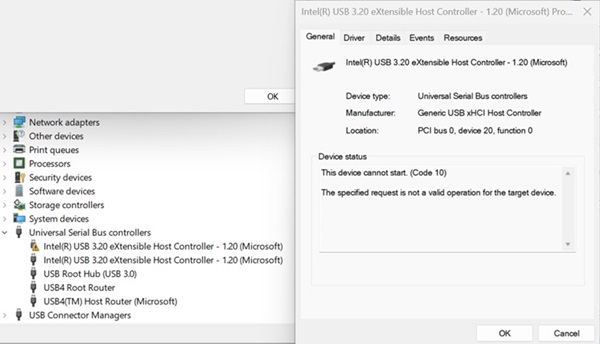
- Integrated USB camera, Smartcard reader, Fingerprint reader (Dell Control Vault device), or all USB type-A ports such as external USB storage or USB keyboard mouse, are not working.
Affected Platform:
- Dell Pro 13 Plus PB13250
- Dell Pro 14 Plus PB14250
- Dell Pro 16 Plus PB16250
Affected Operating System:
- Windows 10 22H2
- Windows 11 23H2
Cause
Windows 10 22H2 and Windows 11 23H2 do not support the new USB VTIO v1.2.
Resolution
Solution for Windows 11 23H2 Users:
- Go to Settings, Windows Update, and turn on Get the latest update as soon as they’re available to update 4D hotfix_KB5055629.
- When it is impossible to turn on Get the latest update as soon as they’re available, click Check for updates and Download & install button for KB5055629, or find it under Windows Update, Advanced options, Optional updates to install.
- Manually update the hotfix_KB5055629 through Windows Update, or from https://support.microsoft.com/topic/windows-11-version-23h2-update-history-59875222-b990-4bd9-932f-91a5954de434
.
- Additional settings from Microsoft to enable Windows Hello Face after KB5055629 is updated with solution design when Windows Hello Face cannot be set:
- Option 1 for End Users:
- Go to Settings, Accounts, Sign-in options. Turning on Sign in with an external camera or fingerprint reader under Additional settings allows you to disable Enhanced Sign-in Security (ESS).
- Option 2 for IT or Administrator:
- Press Win + R key and type gpedit.msc to open Local Group Policy Editor.
- Go to Computer Configuration, Administrative Templates, Windows Components, Windows Hello for Business.
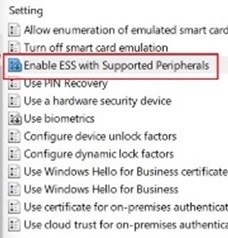
- Click Enable ESS with Supported Peripherals in the Setting window.
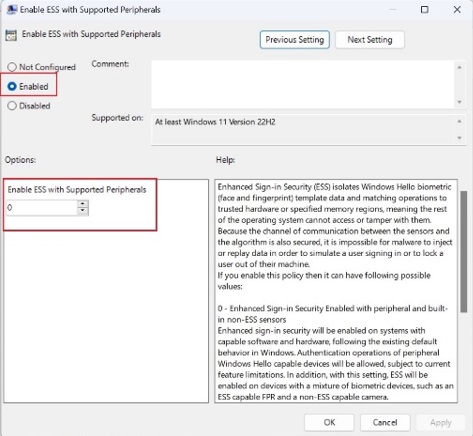
- Select Enabled, change the value to 0, and click Apply.
 Note: Refer to Configure Windows Hello for Business policy settings section in the Microsoft DocumentCaution: If done incorrectly, modifying the Windows registry can lead to data loss or operating system corruption. Dell Technologies recommends that you back up data before proceeding with any Windows Registry edit. It is also recommended that a full backup of the Windows registry is made before starting the edit. See Windows registry information for advanced users
- Option 1 for End Users:
Solution for Windows 10 22H2 Users:
Follow these steps to turn off Memory integrity or disable Intel VT for Direct I/O.
- To disable Memory integrity:
- Search Core isolation.
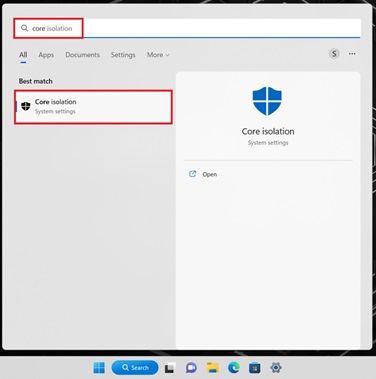
- Turn off Memory integrity and restart the computer.
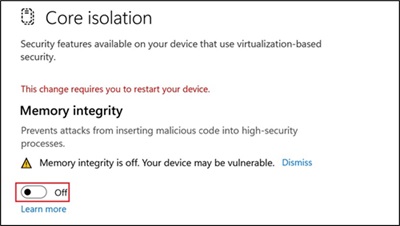
- Search Core isolation.
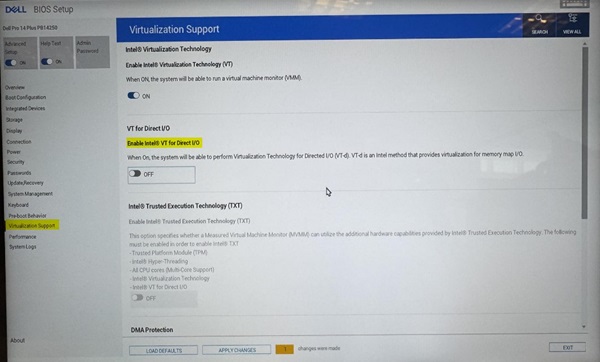
- To disable VT I/O in BIOS:
- Go to BIOS setup.
- Select Virtualization Support.
- Press ctrl + alt + S key to show the hidden option.
- Disable VT for Direct I/O.
Affected Products
Dell Pro 13 Plus PB13250, Dell Pro 14 Plus PB14250, Dell Pro 16 Plus PB16250Article Properties
Article Number: 000274680
Article Type: Solution
Last Modified: 02 May 2025
Version: 9
Find answers to your questions from other Dell users
Support Services
Check if your device is covered by Support Services.