ECS: How to connect ECS with S3 Browser
Summary: Connecting to ECS with S3 Browser
This article applies to
This article does not apply to
This article is not tied to any specific product.
Not all product versions are identified in this article.
Instructions
S3 Browser is a freeware Windows client for Amazon S3 that provides a simple web service GUI to store and retrieve data in your ECS environment.
The S3 Browser application can be downloaded here.
Once installed, follow the steps below to configure a connection to ECS using the S3 protocol.
When connecting directly to a node in ECS, use port 9020 (http) or 9021 (https). If connecting through a load balancer, it s likely that port 80 (http) or 443 (https) is used.
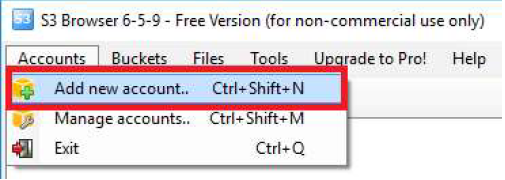
Upon opening S3 Browser for the first time, automatically prompts to add a new S3 account. If not, click "Accounts," then "Add new account".
Obtain the object username and S3 secret key from the user configuration in the ECS portal (GUI).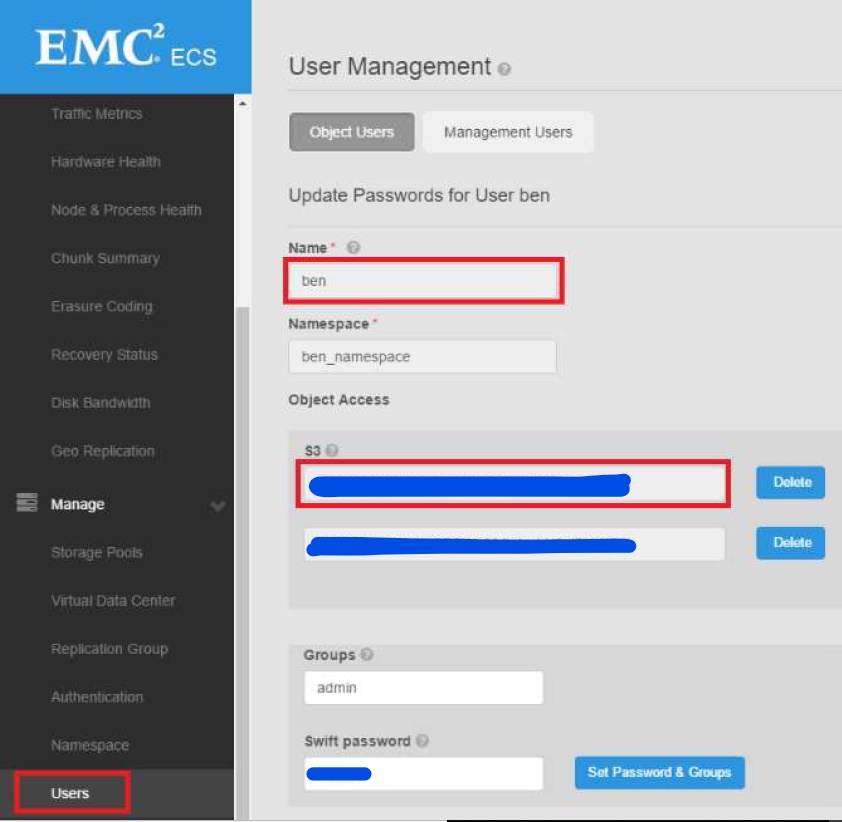
Enter the account information as follows for connecting directly to a node in your ECS.
- Type an account name and choose S3 Compatible Storage from the dropdown menu.
- The REST endpoint is the IP address of one of the nodes in your rack including the correct port for http/https 9020/9021. Copy and paste your object username and secret key from the ECS portal (GUI).
- Finally, be sure to check Use secure transfer (SSL/TLS) if connecting using a secure port on ECS. After all information is entered, click the Add new account button.
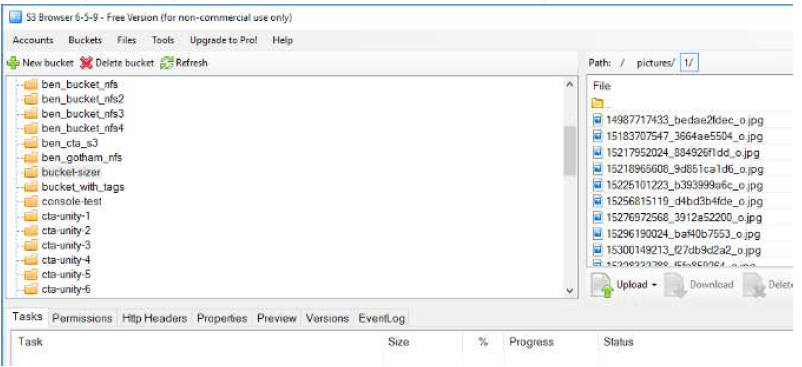
- The buckets in your namespace should list and be visible in the left window pane.
Additional Information
Affected Products
Elastic Cloud StorageProducts
ECS Appliance, ECS Appliance Hardware Series, ECS Appliance Software without Encryption, Elastic Cloud StorageArticle Properties
Article Number: 000014110
Article Type: How To
Last Modified: 16 Sep 2025
Version: 7
Find answers to your questions from other Dell users
Support Services
Check if your device is covered by Support Services.