Dell Unity: How to perform a health check
Summary: This article explains how to perform a system health check.
This article applies to
This article does not apply to
This article is not tied to any specific product.
Not all product versions are identified in this article.
Instructions
It is recommended to perform a system health check prior to starting an upgrade. This ensures that the array is in a healthy state and ready for the upgrade.
If there are issues that need attention, "Warning" and or "Error" messages may be displayed.
There are two methods to perform a health check on a Unity array:
Unisphere (recommended method)
-
Launch Unisphere
-
On the upper right corner, click Settings
- Select Software Upgrade under Software and Licenses.
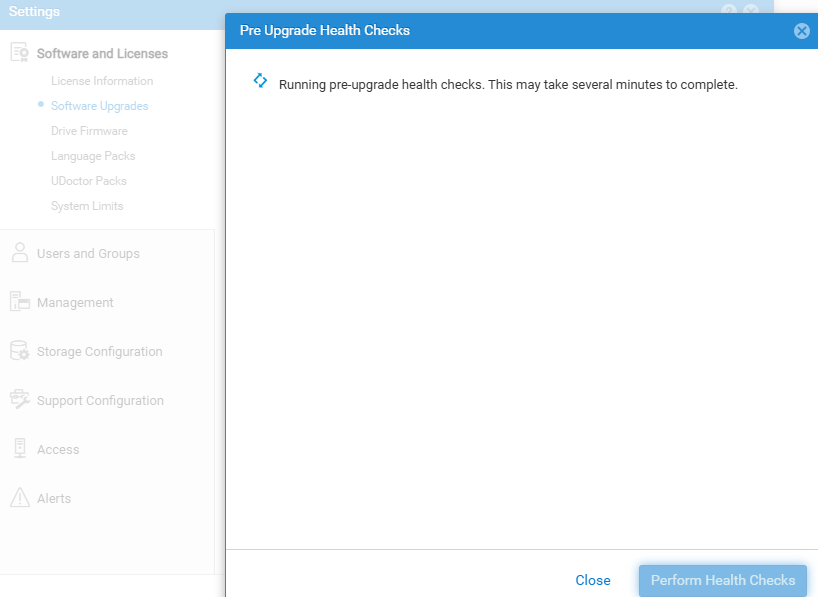
- Select Perform Health Checks.
- Message displays "Running pre-upgrade health checks. This may take several minutes to complete."
- If the system is healthy the pre-upgrade health check will be successful.
Unisphere CLI (UEMCLI)
UEMCLI can be used to run a health check.
UEMCLI can be installed from the support pages (verify that the version is up to date before using it).
If using the array version, log in to the primary Service Processor (SP) using SSH and run the same command (the -d, -u, and -p switches are not required if running this on the array).
uemcli -d <Unity management IP> -u admin -p <password> /sys/general healthcheck
Example:
uemcli -d xx.xx.xx.xx -u admin -p MyPassword123! /sys/general healthcheck
1:    Error code = Warning: One or more asynchronous replication sessions, or one or more NAS Server or file system synchronous replication sessions, exist. This could cause problems during upgrade. Pause the replication sessions on the production array prior to starting the upgrade and resume them after completing the upgrade. [Warning Code: platform::check_replication_health_4]

Operation completed successfully.
Additional Information
Note:
- Async replication sessions should be paused on the production array prior to starting an upgrade and resumed after completing the upgrade.
- In UEMCLI the results of the health check may show errors and warnings, but a message of operation completed successfully displays in the output. This is only an indication that the health check action was performed, not that it was successfully completed without errors and warnings. Attempt to resolve all errors and rerun the health check.
- If errors are present, the upgrade is not allowed. If only warnings are present, the upgrade may continue but it is best to resolve all warnings until the health check is clean.
Examples of warnings and errors:
- Replication
Error:check_replication_health_2 || platform::check_replication_health_4 || check_replication_health_5UEMCLI example: Error code = Warning: One or more asynchronous replication sessions, or one or more NAS Server or file system synchronous replication sessions, exist. This could cause problems during the upgrade. Pause the replication sessions on the production array prior to starting the upgrade and resume them after completing the upgrade. [Warning Code: platform::check_replication_health_4]
Check KB 000491378 for this type of message.
- Server Connectivity
flr::check_server_connectivity_2
Check KB 000491683 for this kind of message.
Affected Products
Dell EMC Unity FamilyProducts
Dell Unity 300, Dell EMC Unity 350F, Dell EMC Unity 400, Dell EMC Unity 400F, Dell EMC Unity 450F, Dell EMC Unity 500, Dell EMC Unity 500F, Dell EMC Unity 550F, Dell EMC Unity 600, Dell EMC Unity 600F, Dell EMC Unity 650F
, Dell EMC Unity Family |Dell EMC Unity All Flash, Dell EMC Unity Family, Dell EMC Unity Hybrid, Dell EMC UnityVSA Professional Edition/Unity Cloud Edition
...
Article Properties
Article Number: 000014633
Article Type: How To
Last Modified: 28 Mar 2025
Version: 4
Find answers to your questions from other Dell users
Support Services
Check if your device is covered by Support Services.