Data Domain: Data Domain Virtual Edition Performance Troubleshooting
Summary: A useful guide to troubleshooting performance issues related to the underlying hypervisor, cloud IAAS provider, or host storage system for Data Domain Virtual Editions & Data Domain Management Console. ...
This article applies to
This article does not apply to
This article is not tied to any specific product.
Not all product versions are identified in this article.
Instructions
VM Hosting Appliance Networking and Connectivity:
Ethernet I/O:
When using ethernet aggregates for data transfer connections to the host appliance, you cannot assume that the existence of an ethernet aggregate configuration balances the load properly. Proper load-balancing techniques and bandwidth should be in place to ensure unrestricted I/O to the VM hosting appliance.
Connectivity from VM Hosting appliance to disk storage:
Connectivity type and protocol have a huge impact on the performance capabilities of a DDVE VM. Listed here are the most commonly used connectivity types between the VM hosting appliance and disk storage. Option 1 offers the best level of performance, with Option 5 being the worst choice of connectivity. HBA write-cache settings can also drastically affect performance capability between the host appliance and disk storage. It is recommended that write-cache should be enabled at the HBA to ensure best performance from the host appliance to disk storage.
Note: Write-caching at the disk level should NEVER be enabled, as it can cause data loss if there were an abrupt power loss.
- Direct Attached Storage - SAS disks/SSD in RAID 5 or RAID 6 + HBA-write-cache enabled (Preferred for best performance)
- Direct Attached Storage - JBOD without RAID +HBA-write-cache enabled (Acceptable performance, but lacks recommended RAID protection)
- FC attached external RAID storage (active/active 16 GB or faster) (Acceptable performance, but may be limited by FC perf capabilities)
- iSCSI 10G (external disk storage) (Not recommended)
- NFS 10G (external disk storage) (Not recommended)
Checking physical storage arrays and statistics and performance:
Disk quality vs Disk Size vs Disk quantity:
Higher density drives, for example 4+ TB, have fewer IOPS per TB than smaller drives. For this reason, a DDVE deployed across a higher quantity of smaller TB drives offers faster performance than a DDVE deployed on a few large TB drives. This is due to DDVE's high dependency on random-read performance. The normal workload from DDVE can make this battle between physical disk size and physical disk quantity even more pronounced, so try to ensure your storage system has a good balance and meets expectations set out in the appropriate DDVE Best Practices Guide. For this article, we will not focus on individual, physical HDD and SSD types and their performance capabilities. This information can be obtained from the disk manufacturer. Suffice it to say that higher performing physical disks equate to better a performing DDVE VM.
Storage troubleshooting:
Verify latency on the physical disks associated with your DDVE VM.
For VMware, this can be accomplished by selecting your VM, select the Performance tab, and then select Datastore from the drop-down. It displays all the relevant datastores for your particular DDVE VM. Finally, select the Advanced button for a granular, graphical display of latency for datastores associated with your DDVE VM.
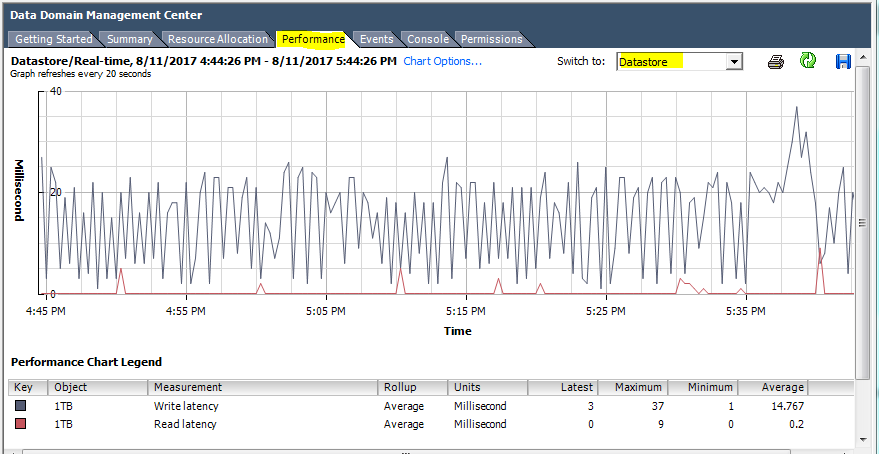
Figure 1: Datastore Performance
To determine the I/O load for a datastore, calculate the IOPS being processed by your datastore.
Start with the same graph as before, but select Chart Options, clear Write latency and Read latency, and then select the two values Average read requests per second and Average write requests per second. The resulting graph displays to you how many IOPS the datastore is performing, and it could give you some idea of the overall load that the DDVE storage "dev" is putting on a datastore. This output can also be useful in distinguishing if the datastore is being shared with workload from a non-DDVE application.
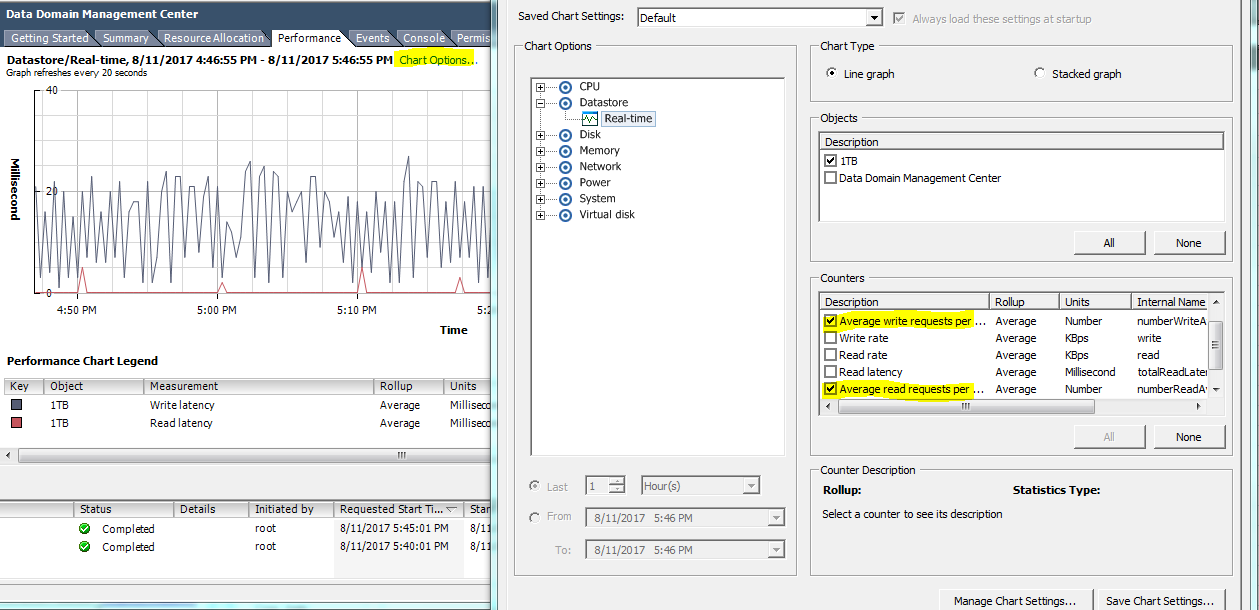
Figure 2: Chart options
For a more granular view of the IOPS, check the read/write ratios.
By design, DDVE usually reads from disk storage 2-4 times more than writing. The exception to this is during the gen-0 (seeding) of backups, when entirely new data is getting written, and cannot be deduplicated. Due to the aforementioned reasons, the physical storage used by DDVE must be able to efficiently handle the predominately read-centric, but mixed, random workloads of the Data Domain Filesystem.
Physical disk storage arrays (SSD, magnetic disk and so on) can exhibit a vastly different capability to efficiently process reads compared to writes. The ability for a physical disk storage system to provide, exceptional Random read IOPS performance, coupled with low (under 40 milliseconds) latencies, are the most critical factors in determining if a datastore meets acceptable performance characteristics for a DDVE VM.
If deeper investigation into storage arrays or datastore performance is required, a command-line tool called vscsiStats would be employed. Consult VMware support for further details on how vscisistats can be leveraged to obtain block sizes, latencies, and more detailed read/write performance statistics.
Note: The DDVE VNVram disk (dev2) is write only. These IOPS are small if "source -ide deduplication" (DDboost) is being used, and high if NFS or CIFS protocols are being used.
Verifying that resource provisioning meets requirements for DDVE:
Frequently, the cause of a DDVE VM performance problem can be attributed to some configured setting which limits resources available to the DDVE VM. In general, resource pools with limitations will only serve to limit the overall performance of a DDVE VM, and as such, would be discouraged. Conversely, there are some resource reservations which improve overall performance of a DDVE VM. Always consult the DDVE Best Practices & Administration guides for your configuration when deploying, troubleshooting, or tuning a DDVE VM for performance.
Start your verification of resource allocation, by selecting the Resource Allocation tab. Next, Select the DDVE VM you are troubleshooting from the pool of VMs. In the View section, select CPU, and check all VMs inside that pool (assuming that your troublesome VM is in there as well). Ensure the Limit MHz is set to a value of Unlimited. Limiting CPU resources for a DDVE VM is discouraged and results in reduced performance.
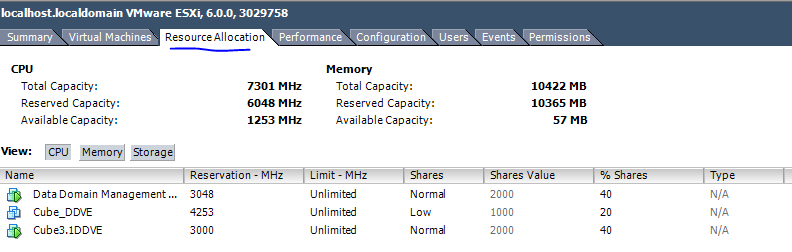
Figure 3: Resource Allocation
Move on to verifying the memory resources allocated to the DDVE VM. Verify that memory resources are properly "reserved" and set to Unlimited to ensure best performance. Setting limits on memory allocation for a DDVE is discouraged and results in reduced performance.
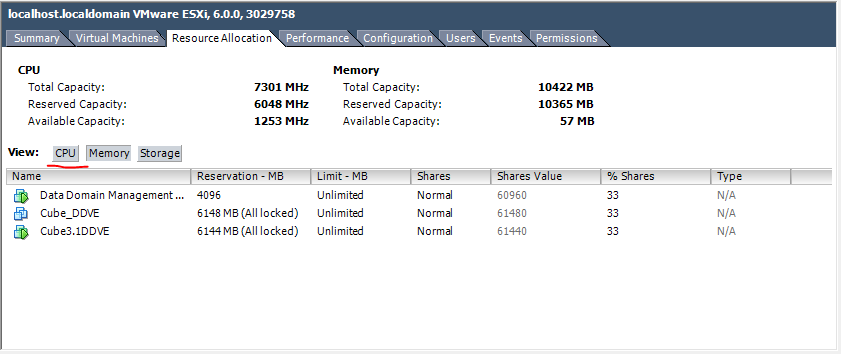
Figure 4: Memory Resources
Under the Storage tab, verify that there are no limitations placed on storage IOPS. Select the Storage button and view the disks/datastores. The "Limit-IOPS" value for each disk associated with a DDVE VM must be set to a value of Unlimited.
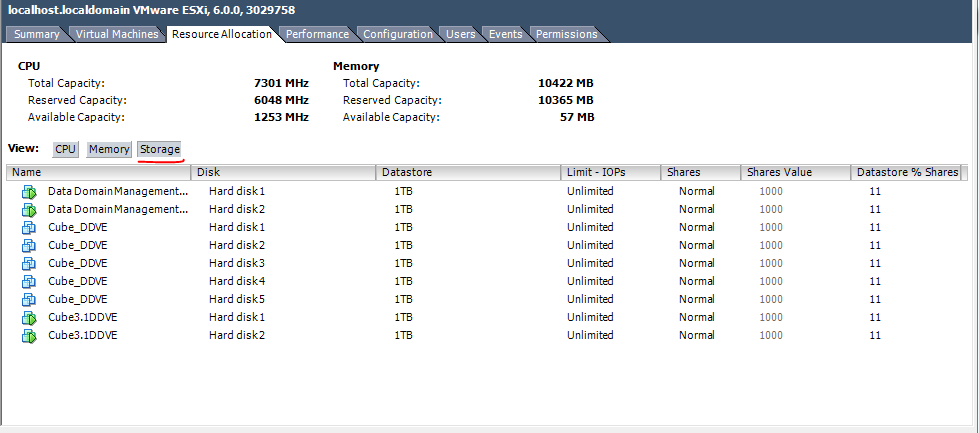
Figure 5: Storage Resources
For the three resource categories already mentioned, take note of % shares values. The % shares values indicate what percentage of shares that particular VM is drawing from the entire resource pool. "Shares values" are relative, not absolute. However, ensure that there is not a wide variance between values across all the devices in the pool. For instance, 1000, 2000 or 3000 could be expected, however, values such as 10, 5, 4000 would indicate an abnormal disparity and unequal sharing of resources. If any single VM has a vastly differing value, you must consider a modification to your "shares value" settings.
Checking performance statistics for the DDVE VM:
An efficiently running DDVE VM needs uninhibited access to resources to ensure top performance. DDVE makes extensive use of memory and CPU, and cannot be limited without problems. Once a DDVE VM is in production, we can leverage the graphs and charts under the Performance tab to assess its use of resources. We can use these to make some determination on how efficiently it is working.
CPU
Select the DDVE VM that you want to troubleshoot. Next, select the Performance tab. Where it says switch to, select CPU from the drop-down. From this view, you can assess the amount and percentage of CPU that the DDVE VM is consuming. If the % of CPU used by the DDVE VM is a high percentage of the overall resource, we can assume that the hosting appliance may not be suitable for running the DDVE VM to its full potential.
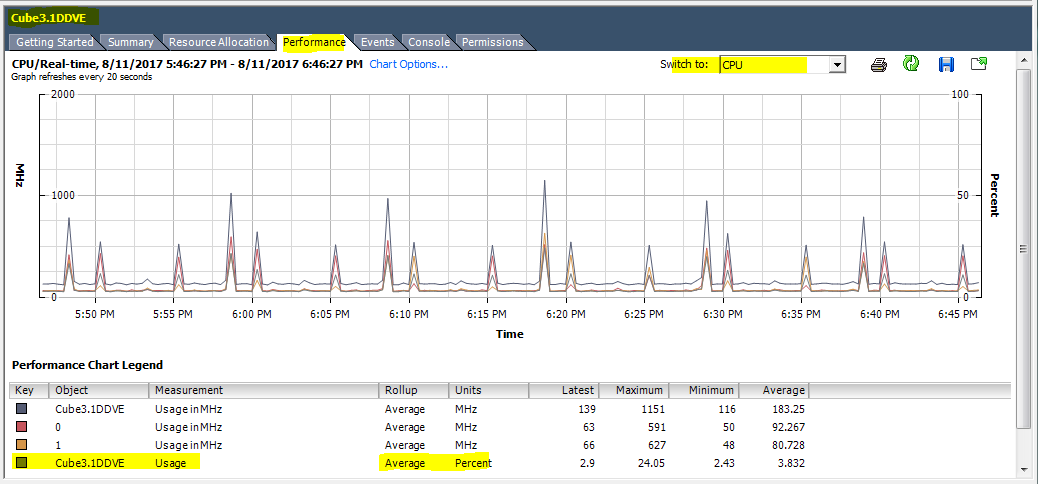
Figure 6: CPU Performance
Memory
If the VM appears to be slow responding, the CPU may have a scheduling issue. To assess CPU efficiency, start with the previous chart and once again select Chart Options. Clear all Counters and then select Ready. This displays the ready time of the VirtualCPU(s). The milliseconds value indicates the time that a VM is ready to start, but the hypervisor cannot assign a CPU to the task in a timely manner. For optimal DDVE VM performance, we would like to see this below 8 milliseconds.
Note: To properly calculate the ready time from this real-time view, you must divide all millisecond values displayed in the chart by 20.
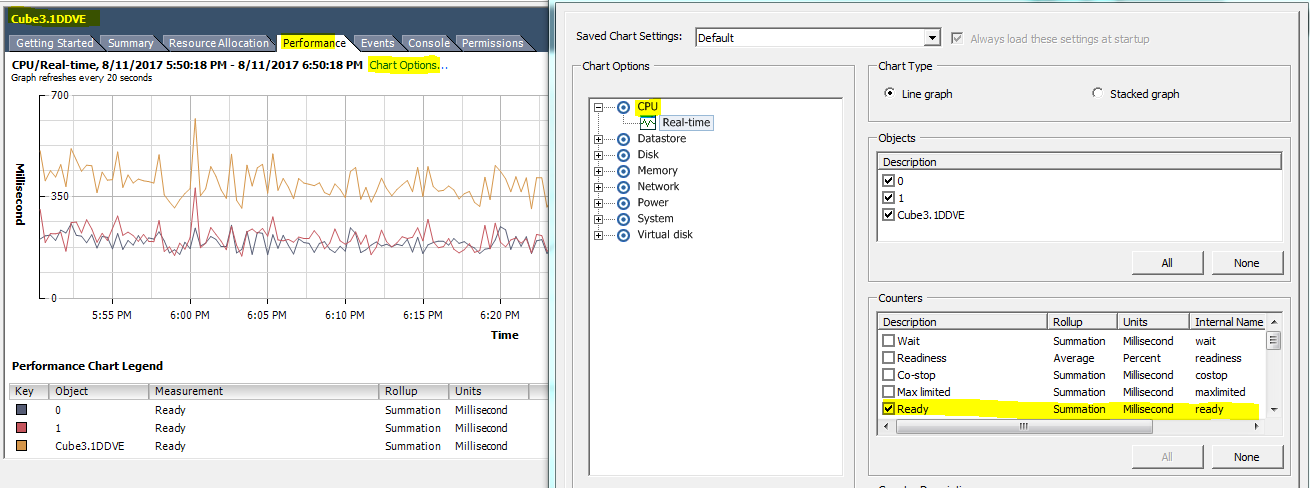
Figure 7: CPU ready time
Memory performance and availability could also be a limiting factor in overall DDVE VM performance. If a DDVE VM is not configured with the required amount of reserved physical memory, there is an active alert generated. Check active alerts by running # alerts show current at the DDVE CLI and resolve as necessary.
If a DDVE VM does not have enough available memory resources, the DDVE VM responds by swapping its memory pages to disk. This is an undesirable condition and results in severely degraded performance. To assess the active memory usage of a DDVE VM, start by selecting the Performance tab and then select Memory from the Switch to box.
By default, the graph displays Active, Granted, Balloon, and Consumed memory values. For optimal performance, ensure that active memory is roughly 35-50% of the Granted memory value. Whenever active memory value approaches 60% of Granted memory, you could enter a scenario where swapping is occurring inside the DDVE VM.
Note: Seeing some small degree of ballooning might not be a problem, but seeing a constant nonzero value for ballooning usually indicates a physical memory resource shortage. If ballooning is evident on a consistent basis, then VMware can start ESXi level swapping. Level swapping and constant ballooning are a definite indicator that the hosting appliance has insufficient physical memory available to serve the DDVE VM.
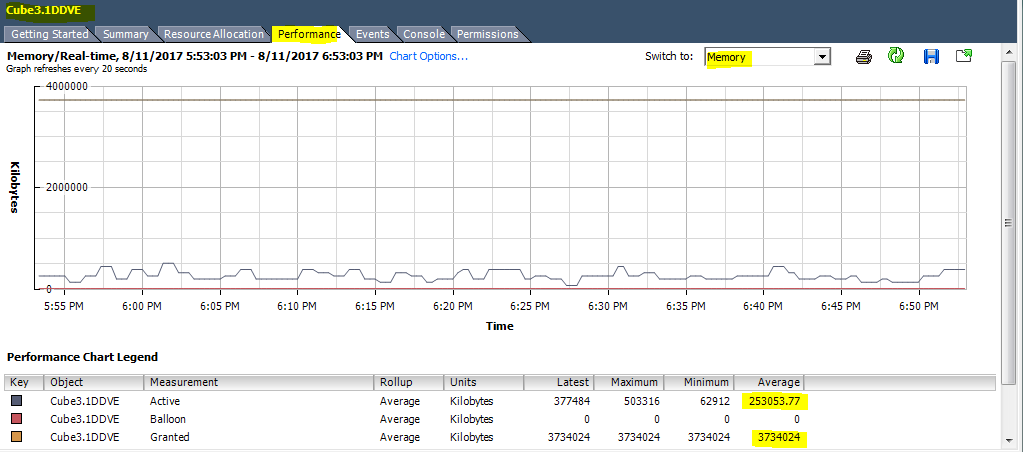
Figure 8: Memory performance
Verifying that a DDVE VM meets "best practices" and recommended configurations:
When troubleshooting performance problems, there are many things to check and logs to collect from the DDVE VM itself. Before opening a DDVE support case, start by verifying that the DDVE configuration meets recommended best practices and recommended settings. Refer to the documentation on the Support Site, for the DDVE version and hosting platform you are running.
Gathering Performance statistics:
- Gather results from the following CLI commands and tools to assess the underlying disk storage and ensure that the configuration meets the required performance level to support the chosen DDVE capacity.
Note: Review below ETA - use of the Disk Assessment Test (DAT tool) on DDVE 2.0 & 3.0 prior to 6.0.1 can cause disk corruption on disk devices dev10 and higher.
- ETA 495989: Data Domain Virtual Edition: Potential data loss may occur when the Disk Analysis Tool is run against Data Domain Virtual Edition disk volumes
- ETA 495989: Data Domain Virtual Edition: Potential data loss may occur when the Disk Analysis Tool is run against Data Domain Virtual Edition disk volumes
- Perform a Disk Assessment Test (DAT) for each disk devs attached to the DDVE. The Performance Monitoring section of the DDVE administration guide has detailed instructions on when and how to use the DAT tool.
- Perform the DAT testing based on the type of I/O ingested. The
with-vnvramoption should be used if you are primarily using CIFS/NFS to write backups. Some users use Boost to perform backups and then use NFS to get read access If so, the use of thewith-vnvramflag is not required. - DAT tool usage is not supported for a Cloud deployed DDVE (Microsoft Azure, Amazon AWS).
- DDVE CLI commands to gather information for performance troubleshooting:
#alerts show current#system vresource show required#system vresource show current#storage show all(verify that spindle group assignments meet best practices)#cd /ddr/var/log/debug/kern.info/disk_perf/perf.log(review latency and IOPS per device)#system show performance(use best syntax to narrow down the view of CLI output during normal DDVE I/O load)#system show perf custom-view protocol-latency duration 1 hr interval 3 min#system show perf custom-view utilization duration 1 hr interval 3 min#system show perf custom-view iops duration 1 hr interval 3 min#system show perf custom-view streams duration 1 hr interval 3 min
#disk show performance <dev2>(multiple devs can be entered to get a complete view)
 Disk                            Read                                                   Write                                             Read+Write
            KiB/sec IOPs    Resp(ms)  Ops >1s   KiB/sec     IOPs  Resp(ms)   Ops >1s   MiB/sec   IOPs   Resp(ms)    Random     Busy
----   ------------------------------   ------------------------------   ----------------------------------------  ----------------------------------------  ----------------------------------------
dev2   0             0       3.63               0               0           0     7172.87         4801       0.000       0        2486.26           81.64%    0.01%
----   ------------------------------   ------------------------------   ----------------------------------------  ----------------------------------------   ----------------------------------------
- Gathering DDVE performance information using # vserver CLI Gathering DDVE performance information using # vserver CLI
Note: Versions prior to 6.0.1.10 do not have VServer CLI.
#se # vserveroutput during I/O load. (Output is part of bundle upload if VServer is configured and started prior to creating the bundle.)
                                SE@localhost## vserver config set host 12x.xxx.90.xx
                                The SHA1 fingerprint for the vServer's CA certificate is
                                D1:71:7C:57:3F:3D:3D:3xxxxxxxxxxxxxxxx

                                 Do you want to trust this certificate? (yes|no) [yes]: yes

                                    Enter vServer username: xxxxxxxx
                                    Enter vServer password:xxxxxxxxxxxx

                                 vServer configuration saved.
                                 Started periodic collection of DDVE performance information at/ddvar/log/debug/vserver/ddveperf.log
- Create and upload a current support bundle including
vserveranddisk_perflogs.
Note: 6.1.0.1 does not include
vserver or disk_perf in the bundle. These must be manually uploaded or added to the bundle.
#support bundle create default#support bundle create files-only /ddvar/log/debug/platform/disk_perf/perf.log#support bundle create default with-files /ddvar/log/debug/platform/disk_perf/perf.log /ddvar/log/debug/vserver/ddveperf.log
Additional Information
Template for opening an SR with DD Support to troubleshoot DDVE VM performance
VM Host configuration
Host manufacturer, model, version, and operating system hostname?
Hypervisor vendor (VMware, Hyper-V, other)?
Host ESXi/Hyper-V server version and build number?
vSphere client or Hyper-V manager version and build number?
Is this a clustered configuration or a HA configuration?
Any recent changes to host or VM configurations?
Does your host appliance have battery-backed cache, NVRAM, or other type of mechanism to preserve data on unscheduled shutdown?
VM Host storage
Storage RAID configuration and disk size, speed, type (for example, RAID 6 - 3 TB - 7200 RPM - SATA)?
Storage system connectivity type (NFS, FCP, iSCSI, SAS)?
Are the storage volumes and datastores used by DDVE shared with non-Data Domain workloads?
Is write-caching enabled or disabled on the storage in use by DDVE?
Any recent changes to storage configuration?
Are you using thick or thin provisioning for DDVE disk devices?
Data Domain Virtual Edition Configuration
DDVE operating system version and size (for example, DDVE 3.0 - 6.0.1.10 - 64 TB)?
DDVE data transfer protocol (for example, Boost, NFS, CIFS, NDMP, FCP)?
DDVE workloads (for example, Cloud, Replication, Backup, VTL)?
Backup application and plug-in versions?
Detailed problem description
Networking:
Performance:
Install and configuration:
DD file system:
Data unavailable or data loss?
Do you have a current case open with any other vendor related to this DDVE?
Logs required
Support bundle - #support bundle create default Data Domain: How to collect/upload a support bundle (SUB) from a Data Domain Restorer (DDR)
Note: For pre 6.1 operating system, additional uploads are required to get perf.log and vserver outputs.
vserver perf-stats - #support bundle create files-only /ddvar/log/debug/platform/disk_perf/perf.log
disk_perf/perf.log - #support bundle create files-only /ddvar/log/debug/vserver/ddveperf.log
"Optional" VMware log bundle - See VMware self-service site for article
Affected Products
Data Domain, Data Domain Virtual Edition, PowerProtect Data Domain Management CenterArticle Properties
Article Number: 000022337
Article Type: How To
Last Modified: 17 Apr 2026
Version: 10
Find answers to your questions from other Dell users
Support Services
Check if your device is covered by Support Services.