Dell EMC Unity: Change Storage ( Destination) IP Address,Ethernet Connection and RPO during a replication session. (User Correctable)
Summary: Customer asked if he can change some parameters of a storage (destination) during a replication session that's being enabled
This article applies to
This article does not apply to
This article is not tied to any specific product.
Not all product versions are identified in this article.
Instructions
1- Replication session must be paused in order to make the changes
From the source,go to File tab > NAS Server (in my case Movies) >Click on edit icon> Replication>Pause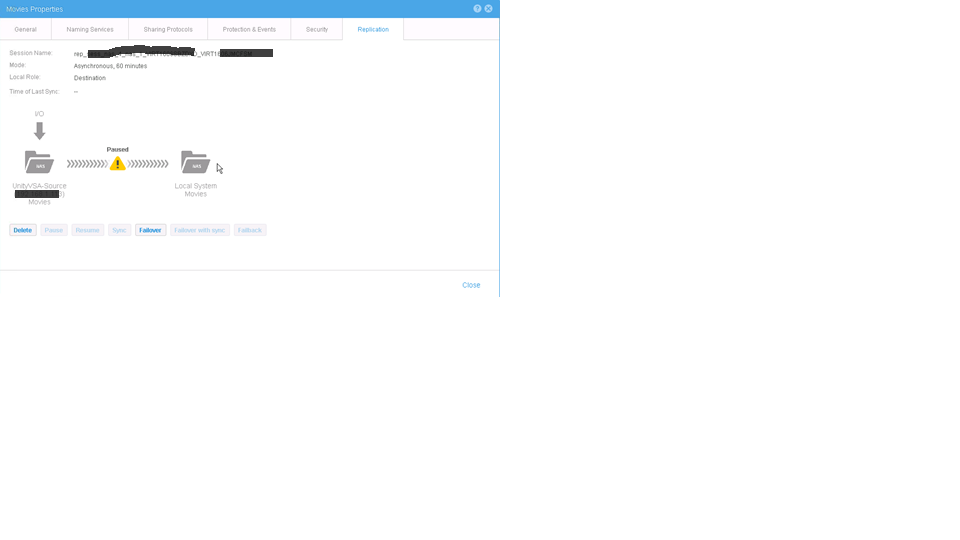
2-Change Destination IP Address as well as Management IP Address (Both to be the same)
From destination,go to Settings>Management>Unisphere IPs> change to the desired IP (in my case XXX.XXX.XXX.XXX)
From source,go to Replication tab>Connections>Click on edit icon>change Management IP address to be the same as the destination IP address (in my case xxx.xxx.xxx.xxx)
3-Use "Verify and Update" button from "Replication Connection" tab to update the connections in both sides (Source and Destination)
4-Resume the Replication session and a message will appear indicating that session will be resumed based on the RPO settings configured.
5-You can see the below page after replication session being restored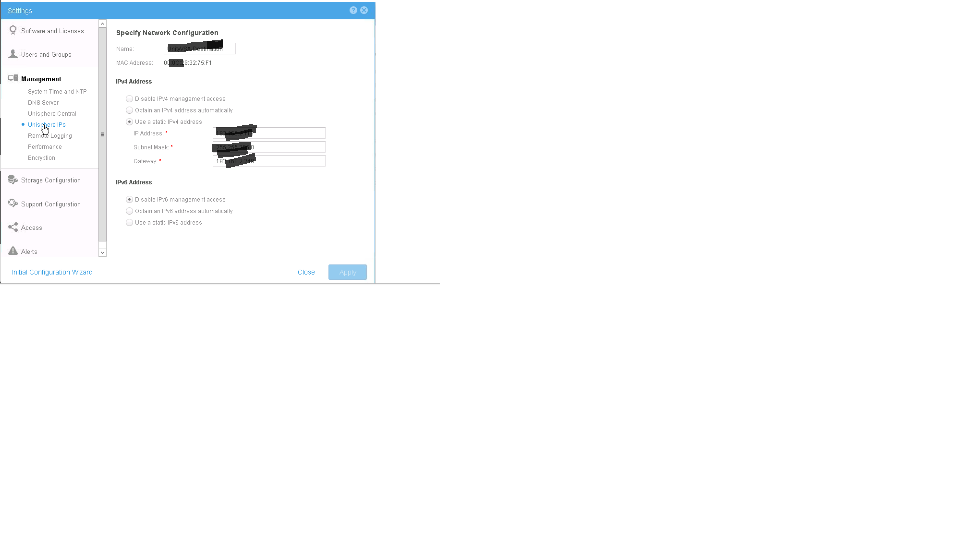
Additional Information
When you resume the paused replication sessions, source snapshots will be updated based on RPO time settings,The minimum and maximum RPO values are 5 minutes and 1440 minutes (24 hours).
To guarantee the synchronization of the changed data and avoiding starting a full sync,exact calculations of RPO settings have to be done by Professional Services team.
To guarantee the synchronization of the changed data and avoiding starting a full sync,exact calculations of RPO settings have to be done by Professional Services team.
Affected Products
Dell EMC Unity FamilyProducts
Dell EMC Unity FamilyArticle Properties
Article Number: 000022556
Article Type: How To
Last Modified: 16 Oct 2025
Version: 4
Find answers to your questions from other Dell users
Support Services
Check if your device is covered by Support Services.