Windows Server: Removing Windows iSCSI Sessions that are not in use
Summary: Information about how to safely remove unused iSCSI connections in Windows when there are multiple iSCSI Sessions per target.
This article applies to
This article does not apply to
This article is not tied to any specific product.
Not all product versions are identified in this article.
Instructions
In order to safely remove the sessions, there must be no devices connected to the session. If there is a device connected, it will then require an outage of that resource in order to disconnect that resource, followed by the session, and then reconnecting the device.
- Open iSCSI initiator and select target.
- Open Properties
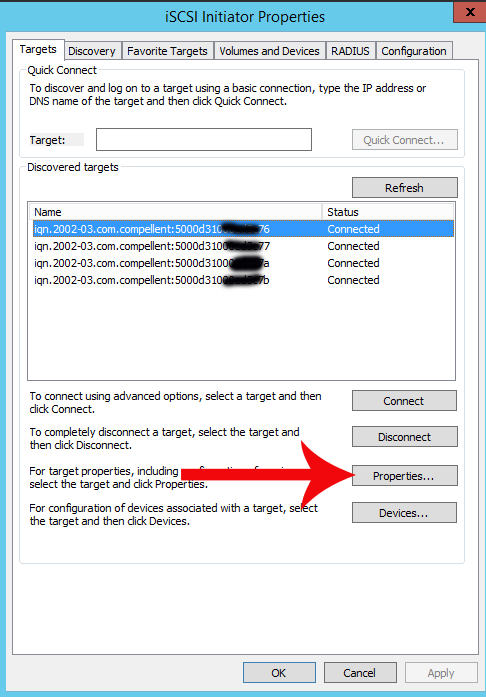
- Select a session and choose the devices button

- Verify that no devices are listed for the session that you want to remove.
- If no devices then select the disconnect option.
- Maintain one session per connector for connectivity.
Warning: Do not disconnect a session that has active devices. Only disconnect if there are no devices on the session.

Additional Information
For command-line steps to disconnect and remove iSCSI targets see the links below:

Affected Products
Microsoft Windows Server 2016, Microsoft Windows Server 2019, Microsoft Windows Server 2022, Microsoft Windows Server 2025Products
Modular Infrastructure, Rack Servers, Tower ServersArticle Properties
Article Number: 000120974
Article Type: How To
Last Modified: 24 Jan 2025
Version: 4
Find answers to your questions from other Dell users
Support Services
Check if your device is covered by Support Services.