Bluetooth省電力設定が接続の問題を引き起こしている
Summary: この記事では、Windows 11およびWindows 10で、Bluetoothデバイスが断続的に接続を失う問題をトラブルシューティングする方法について説明します。
This article applies to
This article does not apply to
This article is not tied to any specific product.
Not all product versions are identified in this article.
Symptoms
Cause
BluetoothデバイスがWindowsコンピューターからランダムに切断されている場合は、Windows電源管理の保存機能が原因である可能性があります。
Windows電源管理の保存機能をオフにすると、問題が解決する場合があります。
お使いのPCにインストールされているオペレーティング システムに応じて、次のいずれかを行います。
問題を解決するための手順については、「 Windows 11でのBluetooth電源管理設定の変更 」セクションを参照してください。
または
問題を解決する手順については、「 Windows 10のBluetooth電源管理設定の変更 」セクションを参照してください。
Resolution
Windows 11でBluetooth電源管理設定を変更する
次の手順は、Windows 11でこのオプションを無効にする方法を示しています。
- デバイス マネージャーを次の手順で開きます。デバイス マネージャーのアクセス方法
- Bluetoothの左側にある矢印をクリックして、セクションを開きます。
- Bluetoothアダプターを右クリックし、[プロパティ]を選択します(図1)。
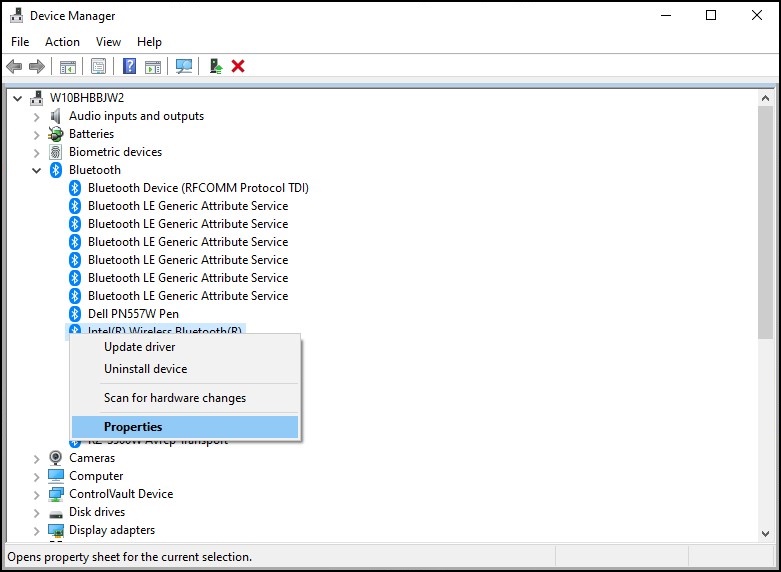
図1: Bluetooth デバイス ウィンドウ - アダプター Bluetoothウィンドウ(図2)が開きます。[電源管理]タブに移動し、[電力の節約のために、コンピューターでこのデバイスの電源をオフにできるようにする]の横のチェックボックスがオフになっていることを確認します。

図2:Bluetoothデバイスのプロパティ ウィンドウ - [OK]をクリックします。
お使いのBluetoothデバイスに引き続き接続の問題がある場合は、次の記事の情報を参照してください。Bluetoothのトラブルシューティングと使用方法
Windows 10でBluetooth電源管理設定を変更する
Windows 10ビルド2004以降では、Bluetoothデバイスが省電力モードにならないように、Bluetoothデバイスの「電源管理」オプションが削除されました。
次の手順は、Windows 10でこの問題を解決するための可能な解決策を提供します。
- デバイス マネージャーを次の手順で開きます。デバイス マネージャーのアクセス方法
- [ヒューマン インターフェイス デバイス] の左側にある矢印をクリックして、セクションを開きます。
- リストされている 任意のBluetooth関連 デバイスを右クリックし、[ プロパティ ]を選択します(図3)。
![[ヒューマン インターフェイス デバイス] ウィンドウ](https://supportkb.dell.com/img/ka0Do000000lpiVIAQ/ka0Do000000lpiVIAQ_ja_3.jpeg)
図3:[ヒューマン インターフェイス デバイス] ウィンドウ - [Bluetooth device]ウィンドウ(図4)が開きます。[電源管理]タブに移動し、[電力の節約のために、コンピューターでこのデバイスの電源をオフにできるようにする]の横のチェックボックスがオフになっていることを確認します。

図4:Bluetoothデバイスのプロパティ ウィンドウ - リストされている他の Bluetooth関連 デバイスに対して、同じ手順を繰り返します。
- [OK]をクリックします。
メモ: コンピューターに指紋認証リーダーがインストールされている場合、この問題は、指紋認証リーダーのドライバーが原因で発生することもあります。ある場合は、次の手順を実行します。
- デバイス マネージャーで、[ 生体認証デバイス ]の左にある矢印をクリックして、セクションを開きます(利用可能な場合)。
- 指紋認証リーダー関連のデバイスのリストを右クリックし、[プロパティ]を選択します。
- 指紋認証デバイスのウィンドウが開きます。[電源管理]タブに移動し、[電力の節約のために、コンピューターでこのデバイスの電源をオフにできるようにする]の横のチェックボックスがオフになっていることを確認します。
- [OK]をクリックします。
お使いのBluetoothデバイスに引き続き接続の問題がある場合は、次の記事の情報を参照してください。Bluetoothのトラブルシューティングと使用方法
Additional Information
Affected Products
Alienware, Dell All-in-One, Dell Pro All-in-One, Dell Pro Max Micro, Dell Pro Max Slim, Dell Pro Max Tower, Dell Pro Micro, Dell Pro Slim, Dell Pro Tower, Dell Slim, Dell Tower, Inspiron, Legacy Desktop Models, OptiPlex, Vostro, XPS, G Series
, G Series, Alienware, Dell Plus, Dell Pro, Dell Pro Max, Dell Pro Plus, Dell Pro Premium, Inspiron, Latitude, Dell Pro Rugged, Vostro, XPS, Legacy Laptop Models, Fixed Workstations, Mobile Workstations, Dell Pro Max Micro XE FCM2250, Dell Pro Max Slim XE FCS1250, Dell Pro Max Tower T2 XE FCT2250, Dell Pro Micro Plus XE QBM1250, Dell Pro Slim Plus XE5 QBS1250, Dell Pro Tower Plus XE5 QBT1250
...
Article Properties
Article Number: 000122996
Article Type: Solution
Last Modified: 18 Jun 2025
Version: 13
Find answers to your questions from other Dell users
Support Services
Check if your device is covered by Support Services.