PowerStore Alerts: Physical Capacity Utilization
Summary: This article discusses alerts for lack of physical space and the resulting offline alerts.
This article applies to
This article does not apply to
This article is not tied to any specific product.
Not all product versions are identified in this article.
Symptoms
When Dell PowerStore encounters an issue, an error alert is generated to help identify the issue. This article explains the different possible causes and the relevant remediation for these error alerts. If your issue is not resolved despite the remediation that is provided, check the technical support contact options.
NOTE: Cannot find the information needed? Let us know using the feedback form at the bottom of this article.
Cause
- Physical Capacity represents the usable capacity that the client can use for their applications, including the appliance data involved in managing all the appliance objects.
- The alerts below are raised when physical capacity for a specific appliance reaches predefined thresholds. Client actions may be required to avoid Write Protect Mode (WPM).
- When an appliance reaches its full capacity, it enters a condition that is known as Write Protect Mode (WPM). In WPM, all volumes transition to read-only, and a repair of the appliance is required.
- Alerts are raised when an appliance reaches 70% of its capacity and continue to be raised until the appliance runs out of space and enters Write Protect Mode (WPM).
- Cluster performance may be impacted at excessive utilization levels.
- Migration into this appliance may contribute to high space utilization.
General Recommendations:
- Maintain less than 85% utilization rate per appliance.
- Use a dataset that is in average not highly compressible (over 8:1).
Extra References
- For an Overview of how Physical Capacity is calculated, see KB article 000188491: PowerStore: How PowerStore physical capacity is calculated.
- For Error Codes (0x00200701) (0x00201401) (0x00201501) relating to Write Protect Mode Capacity alerts in PowerStore, see KB article 000193645: PowerStore Alerts: System Full Capacity Alerts
- For Error Codes (0x00200401) (0x00200501) relating to log data or metadata tier offline in PowerStore, see KB article 000130637: PowerStore Alerts: Data Path Halt and Vault State Alerts
Resolution
| Alert ID | DATA_PATH_USER_TIER_CAPACITY_UTILIZATION_ABOVE_70_PERCENT DATA_PATH_USER_TIER_CAPACITY_UTILIZATION_ABOVE_80_PERCENT DATA_PATH_USER_TIER_CAPACITY_UTILIZATION_ABOVE_90_PERCENT DATA_PATH_USER_TIER_CAPACITY_UTILIZATION_ABOVE_95_PERCENT DATA_PATH_USER_TIER_CAPACITY_UTILIZATION_ABOVE_96_PERCENT DATA_PATH_USER_TIER_CAPACITY_UTILIZATION_ABOVE_97_PERCENT DATA_PATH_USER_TIER_CAPACITY_UTILIZATION_ABOVE_98_PERCENT DATA_PATH_USER_TIER_CAPACITY_UTILIZATION_ABOVE_99_PERCENT DATA_PATH_USER_TIER_CAPACITY_UTILIZATION_ABOVE_95_PERCENT_NDU DATA_PATH_USER_TIER_CAPACITY_UTILIZATION_ABOVE_96_PERCENT_NDU DATA_PATH_USER_TIER_CAPACITY_UTILIZATION_ABOVE_97_PERCENT_NDU DATA_PATH_USER_TIER_CAPACITY_UTILIZATION_ABOVE_98_PERCENT_NDU DATA_PATH_USER_TIER_CAPACITY_UTILIZATION_ABOVE_99_PERCENT_NDU |
|
| Alert Text |
|
|
| Error Code | (0x00200E01) (0x00200E02) (0x00200E03) (0x00200E04) (0x00200E05) (0x00200E06) (0x00200E07) (0x00200E08) (0x00200E0A) (0x00200E0B) (0x00200E0C) (0x00200E0D) (0x00200E0E) |
|
| Resolution |
Resolution varies depending on the type of alert and condition:
Space Alerts with Standard DatasetAlert and PowerStore Manager capacity do not match (alert shows 70%, UI shows 50%), use one of the following options to resolve it:
Space Alerts with Highly Compressible DatasetAlert and PowerStore Manager capacity do not match (alert shows 70%, UI shows 50%), use one of the following options to resolve it:
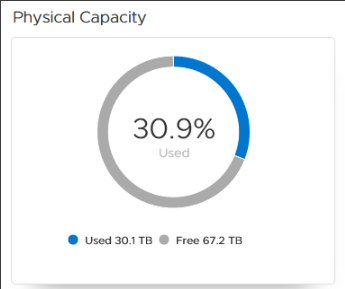
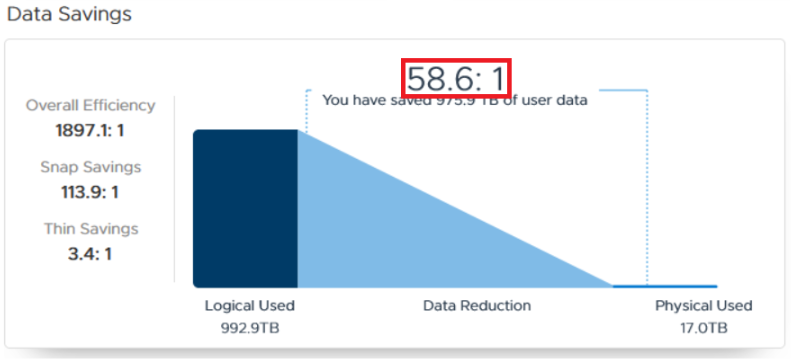
Use one the following options to resolve the issue:
Space Alerts During NDUPowerStoreOS 3.0 adds several new alerts related to capacity utilization during NDU:
Use one the following options to resolve the issue:
|
For Error Codes (0x00200701) (0x00201401) (0x00201501) relating to Write Protect Mode Capacity alerts in PowerStore, see KB article 193645: PowerStore Alerts: System Full Capacity Alerts:
For Error Codes (0x00200401) (0x00200501) relating to log data or metadata tier offline in PowerStore, see KB article 130637: PowerStore Alerts: Data Path Halt and Vault State Alerts
Additional Information
Known Issues:
- If a PowerStore Node is down for more than 30 minutes, capacity may increase over time more rapidly. For more information, see KB 000194258 PowerStore: Appliance may run into WPM (Write Protect Mode) or OOS (Out of Space) after a single node is down for more than 30 min.
- When deleting a volume, the space from deleted volumes is reflected quickly in the PowerStore Manager UI, however the space reclamation is done in the background, and may take some time to complete. It is recommended to wait several hours for the background processes to complete reclaiming the space.
Affected Products
PowerStoreArticle Properties
Article Number: 000123351
Article Type: Solution
Last Modified: 19 Sep 2025
Version: 18
Find answers to your questions from other Dell users
Support Services
Check if your device is covered by Support Services.