How to Manage Two-Factor Authentication (2FA) for VMware Carbon Black Cloud
Summary: Learn how to enable or reset two-factor authentication (2FA) for VMware Carbon Black Cloud by following these step-by-step instructions.
This article applies to
This article does not apply to
This article is not tied to any specific product.
Not all product versions are identified in this article.
Symptoms
This article covers 2FA requirements and management for the VMware Carbon Black Cloud console.
Affected Products:
- VMware Carbon Black Cloud
Cause
Not applicable
Resolution
2FA Client Support
VMware Carbon Black Cloud supports the following 2FA clients:
- DUO Security
- Google Authenticator
Note: Dell and VMware do not endorse nor support any listed third-party 2FA client. Contact the product’s manufacturer for information about setup, configuration, and management.
Enabling and Resetting 2FA
Administrators may Enable or Reset 2FA for their environment. Click the appropriate process for more information.
- In a web browser, go to [REGION].conferdeploy.net.
Note: [REGION] = Region of tenant
- Americas = https://defense-prod05.conferdeploy.net/
- Europe = https://defense-eu.conferdeploy.net/
- Asia Pacific = https://defense-prodnrt.conferdeploy.net/
- Australia and New Zealand = https://defense-prodsyd.conferdeploy.net

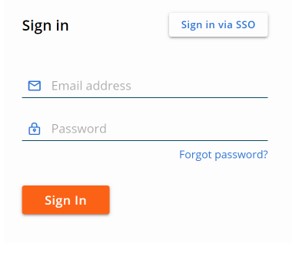
- Sign In to the VMware Carbon Black Cloud.
- In the left menu pane, expand Settings and then click Users.
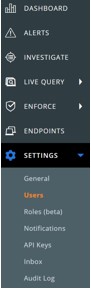
Note: The layout in the example may differ slightly from your environment.
- 2FA may be configured for:
Click on the appropriate 2FA client for more information.
DUO Security
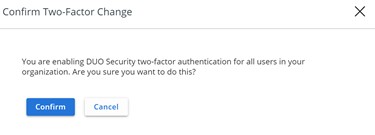
- In the top-menu, click DUO Security.

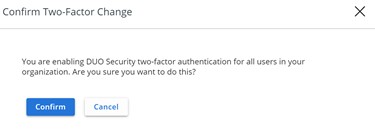
- Confirm two-factor change.
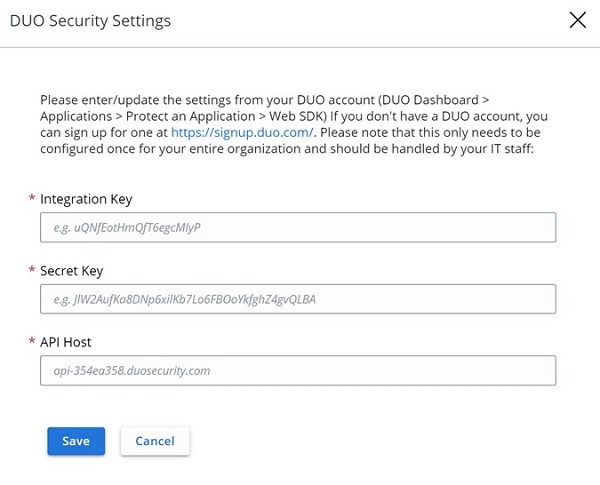
- In the DUO Security Settings user interface (UI):
- Populate Integration Key.
- Populate Secret Key.
- Populate API Host.
- Click Save.
Google Authenticator
- In the top-menu, click Google Authenticator.

- Confirm two-factor change.
- In a web browser, go to [REGION].conferdeploy.net.
Note: [REGION] = Region of tenant
- Americas = https://defense-prod05.conferdeploy.net/
- Europe = https://defense-eu.conferdeploy.net/
- Asia Pacific = https://defense-prodnrt.conferdeploy.net/
- Australia and New Zealand = https://defense-prodsyd.conferdeploy.net
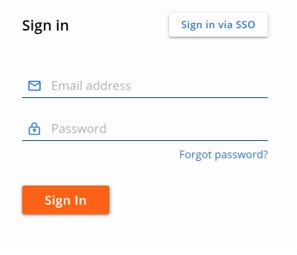
- Sign In to the VMware Carbon Black Cloud.
- In the left menu pane, expand Settings and then click Users.
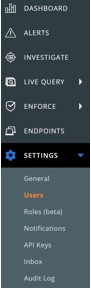
Note: The layout in the example may differ slightly from your environment.
- In the USERS menu:
- Locate the appropriate EMAIL.
- Click the arrow icon under Actions.
- Click Reset Google Authenticator or Reset DUO Security.
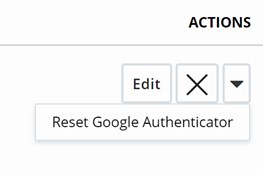
Note: The example screenshot uses Google Authenticator. DUO Security is listed in environments using that 2FA client.
To contact support, reference Dell Data Security International Support Phone Numbers.
Go to TechDirect to generate a technical support request online.
For additional insights and resources, join the Dell Security Community Forum.
Affected Products
VMware Carbon BlackArticle Properties
Article Number: 000126220
Article Type: Solution
Last Modified: 15 Feb 2024
Version: 11
Find answers to your questions from other Dell users
Support Services
Check if your device is covered by Support Services.