How to Enable Tablet Mode On-Screen Keyboard as Default
Summary: Learn how to set the tablet mode on-screen keyboard as your default keyboard when no physical keyboard is connected, even with tablet mode turned off.
This article applies to
This article does not apply to
This article is not tied to any specific product.
Not all product versions are identified in this article.
Instructions
Affected Products:
- Latitudes
- Precision Mobile Workstations
- Dell Plus Laptops
- Dell Pro Laptops
- Dell Pro Max Laptops
- Dell Pro Plus Laptops
- Dell Pro Premium Laptops
- Dell Pro Rugged Laptops
Windows 11 Tablet Mode
Duration: 00:02:49 (hh:mm:ss)
When available, closed caption (subtitles) language settings can be chosen using the CC icon on this video player.
By default, the on-screen keyboard is disabled in Windows and must be enabled through accessibility settings.
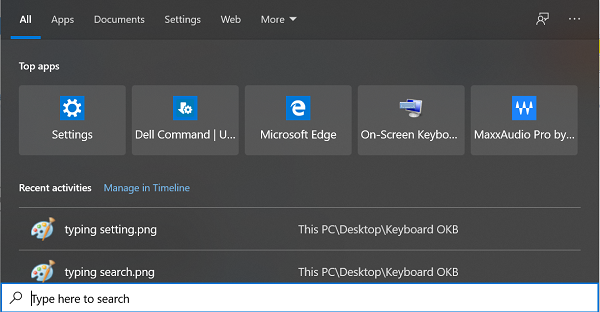
There is also a tablet mode keyboard that is by default only enabled when switching to tablet mode. Users can enable the tablet mode keyboard to be the default on-screen keyboard when there is no keyboard attached to the computer.
To enable the tablet mode keyboard as the default on-screen keyboard, follow these steps below:
- Search for Typing in Windows search.
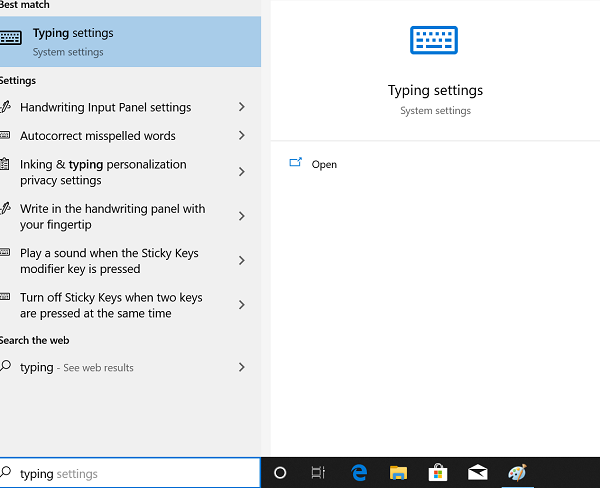
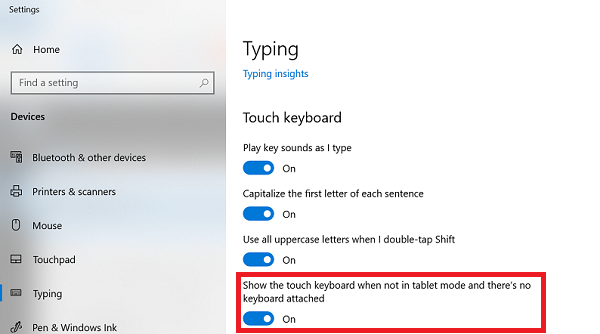
- Once Typing settings is open, scroll down to Touch keyboard.
- Enable Show the touch keyboard when not in tablet mode and there is no keyboard that is attached.
Additional Information

Affected Products
Dell Plus, Dell Pro, Dell Pro Max, Dell Pro Plus, Dell Pro Premium, Latitude, Dell Pro Rugged, Mobile WorkstationsArticle Properties
Article Number: 000128227
Article Type: How To
Last Modified: 08 Sep 2025
Version: 16
Find answers to your questions from other Dell users
Support Services
Check if your device is covered by Support Services.