Inspiron and Vostro Laptops with Goodix Fingerprint Sensor Cannot Set up a Windows Hello Fingerprint
Summary: This article provides information about resolving a driver issue with the Goodix fingerprint driver on Inspiron and Vostro laptops that cause the fingerprint reader to not work for Windows Hello. ...
This article applies to
This article does not apply to
This article is not tied to any specific product.
Not all product versions are identified in this article.
Symptoms
Windows Hello Fingerprint cannot be set up with the fingerprint sensor.
Cause
Windows Hello Fingerprint
An issue in older versions of the Goodix fingerprint driver can mean that the Windows Hello Fingerprint setup says the setup is a success. However, after setup is complete the fingerprint option will not show up on the login screen. This means that the customer cannot log in with their fingerprint.
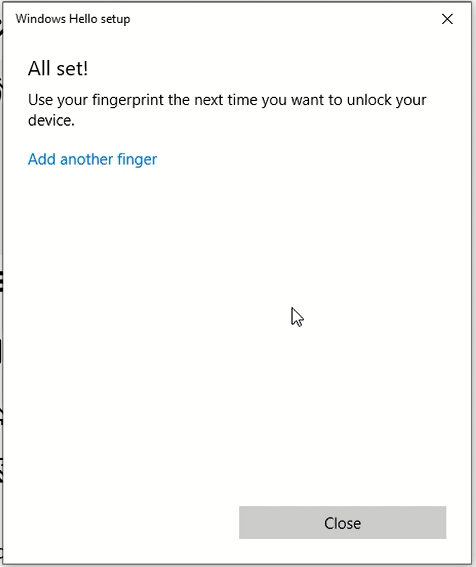
(Figure.1 Fingerprint Sensor Setup Message)
Affected Systems:
| Inspiron | Vostro |
|---|---|
| Inspiron 5490 | Vostro 5490 |
| Inspiron 5493 | Vostro 5590 |
| Inspiron 5494 | Vostro 7590 |
| Inspiron 5498 | |
| Inspiron 5584 | |
| Inspiron 5590 | |
| Inspiron 5593 | |
| Inspiron 5594 | |
| Inspiron 5598 | |
| Inspiron 7390 2-in-1 | |
| Inspiron 7391 2-in-1 | |
| Inspiron 7490 | |
| Inspiron 7590 | |
| Inspiron 7590 2-in-1 | |
| Inspiron 7591 | |
| Inspiron 7591 2-in-1 | |
| Inspiron 7791 2-in-1 |
Resolution
Solution
Updating the Goodix fingerprint sensor driver to 3.10.30.110 or newer fixes the issue. To download and install the latest driver:
-
Browse to the Dell Drivers & Downloads page:
-
Ensure you have the correct System Type
-
Select the Operating System
-
Under Category, select Security
-
Locate the latest Goodix Fingerprint Sensor Driver (A04 or newer)
-
Click Download and save the file to your computer
-
Open File Explorer and browse to the location where the downloaded file is saved
-
Double-click the Sensor setup file and follow the on-screen instructions to complete the installation process
-
Restart your system to finalize this installation
Affected Products
Inspiron 7390 2-in-1, Inspiron 7391 2-in-1, Inspiron 5490, Inspiron 5493, Inspiron 5494, Inspiron 5498, Inspiron 7490, Inspiron 15 5584, Inspiron 5590, Inspiron 5593, Inspiron 5594, Inspiron 5598, Inspiron 7590 2-in-1, Inspiron 7590
, Inspiron 7591 2-in-1, Inspiron 7591, Vostro 5490, Vostro 5590, Vostro 7590
...
Products
Inspiron 7791 2-in-1Article Properties
Article Number: 000135146
Article Type: Solution
Last Modified: 19 Apr 2025
Version: 7
Find answers to your questions from other Dell users
Support Services
Check if your device is covered by Support Services.