PowerFlex: 3.0.1 Unable to add new SDC in the PowerFlex Cluster. New SDC does not show up in Frontend tab.
Summary: PowerFlex: 3.0.1 Unable to add new SDC in the PowerFlex Cluster. New SDC does not show up in Frontend tab.
This article applies to
This article does not apply to
This article is not tied to any specific product.
Not all product versions are identified in this article.
Symptoms
Trying to add a new SDC
Unable to add new SDC in the PowerFlex Cluster. New SDC does not show up in Frontend tab.
We ran the command :-
esxcli system module parameters set -m scini -p "IoctlIniGuidStr=GUID_GOES_HERE IoctlMdmIPStr=MDM IP Addresses"
However after running the command the new SDC did not show up in the Frontend Tab in the GUI
Also running the command "scli --query_all_sdc" does not list the newly added SDC in the output.
1. Verify that the MDM IP addresses used in the above command were pingable.
2. Also tried using Virtual IPs as well as data IPs of all three MDMs.
Issue seen in AMS environment. Can be seen in non-AMS as well.
Unable to add new SDC in the PowerFlex Cluster. New SDC does not show up in Frontend tab.
We ran the command :-
esxcli system module parameters set -m scini -p "IoctlIniGuidStr=GUID_GOES_HERE IoctlMdmIPStr=MDM IP Addresses"
However after running the command the new SDC did not show up in the Frontend Tab in the GUI
Also running the command "scli --query_all_sdc" does not list the newly added SDC in the output.
1. Verify that the MDM IP addresses used in the above command were pingable.
2. Also tried using Virtual IPs as well as data IPs of all three MDMs.
Issue seen in AMS environment. Can be seen in non-AMS as well.
Cause
scli --query_all command output showed that the MDM restricted SDC mode was enabled and "approve IPs" option was selected. This is an additional security feature.
Resolution
Run an additional command which is not documented in the procedure in the AMS deployment guide.
scli --add_sdc --sdc_guid <SDC GUID> --mdm_port 6611
Once the SDC is added using the above command, you will see a new entry with N/A under the Frontend tab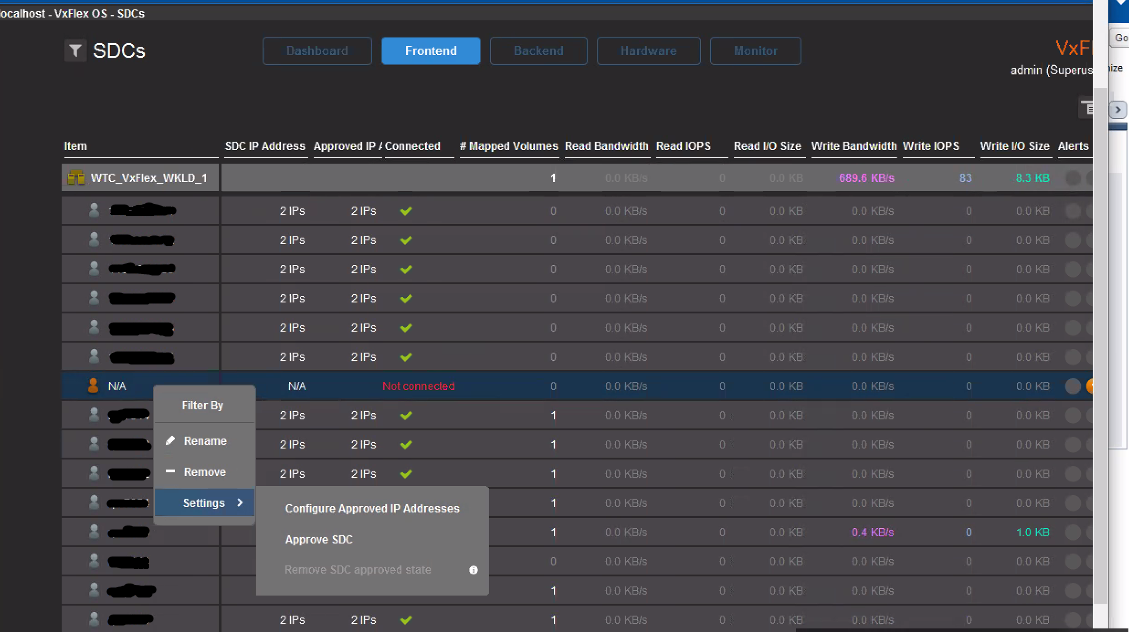
Right click on N/A, Click on Settings, Click on Configure Approved IP Addresses.
Enter the SDC IPs that you want the IOs to flow through.
Once the IPs are entered, you will see the Entry with all the IPs you had entered and it will show as connected (green check).
Article Properties
Article Number: 000173533
Article Type: Solution
Last Modified: 22 Aug 2025
Version: 5
Find answers to your questions from other Dell users
Support Services
Check if your device is covered by Support Services.