ECS: GeoDrive error 12175 - The application experienced an internal error loading the SSL libraries
Summary: GeoDrive - Error from ECS - 12175 - error loading the SSL libraries | The application experienced an internal error loading the SSL libraries | install is missing.
This article applies to
This article does not apply to
This article is not tied to any specific product.
Not all product versions are identified in this article.
Symptoms
Customer reported 12175 - The application experienced an internal error loading the SSL libraries.
Solution is reported in Dell EMC® GeoDrive™ for Windows Version 2.0 User Guide
NOTE:
Before starting any investigation, verify the "Allowed HTTPS Protocols" under advanced hosts connection settings.
Sometimes the same error message "The application experienced an internal error loading the SSL libraries" is shown. This might happen when "SSL 2.0" and "SSL 3.0" are checked in Hosts advanced connection settings.
These settings are not enabled by default but might be mistakenly enabled.
For verifying the settings:
- Click "Hosts" at the top bar
- Choose your host and click "Edit"
- Choose the "Advanced" Tab
The figure below is showing the default setting for "SSL 2.0" and "SSL 3.0" as not checkmarked.
If it is check marked, try to disable "SSL 2.0" and "SSL 3.0" by unchecking it and test connection again.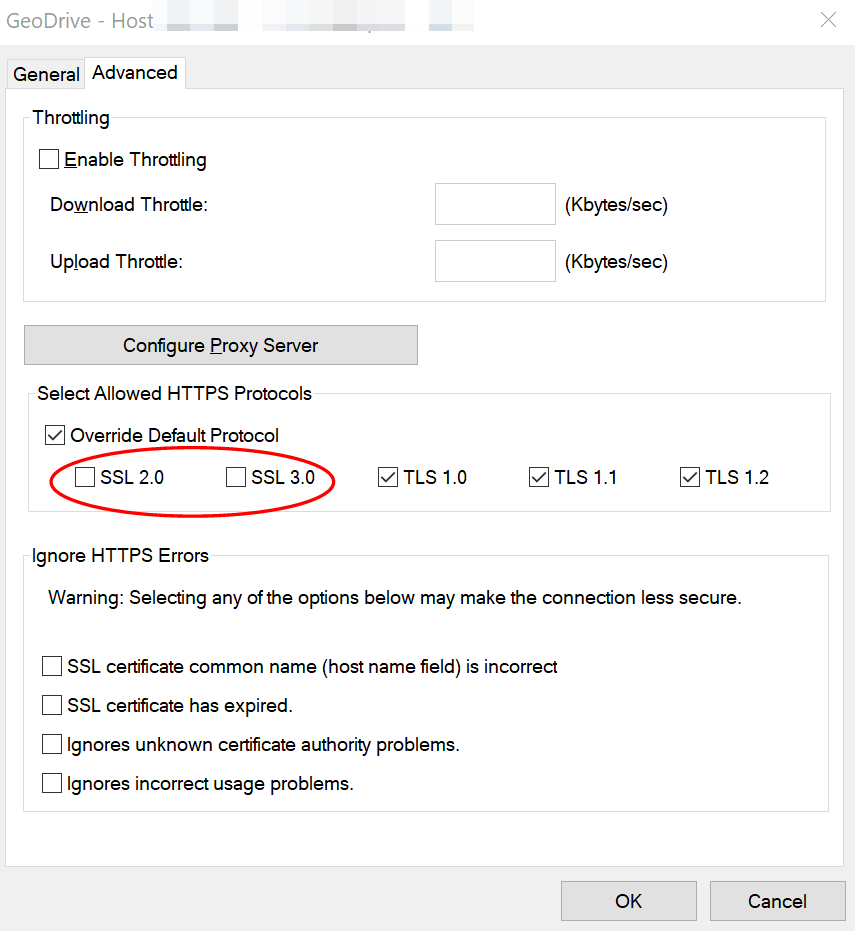
Installing the cloud server certificate
If a 12175-security error message is received that states: "The function is unfamiliar with the Certificate Authority that generated the server's certificate", install the server s certificate on your GeoDrive client as follows:
1. After clicking "Test", GeoDrive displays a security error message that also provides the certificate details.
2. Verify that the hostname is the same as the name supplied by your Service Provider. Also that the host/IP field is entered during server configuration (see Table 3 on page 11). If not, confirm the correct name with your Service Provider before continuing. If necessary, delete the incorrect hostname, enter the correct name in the Host/IP field, click "Add", and then click "Test".
3. If a success dialog appears, this procedure is completed. The connectivity with the cloud is indicated with a green icon on the GeoDrive main page.
4. If the same error message is received again, click Install. GeoDrive installs the SSL certificate on your local computer, and a success message displays.
5. Click OK. A secure connection with the server is indicated with a green icon on the GeoDrive main page.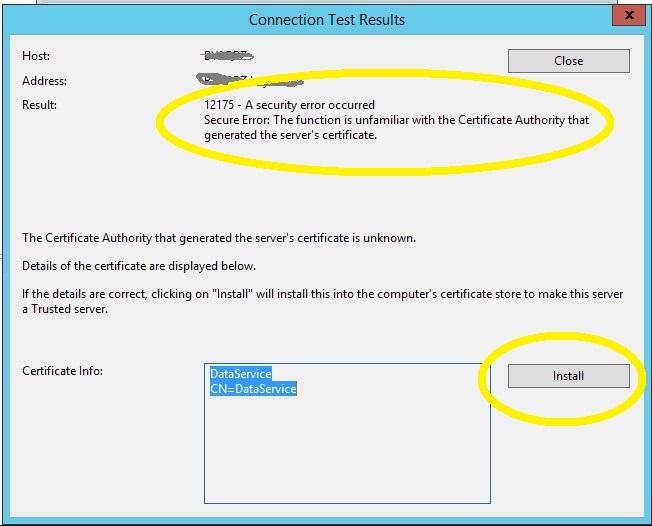
On a Windows 2016 Server, no click install option is shown: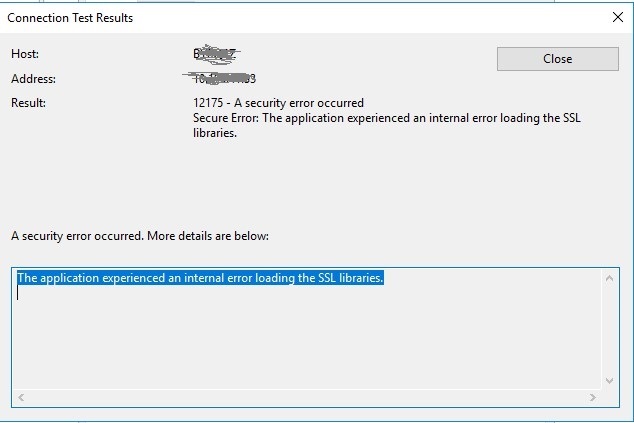
Cause
On Windows 2016 it is found the server hardening function in the registry set at:HKEY_LOCAL_MACHINE\SOFTWARE\Policies\Microsoft\Cryptography\Configuration\SSL\00010002
Due to an already existing entry, the Software asks for "another" key installation. Because it is already there: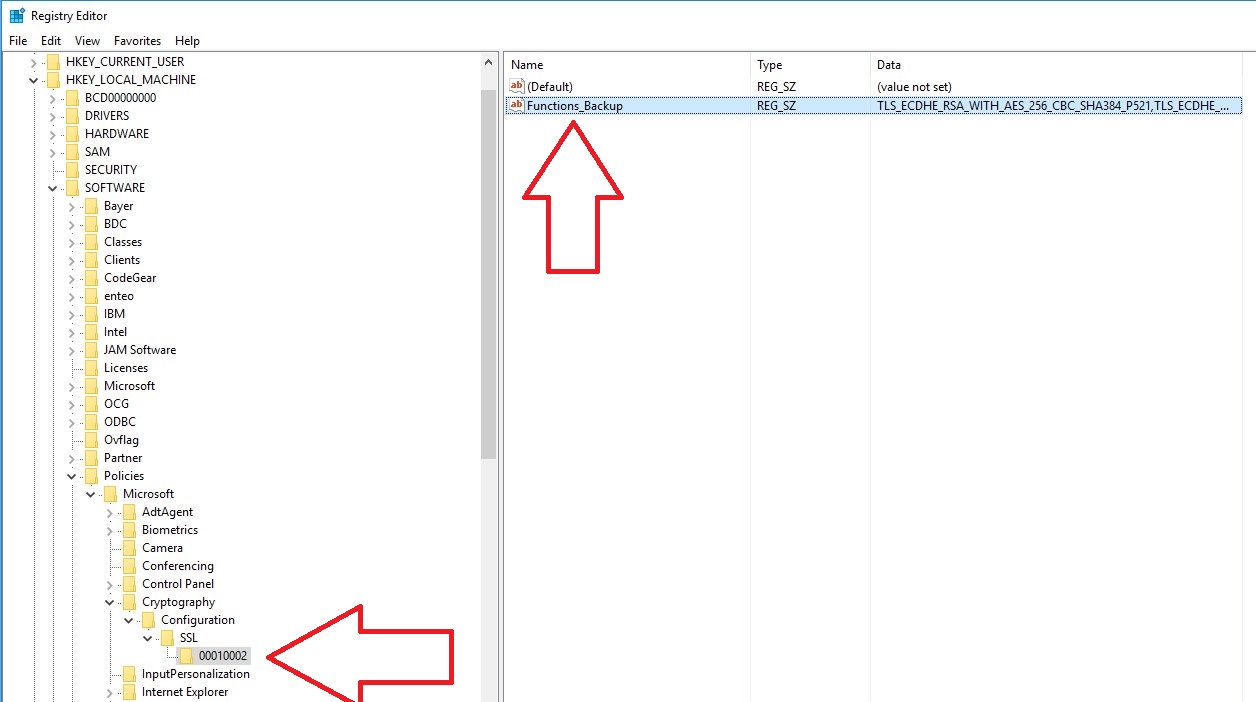
Resolution
On regular Installations, the registry key in the server hardening function is not there: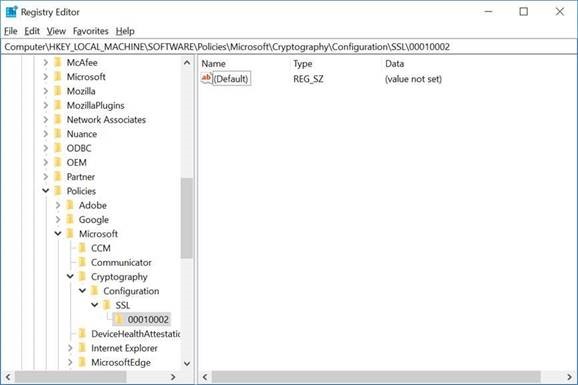
Therefore the solution is to find the below key in the registry:"HKEY_LOCAL_MACHINE\SOFTWARE\Policies\Microsoft\Cryptography\Configuration\SSL\00010002" and delete (or rename) it. This fixes the issue. The certificate can now be installed on the affected server using SSL certificate: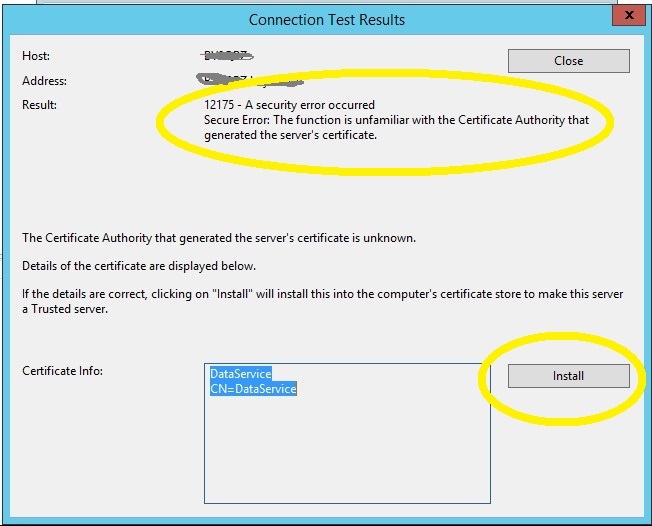
Additional Information
If this is not working, there is an extra logging for Windows. Provide it when follow up with Support.
See: Capturing WinHTTP Logs
WinHTTP logs can be used to help troubleshoot WSDAPI applications. This is helpful when metadata exchange fails or when SSL/TLS negotiation fails.
This procedure shows how to capture WinHTTP logs on the client computer. The WSDAPI-based client application must not be running when logging is enabled. If the client application is running when logging is enabled, the client and the computer must be restarted before WS-Discovery. Metadata exchange traffic is appearing in the WinHTTP logs.
To capture WinHTTP logs.
- Open an elevated command prompt window on the client computer.
- Run the following command:
netsh winhttp set tracing trace-file-prefix="C:\Temp\dpws" level=verbose format=ansi state=enabled max-trace-file-size=1073741824 - This command enables WinHTTP logging. All log files are stored in the
C:\Tempdirectory, and the filenames begin with the dpws prefix. At most 1 GB of log files will be stored. - If the process using WinHTTP on the client is already running, restart the computer. For example, if the Function Discovery APIs are being used, the computer must be restarted. The Function Discovery APIs call WinHTTP from inside a service host, which may have already started when tracing was enabled.
- Start the WSDAPI-based client application. The application being is debugged or the WSD Debug Client can be used.
- Reproduce the application failure.
- Terminate the WSDAPI-based client application.
- If the process using WinHTTP is not terminated with the client application, restart the computer. For example, if the Function Discovery APIs are being used, the computer must be restarted.
- Run the following command: netsh winhttp set tracing state=disabled
- This command disables WinHTTP logging.
- Inspect the DPWS logs in C:\Temp and verify that the required requests and messages were sent.
- If secure channel (HTTPS) communication is being used, check for SSL/TLS failures.
For getting the logs, the Server must be restarted.
Once WinHTTP logs have been captured, the logs can be examined to look for the cause of a WSDAPI application failure. The text editor used to view these logs must be run as Administrator. For more information, see Using WinHTTP Logging to Verify Get Traffic.
Affected Products
GeoDrive for WindowsProducts
GeoDrive for Windows, ECS Appliance Gen 1, ECS Appliance Gen 2, ECS Appliance Gen 3, ECS Appliance Hardware Gen2 U-SeriesArticle Properties
Article Number: 000174459
Article Type: Solution
Last Modified: 06 Feb 2026
Version: 5
Find answers to your questions from other Dell users
Support Services
Check if your device is covered by Support Services.