How to Download and Use Dell Customized VMware ESXi Images for PowerEdge Servers
Summary: How to download and install Dell Customized VMware ESXi images for PowerEdge servers. Find step-by-step instructions and details on drivers, patches, and ISO availability.
This article applies to
This article does not apply to
This article is not tied to any specific product.
Not all product versions are identified in this article.
Instructions
Certain Dell PowerEdge servers require the use of Dell Customized Image of VMware ESXi for the easiest and most reliable deployment of a fully managed server. To determine if your server requires the Dell Customized Image of VMware ESXi, see:
Information about installing, maintaining, and troubleshooting VMware ESXi 8.x
Information about installing, maintaining, and troubleshooting VMware ESXi 9.x
Table of Contents
- What drivers and files are modified or included on the Dell Customized Image of VMware ESXi?
- Download the Dell Customized Image of ESXi from VMware
- Installation
What drivers and files are modified or included on the Dell Customized Image of VMware ESXi?
Each image is a customization of the base VMware image of a particular version. Dell customization of the image includes:
- Modifying files to identify Dell and Dell support.
- Updating the ESXi image with the latest validated asynchronous drivers.
- Updating patches if it addresses a common issue for Dell systems.
We recommended using the latest version of the image available for your Dell system.
Download the Dell Customized Image of VMware ESXi from VMware Support
Documentation is found at:
VMware vSphere 8.x downloads, OEM custom images, patches, and addons in the Broadcom Support Portal
Step-by-Step Instructions for vSphere 8.x:
- Load the Broadcom Support portal web page
- Registration is required to access the support portal. A Site ID is required for software download entitlement. Use the following documentation to request the required access:
- Log in with your Broadcom registered user credentials.
Note: In order to view the VMware Products and download the Custom ISOs, the account must be tied to an active entitlement. Otherwise no products are displayed.
- Use the dropdown menu to the left of your name and select VMware Cloud Foundations.
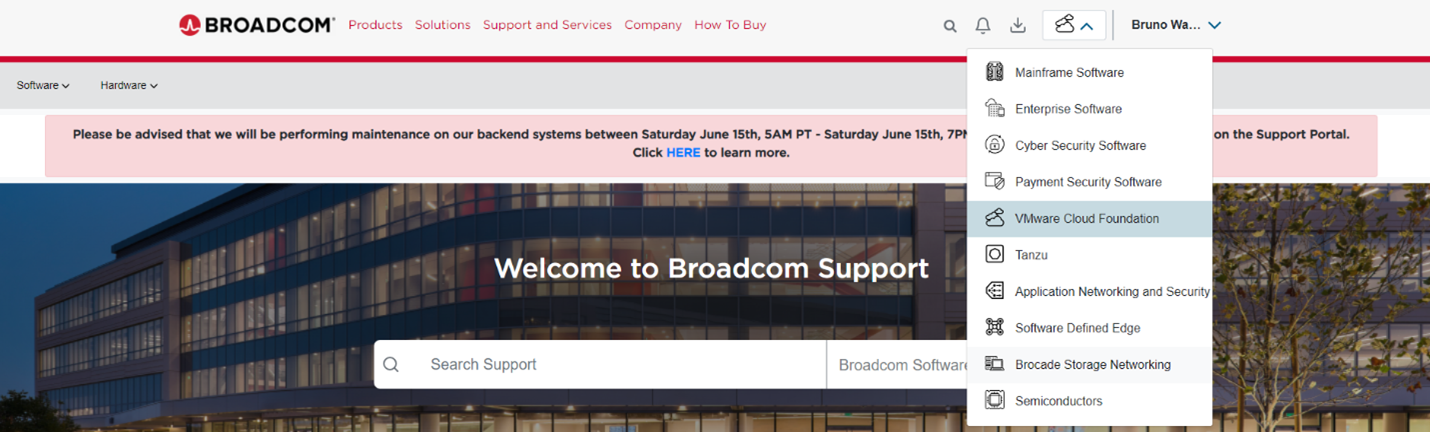
Figure 1: Select VMware Cloud Foundation.
- From the left-hand menu, click My Downloads.
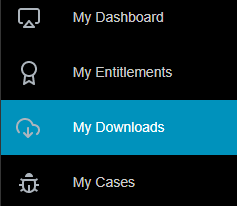
Figure 2: My Downloads
- In the search bar in the upper right side of the page, enter "VMware vSphere" (vSphere is on the second page)
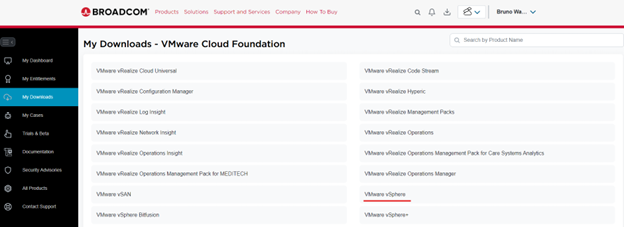
Figure 3: Product Search box
- Select VMware vSphere from My Downloads:
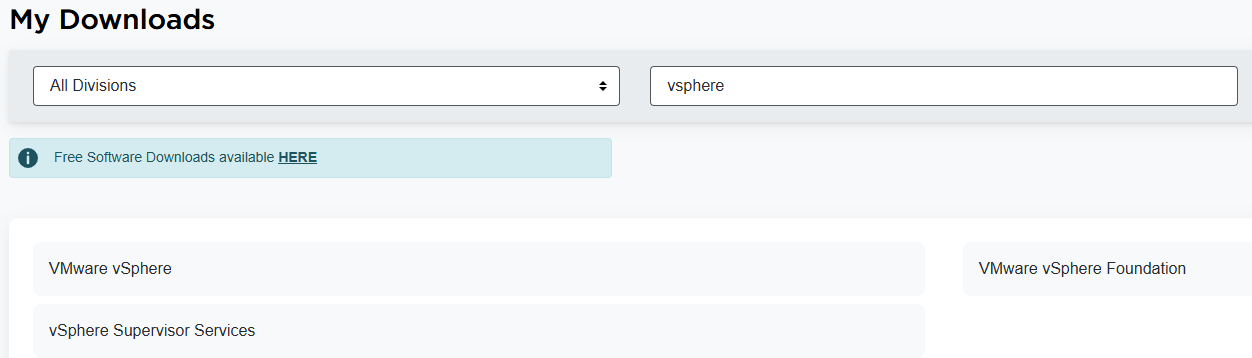
Figure 4: Search for VMware vSphere
- Select the VMware vSphere Product that you are entitled to download based and expand the section:
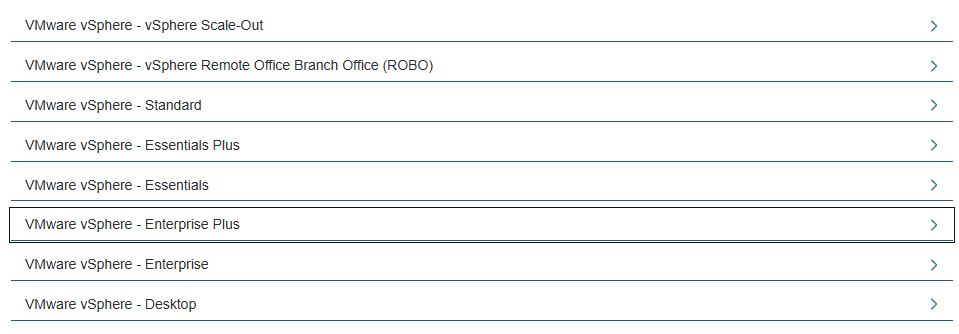
Figure 5: List of VMware vSphere Products
- In this scenario, expanded the VMware vSphere - Enterprise Plus:
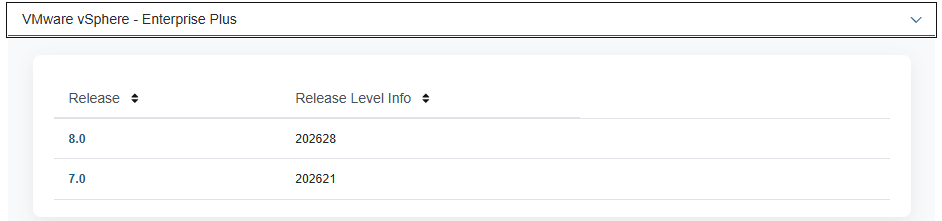
Figure 6: VMware vSphere Enterprise Plus - Expanded
- In this scenario, selected the 8.0 Release:
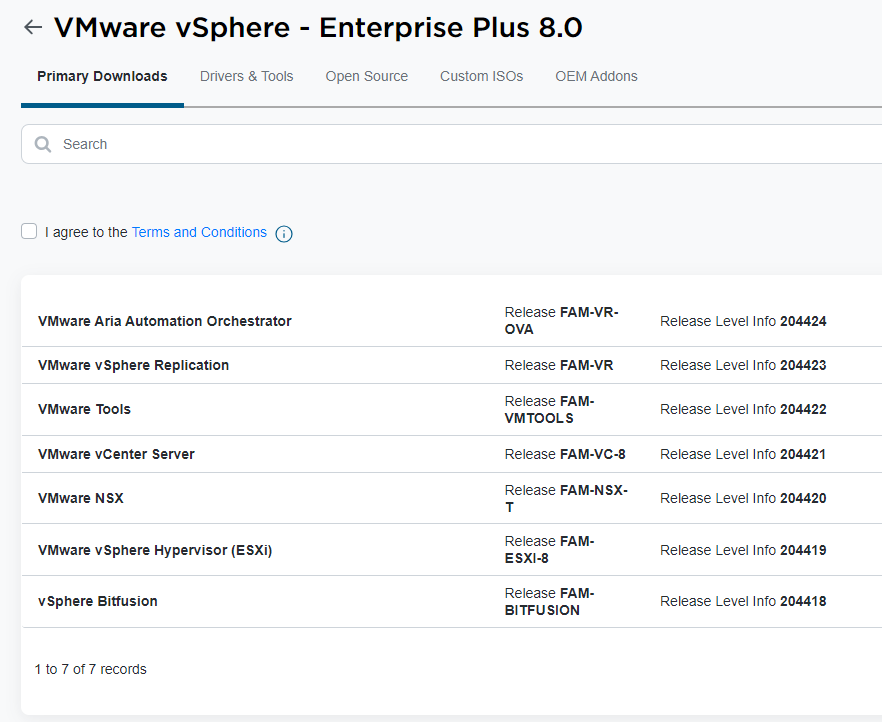
Figure 7: 8.0 Release selection.
- Select Custom ISO at the top and enter Dell in the search box. All Dell Custom ISO versions are on display.
Note: For PowerFlex do not use Custom ISOs instead See KB PowerFlex How to download VMware ISO file
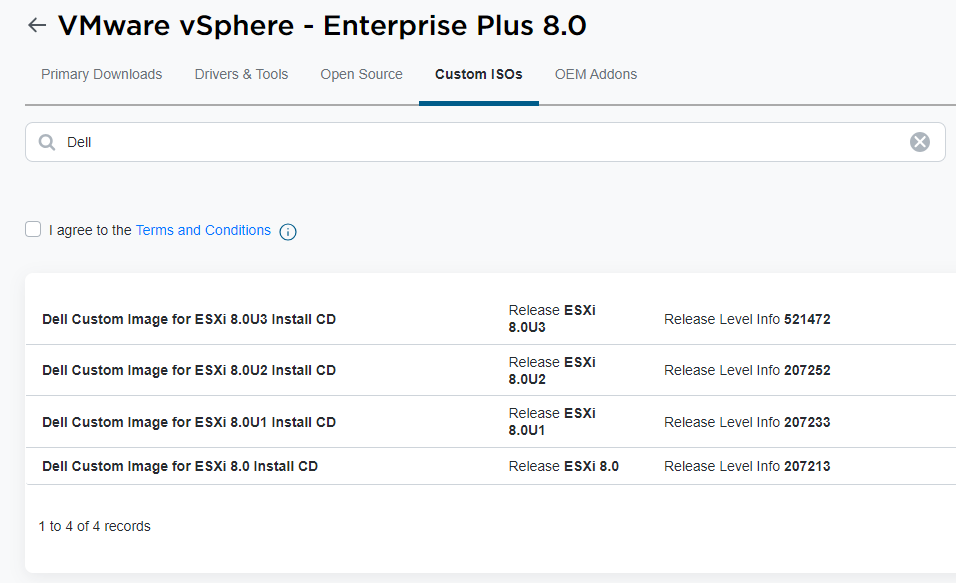
Figure 8: Available Custom IOS versions
- In this scenario, expand the Dell Custom Image for ESXi 8.0U3 Install CD:
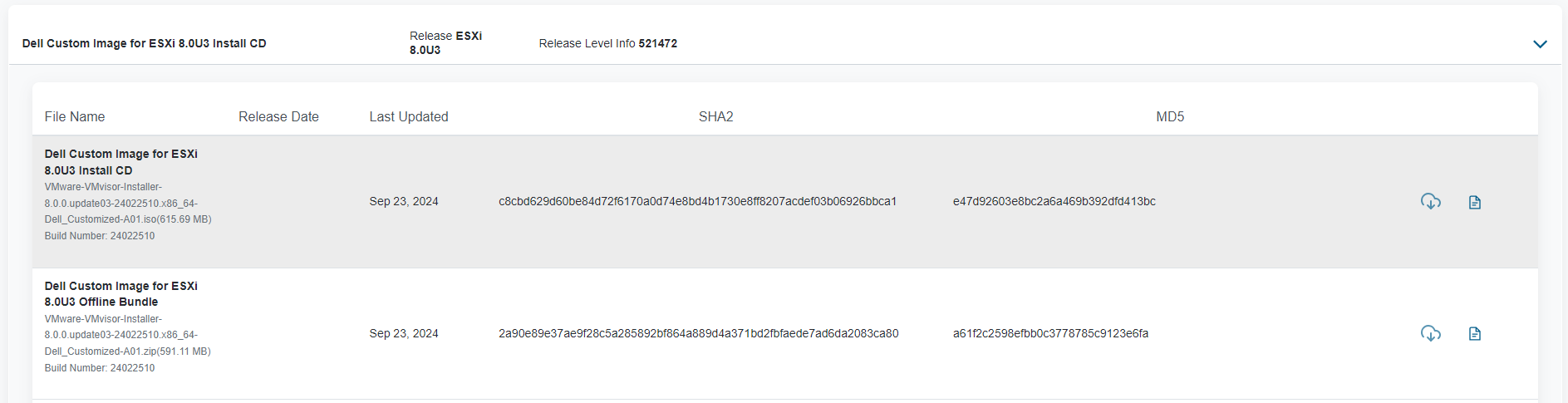
Figure 9: Custom Image expanded
- Check the box for I agree to the Terms and Conditions:

Figure 10: Agreement checkbox
- Click the Download Icon for ISO Installer or ZIP Bundle Installer. In this scenario, selected the ISO installer:

Figure 11: Select ISO to download.
Step-by-Step Instructions for vSphere 9.x:
- Load the Broadcom Support portal web page
- Registration is required to access the support portal. A Site ID is required for software download entitlement. Use the following documentation to request the required access:
- Log in with your Broadcom registered user credentials.
Note: In order to view the VMware Products and download the Custom ISOs the account must be tied to an active entitlement. Otherwise no products are displayed.
- Use the dropdown menu to the left of your name and select VMware Cloud Foundations.
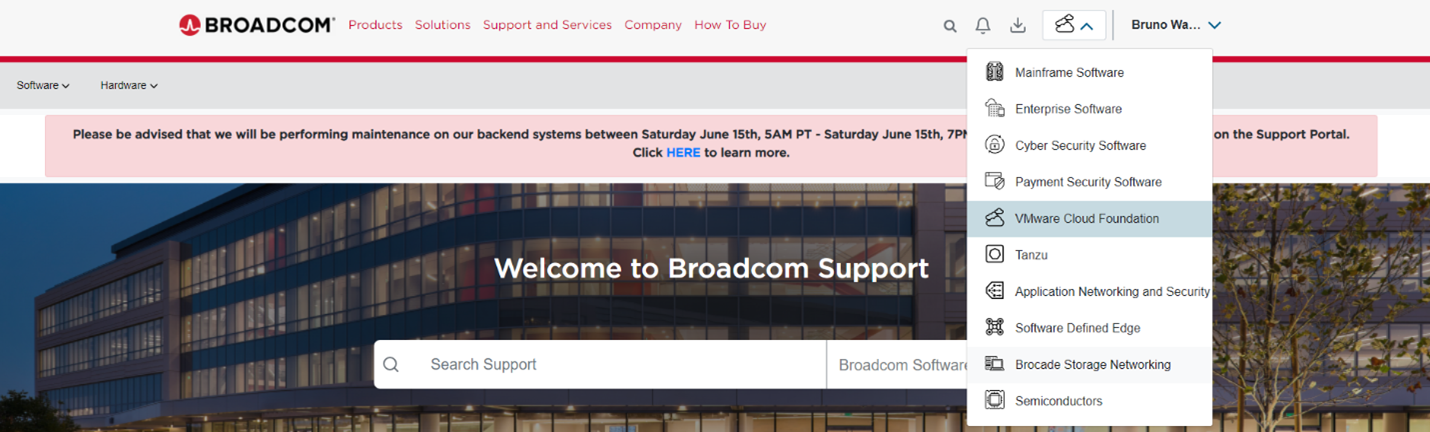
Figure 12: Select VMware Cloud Foundation.
- From the left-hand menu, click My Downloads.
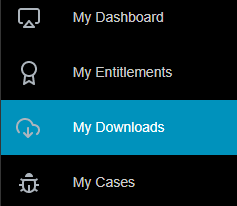
Figure 13: My Downloads
- In the search bar in the upper right side of the page, enter "Foundation."
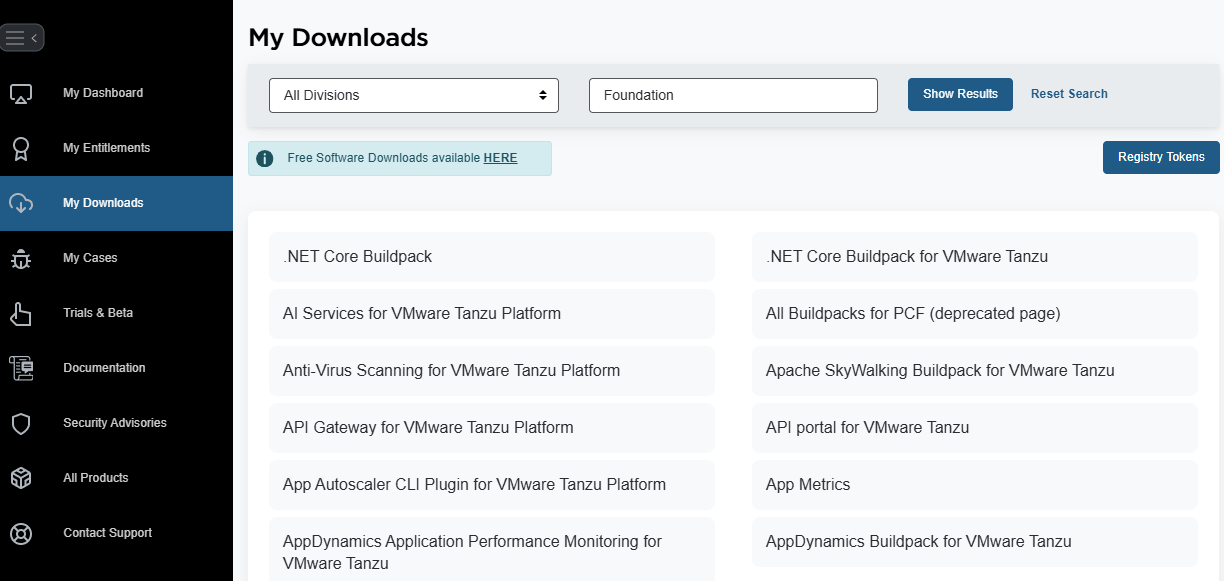
Figure 14: Product Search box
- Select either VMware vSphere Foundation or VMware Cloud Foundation depending on your entitlement from My Downloads:
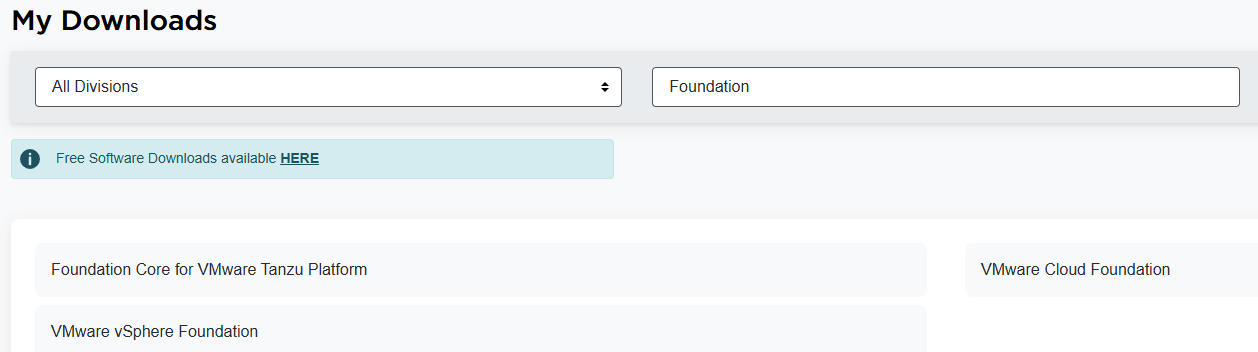
Figure 15: Search for VMware vSphere
- Select the VCF or VVF Product that you are entitled to download based and expand the section:


Figure 16: List of VMware vSphere or Cloud Foundation Products
- In this scenario, expanded the VMware vSphere Foundation 9:
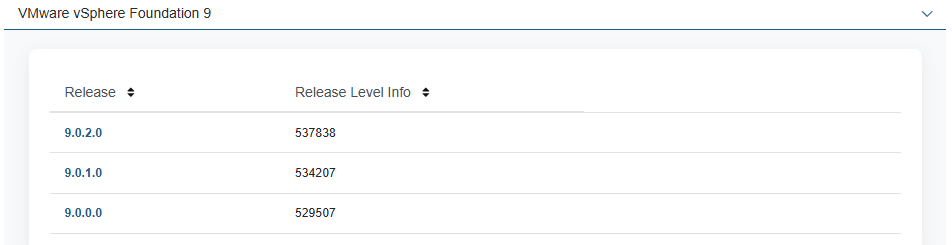
Figure 17: VMware vSphere Enterprise Plus - Expanded
- In this scenario, selected the 9.0.0.0 Release in order to get OEM Addons and Custom ISOs:
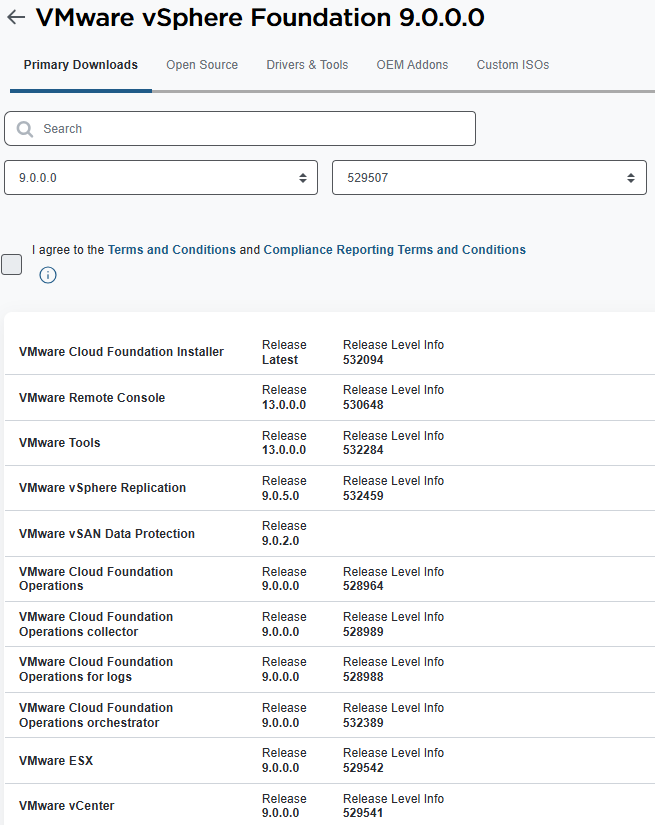
Figure 18: 9.0.0.0 Release selection.
- Select Custom ISO at the top and enter Dell in the search box. All Dell Custom ISO versions are on display.
Note: For PowerFlex do not use Custom ISOs instead See KB PowerFlex How to download VMware ISO file
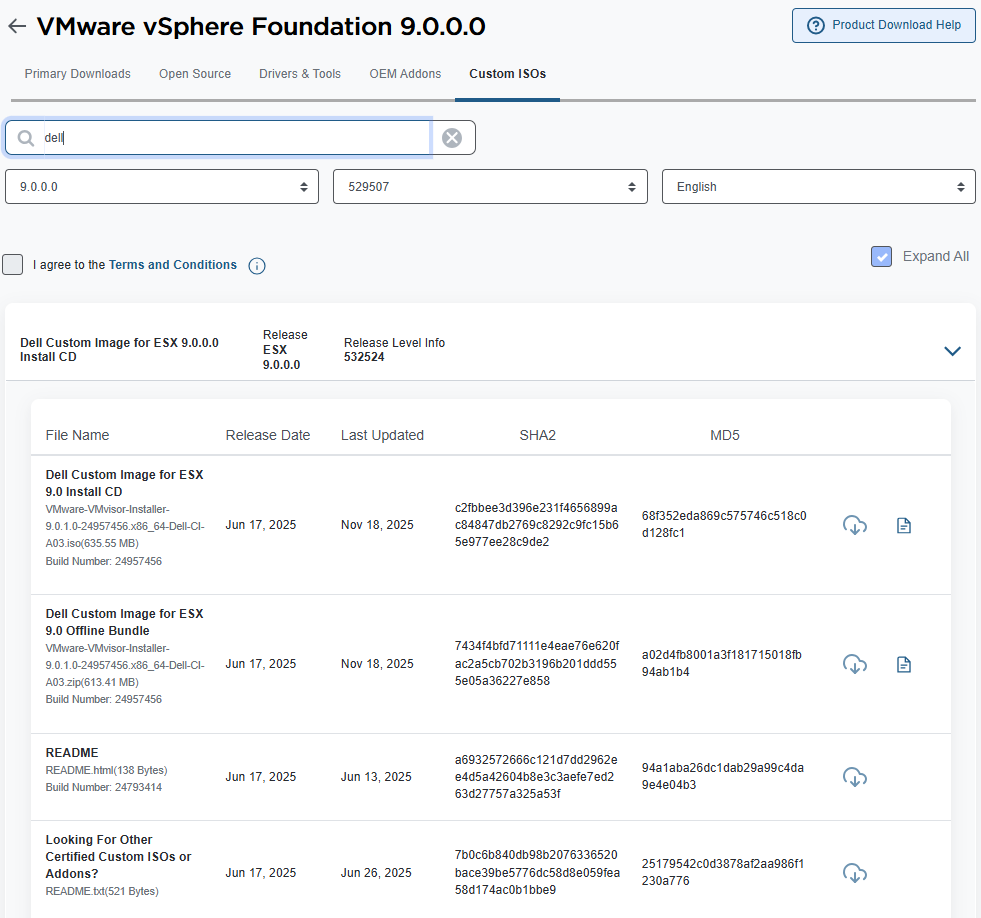
Figure 19: Available Custom IOS versions
- Check the box for I agree to the Terms and Conditions:

Figure 20: Agreement checkbox
- Click Download Icon for ISO Installer or ZIP Bundle Installer. In this scenario, selected the ISO installer:

Figure 21: Select ISO to download.
Installation
To install ESXi, boot on the ISO file and follow the instructions. Alternative methods can be used to boot on the ISO file:
- PowerEdge: How to create a bootable USB drive for OS Installation
- Using the Virtual Media Function on iDRAC6, iDRAC7, iDRAC8 and iDRAC9
Find the VMware compatibility information in the Broadcom compatibility Guide 
Additional Information
Note:
On February 12, 2024, VMware by Broadcom announced that the free ESXi hypervisor in versions 7.x and 8.x would no longer be available.
On February 12, 2024, VMware by Broadcom announced that the free ESXi hypervisor in versions 7.x and 8.x would no longer be available.
Where can I download VMware ESXi 8?
You can obtain the ESXi installer software either from an OEM or from the Broadcom Support Portal. Register on the Broadcom Support Portal.
Download the ESXi Installer.
You can access the older versions of the Custom ISOs from the Dell Support Site, for more information you can see: PowerEdge: How to find the older versions of Dell Customized ISOs for VMware
Refer to this video:
Download a Dell-Customised ESXi ISO
Duration: 00:02:11 (hh:mm:ss)
When available, closed caption (subtitles) language settings can be chosen using the CC icon on this video player.
You can also view this video on YouTube.
Affected Products
VMware ESXi 6.7.X, VMware ESXi 6.x, VMware ESXi 7.x, VMware ESXi 8.xArticle Properties
Article Number: 000176963
Article Type: How To
Last Modified: 03 Feb 2026
Version: 21
Find answers to your questions from other Dell users
Support Services
Check if your device is covered by Support Services.