Dell AIOps:将 PowerProtect Data Manager 载入 Dell AIOps 的一般步骤
Summary: 将 PowerProtect Data Manager (PPDM) 载入 Dell AIOps 的过程
This article applies to
This article does not apply to
This article is not tied to any specific product.
Not all product versions are identified in this article.
Instructions
戴尔 AIOps 概述
戴尔 AIOps 是一款基于云的免费应用程序,它利用机器学习,通过智能、全面的预测性分析,主动监控和衡量戴尔产品组合的整体运行状况。本文介绍在 Dell PowerProtect Data Manager 系统上启用 Dell AIOps 的要求。
前提条件
- 与戴尔 AIOps
设备配合使用的所有设备均须具备有效的 Dell ProSupport 合同(或更高级别)在 ProSupport 合同的保障之下。要检查设备是否在保修范围内,请转至 https://www.dell.com/support/contractservices,然后输入设备标识符。 - 有效的戴尔支持用户凭据
请参阅 如何注册以访问 Dell Technologies 在线支持或升级现有帐户 以获得帮助。 - 连接到安全连接网关
- 支持的版本:PowerProtect Data Manager 19.0 或更高版本
载入
配置 Secure Remote Services
-
使用管理员权限登录到 PowerProtect Data Manager,然后转至System SettingsSupport>。
-
上传有效的 PowerProtect Data Manager 许可证(如果尚未获得许可)。
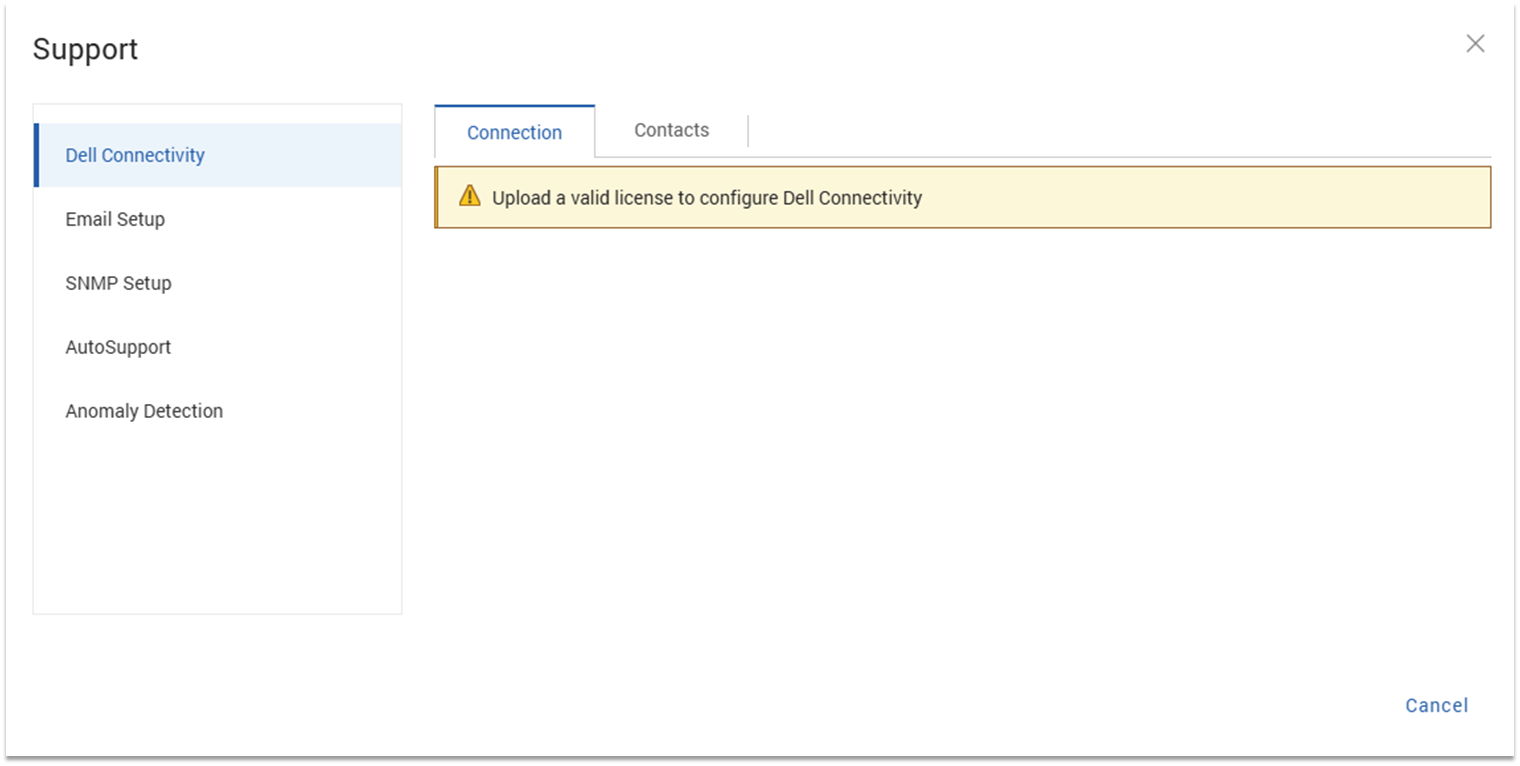
-
PowerProtect Data Manager 获得许可后,单击立即 连接。
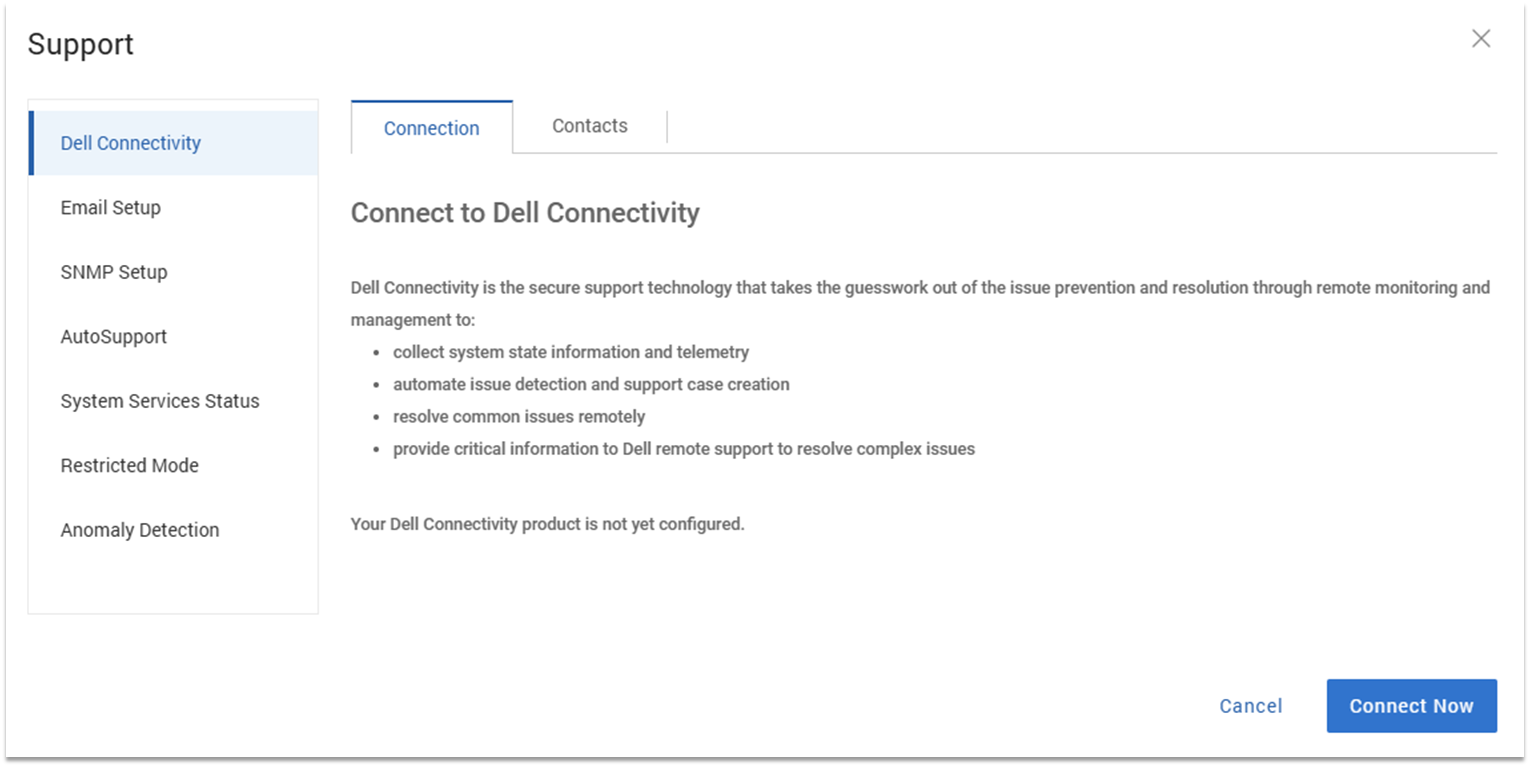
-
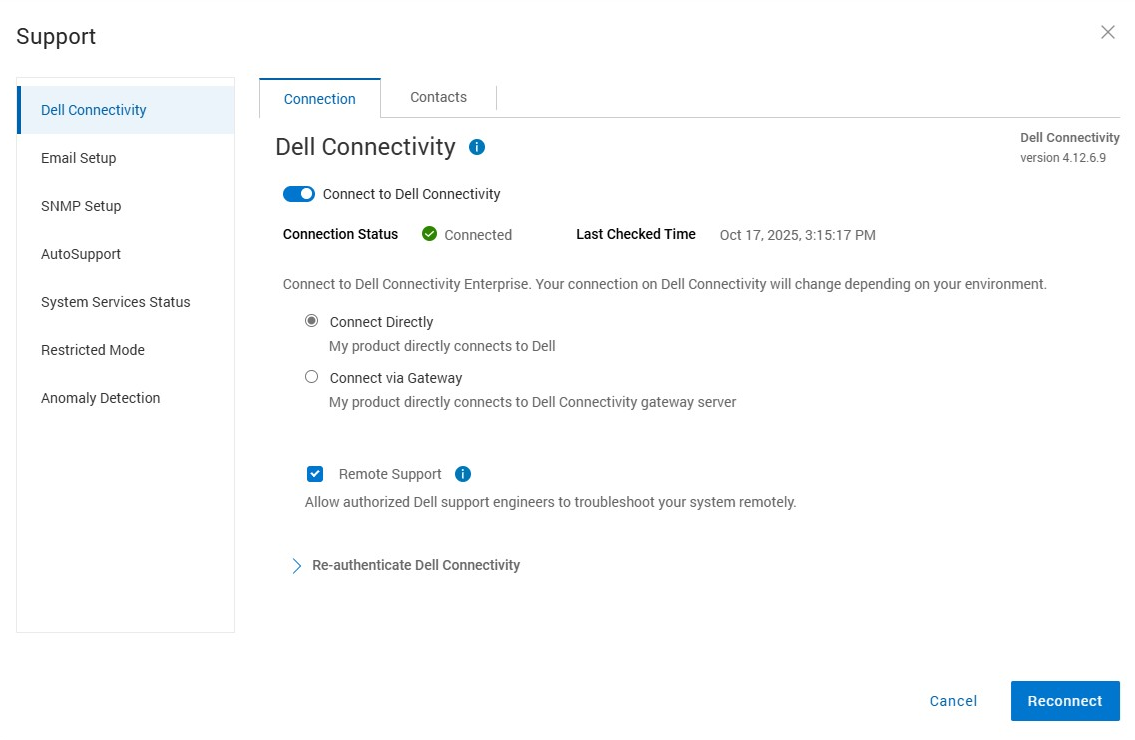
选择您的连接类型:直接连接 或 通过网关连接。

-
如果通过网关连接,请输入网关的IP Address和Port。
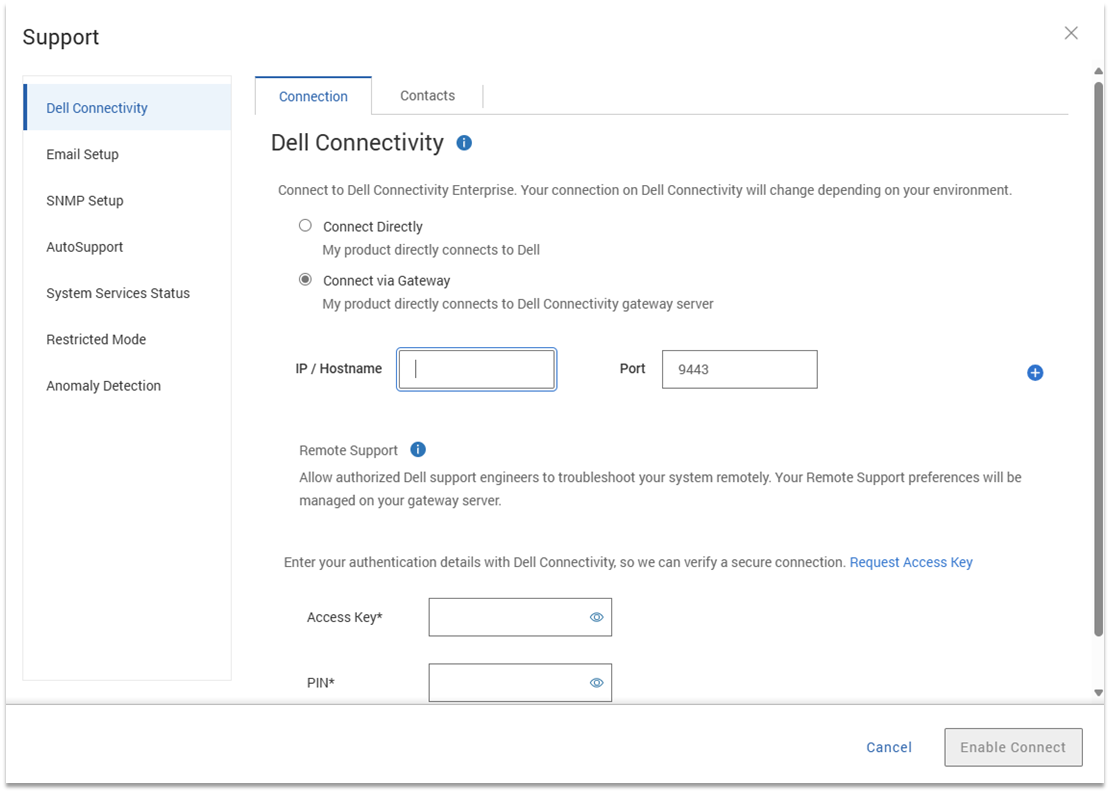
-
如果愿意,请选择 Remote Support 以允许戴尔工程师远程对系统进行故障处理。
-
按照屏幕上链接中提供的说明生成访问密钥和 PIN。
-
在提供的框中输入访问密钥和 PIN,然后单击 Enable Connect。
-
填写Contacts选项卡上的信息(可选)。
-
转至 AutoSupport 选项卡,然后选择 Dell Connectivity 选项。
必须选择此选项才能将信息发送到 Dell AIOps。 -
将 Enable AutoSupport 切换为 Enabled,然后单击 Save。
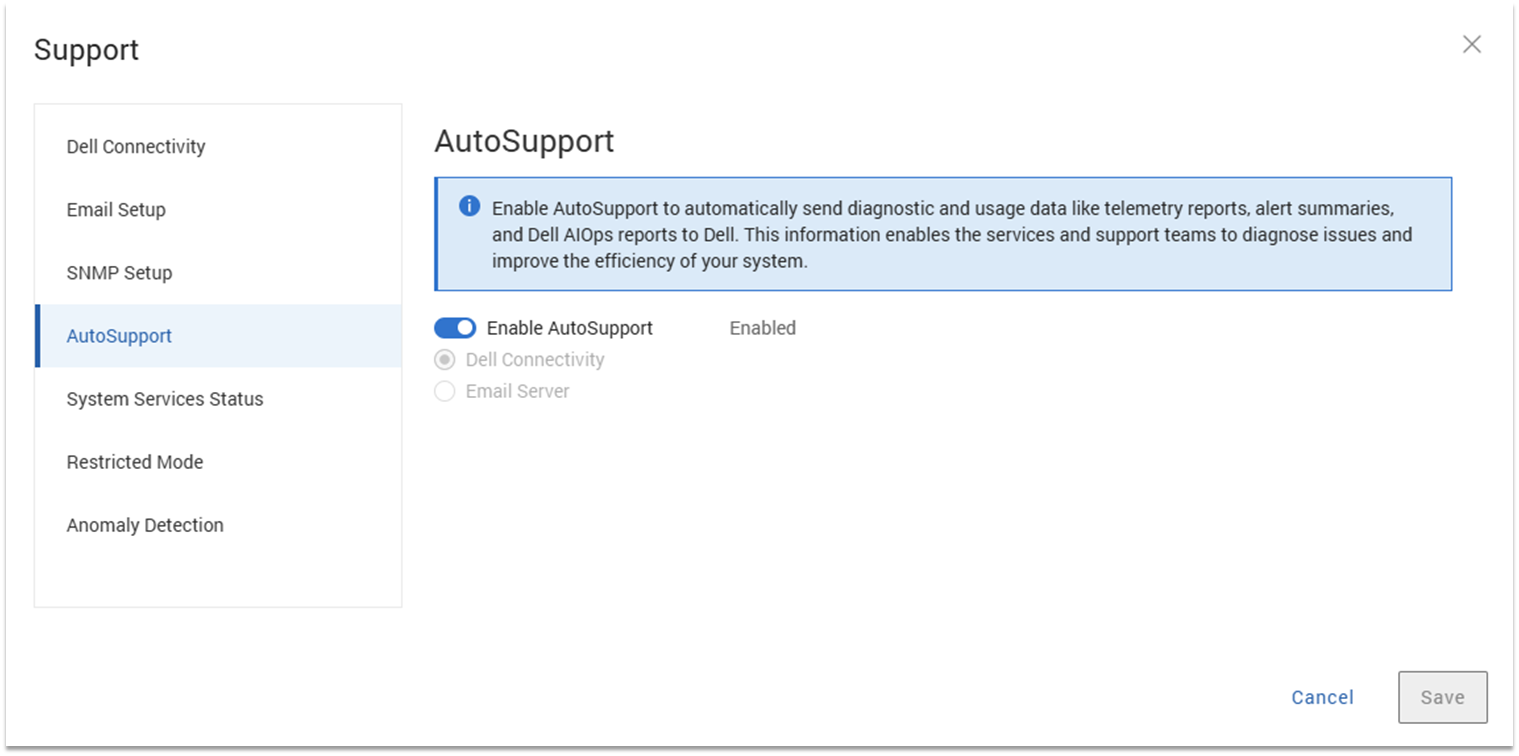
以下屏幕截图显示了在 PowerProtect Data Manager 中成功启用 Dell AIOps 数据收集的系统。
禁用 Dell AIOps 数据收集
要停止与 Dell AIOps 共享数据,请执行以下作:
- 使用管理员权限登录到 PowerProtect Data Manager,然后转至System SettingsSupport>。
- 在Support对话框中,选择 AutoSupport。
- 将 Enable Auto Support 切换为 Disabled。
- 单击 Save。

访问 Dell AIOps 门户:
通过在浏览器中转至 https://aiops.dell.com 访问 Dell AIOps。
-
使用您的戴尔业务支持凭据登录 Dell AIOps。

-
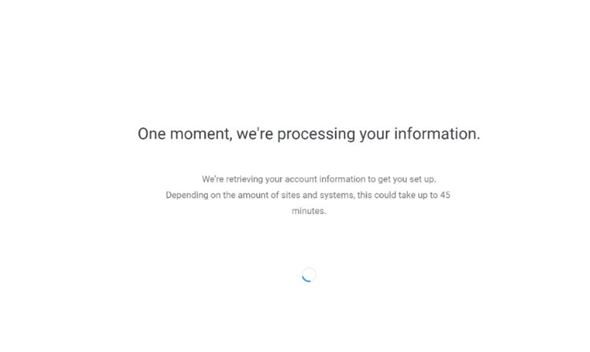
如果您是首次登录 Dell AIOps 的新用户,您将看到以下启用屏幕。


-
Dell AIOps 根据您的支持凭据检索与用户站点 ID 关联的系统。单击 Continue。

-
命令完成后,它将显示 Success 屏幕。

-
登录 Dell AIOps 后,您会看到所有已成功向 Dell AIOps 发送数据的系统。如果用户尚未成功配置任何系统以将数据发送到 Dell AIOps,则会将他们定向到 Dell AIOps UI 中的 Connectivity页面,在其中他们可看到与 Dell AIOps 兼容的系统。
以下屏幕截图显示了成功连接的系统。
Products
CloudIQ, CloudIQArticle Properties
Article Number: 000184014
Article Type: How To
Last Modified: 31 Oct 2025
Version: 8
Find answers to your questions from other Dell users
Support Services
Check if your device is covered by Support Services.