Working with components in Dell EMC Repository Manager (DRM)
Summary: Systems Management How to Video that covers working with components in Dell EMC Repository Manager.
This article applies to
This article does not apply to
This article is not tied to any specific product.
Not all product versions are identified in this article.
Instructions
This training video covers how to work with Components in Dell EMC Repository Manager.
Note: This video is specific to Components. There is a previous video that covers working with complete repositories in Dell EMC Repository Manager.
Link to the Dell Technologies YouTube channel video:
Working with components in Dell EMC Repository Manager (DRM)
Bundle Basics:
Showcase the different parts of a live bundle in the catalog
-
Bundles provide the structure of a catalog
-
A bundle is a container for valid updates for a given System Model
-
Defined by Model and OS-type
-
When adding Updates to a bundle, it uses the internal contents like package.xml to determine if the update is valid for the Model+OS-type
Creating Bundles:
NOTE: Bundles get created at repository creation. Only time a bundle should be created manually is when editing an existing repository that is missing the system/OS type you need.
Create an Empty Bundle
-
Select any Repository
-
Select Add Bundle at the top
-
Select Add an Empty Bundle
-
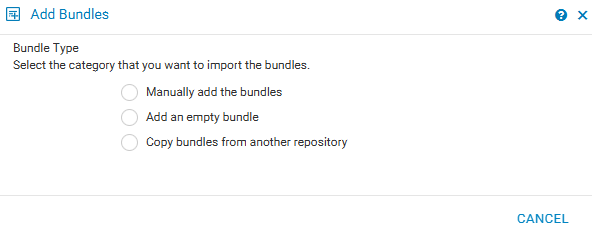
-
Name the bundle, then select operating system and System Model
Create a Full Bundle
-
Select any Repository
-
Select Add Bundle at the top
-
Select Manually add the bundles
-
Wizard mirrors repository creation, asking you for Model, operating system and Component
Copy a Bundle
-
Select any Repository
-
Select Add Bundle at the top
-
Select Copy bundles from another repository
-
Select Repository and then bundles you with to add
Editing Bundles:
Bundle Editing Use Cases
-
Adding updates not yet in the bi-weekly catalog
-
Adding in downgrades for required trusted baselines
-
Removing unnecessary updates to keep storage requirements low for offline updates
Add updates to a bundle
-
Manually download the updates you want to import
-
Select any Repository, or any Bundle
-
Select Import option
-
Point it to the updates you want to import
NOTE: Although you can import at both Repository and Bundle level, it is recommended to do it at Repository and it will automatically add to all valid bundles.
Remove updates from bundle
-
Expand Repository and Bundle of choice
-
Find the updates you want to remove
-
Ensure only checkboxes for updates you want to remove is selected
-
Select Delete option at the top
-
Select Delete from all bundles if you want it removed from every bundle in the repository
Affected Products
Repository Manager, Dell EMC Repository Manager - Current Versions, Dell EMC Repository Manager 3.0, Dell EMC Repository Manager 3.0.1, Dell EMC Repository Manager 3.1, Dell EMC Repository Manager 3.2Article Properties
Article Number: 000184970
Article Type: How To
Last Modified: 19 Dec 2022
Version: 5
Find answers to your questions from other Dell users
Support Services
Check if your device is covered by Support Services.