Dell Proキーボードおよびマウス KM5221Wが機能しない
Summary: 次の記事では、Dell Proキーボードおよびマウス(KM5221W)の問題に関する情報を提供します。キーボードとマウスが機能せず、ドングルの不整合が報告されます。
This article applies to
This article does not apply to
This article is not tied to any specific product.
Not all product versions are identified in this article.
Symptoms
Dell Proキーボードおよびマウス(KM5221W)がドングルの不一致を報告する
Dell Proキーボードおよびマウス(KM5221W)を使用すると、次の現象が発生することがあります。
- キーボードとマウスが機能しない
- ドングルが不整合エラーを報告する
Cause
これは、同期エラーが原因です。
Resolution
次の手順は、ワイヤレス キーボードとマウスを再同期またはドロップしてペアリングする手順です。(Dell Peripheral Managerユーティリティーを使用):
-
Dell Peripheral Managerはコンピューターにインストールされていますか?
-
最新のDell Peripheral ManagerユーティリティーをPCにインストールします(まだインストールされていない場合)。ユーティリティーをダウンロードしてインストールするには、次を参照してください。Dellのドライバーおよびファームウェアをダウンロードしてインストールする方法
-
ユーティリティーがすでにコンピューターにインストールされている場合は、次の手順に進みます。
-
-
ユーティリティーを開きます。
-
ワイヤレス ドングルをPCに取り付け直します。
-
デバイスが見つからない、またはデバイスページが表示された場合は、次の手順に従います。
-
デバイスが見つからない場合は、ワイヤレスの見出しの下にある[詳細]をクリックします。

-
[Device]で、[ Add a new device]をクリックします。
![[Device]ページ](https://supportkb.dell.com/img/ka0Do000000q4MUIAY/ka0Do000000q4MUIAY_ja_2.jpeg)
-
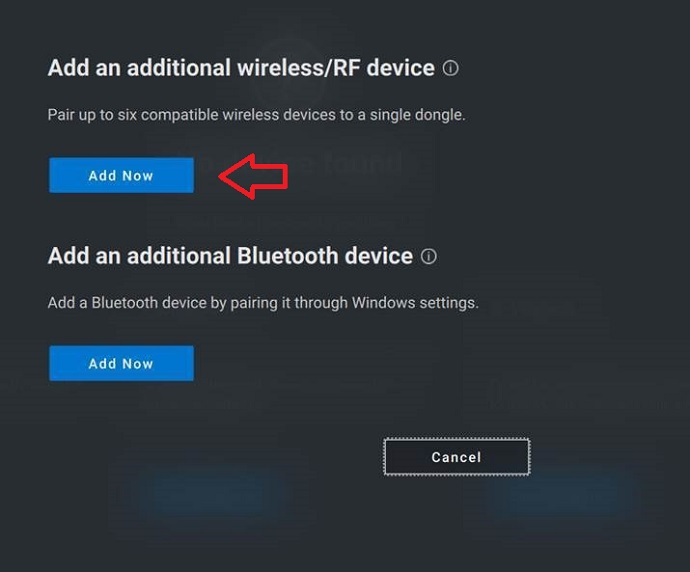
ワイヤレス/無線周波数(RF)デバイスを追加するには、[ Add Now ]をクリックします。
-
画面の指示に従って 、デバイスをペアリングします。

-
Dell Peripheral Managerユーティリティーの詳細については、次の記事を参照してください。
Affected Products
Alienware, Dell All-in-One, Dell Pro All-in-One, Dell Pro Max Micro, Dell Pro Max Slim, Dell Pro Max Tower, Dell Pro Micro, Dell Pro Slim, Dell Pro Tower, Dell Slim, Dell Tower, Inspiron, OptiPlex, Vostro, XPS, G Series, Chromebook, G Series
, Alienware, Dell Plus, Dell Pro, Dell Pro Max, Dell Pro Plus, Dell Pro Premium, Inspiron, Latitude, Dell Pro Rugged, Vostro, XPS, Fixed Workstations, Mobile Workstations, Dell Pro Max Micro XE FCM2250, Dell Pro Keyboard and Mouse KM5221W
...
Article Properties
Article Number: 000194959
Article Type: Solution
Last Modified: 07 Nov 2025
Version: 7
Find answers to your questions from other Dell users
Support Services
Check if your device is covered by Support Services.