SCG How to Reset The Linux Root Password on Secure Connect Gateway version 5.x
Summary: This article describes the procedure to access single user mode on the Secure Connect Gateway for resetting the root password.
This article applies to
This article does not apply to
This article is not tied to any specific product.
Not all product versions are identified in this article.
Instructions
This procedure works for both VMware and Hyper-V versions of the Secure Connect Gateway.
1. Open a virtual machine console to the secure connect gateway virtual machine if you have not done so already. The Web Console on VMware tends to disconnect during reboot. You may have to move quickly to start the reboot and then open the web console.
2. Use the hypervisor interface to reboot the Secure Connect Gateway virtual machine.
3. Type the letter e when you see the SUSE splash screen or boot menu screen, see the example below:

4. After you press the letter e you see the Grub boot editor below:

5. Use the arrow keys on the keyboard to navigate. Add init=/sysroot/bin/sh at the end of the line starting with linux. See the example below:

6. Press ctl+x or press F10 to reboot the gateway.
7. The console boots into single user mode to a shell prompt.
8. Press Enter to continue:
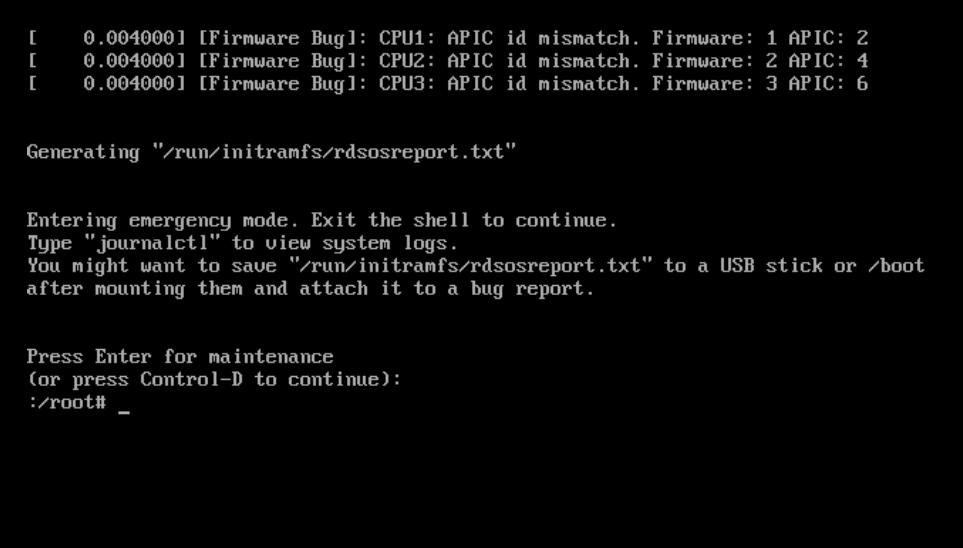
9. Type mount -o remount,rw /sysroot/
10 Type chroot /sysroot/
11 Type passwd
12 Enter your new root password.
13 Confirm the new password.
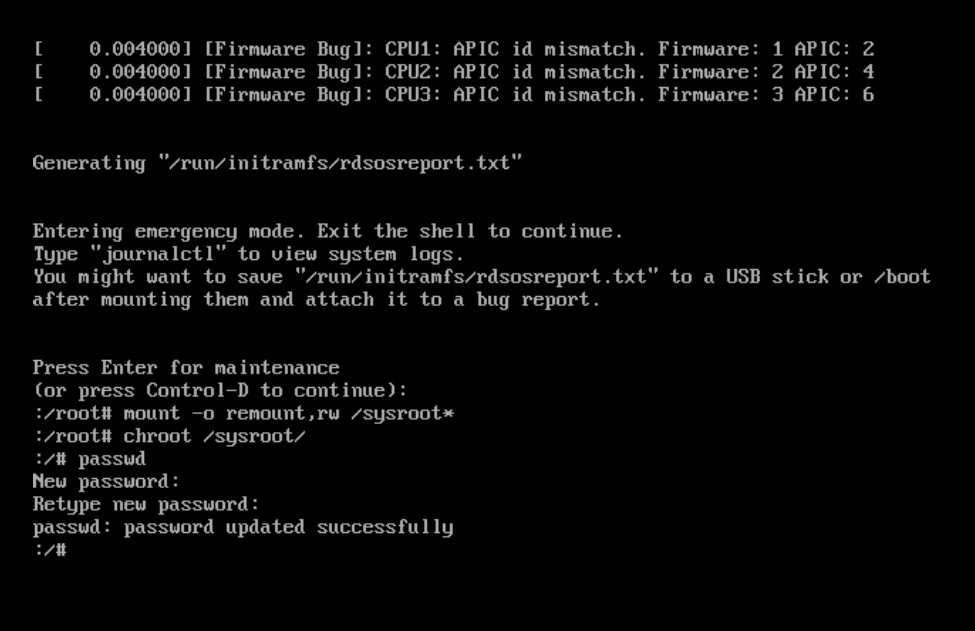
13 Type exit
14 Type reboot (If the reboot command does not work, use the hypervisor interface to reboot gateway)
15 Log in with your new password to test it.
1. Open a virtual machine console to the secure connect gateway virtual machine if you have not done so already. The Web Console on VMware tends to disconnect during reboot. You may have to move quickly to start the reboot and then open the web console.
2. Use the hypervisor interface to reboot the Secure Connect Gateway virtual machine.
3. Type the letter e when you see the SUSE splash screen or boot menu screen, see the example below:
4. After you press the letter e you see the Grub boot editor below:
5. Use the arrow keys on the keyboard to navigate. Add init=/sysroot/bin/sh at the end of the line starting with linux. See the example below:
6. Press ctl+x or press F10 to reboot the gateway.
7. The console boots into single user mode to a shell prompt.
8. Press Enter to continue:
9. Type mount -o remount,rw /sysroot/
10 Type chroot /sysroot/
11 Type passwd
12 Enter your new root password.
13 Confirm the new password.
13 Type exit
14 Type reboot (If the reboot command does not work, use the hypervisor interface to reboot gateway)
15 Log in with your new password to test it.
Affected Products
ScaleIO, Secure Connect Gateway - Virtual EditionArticle Properties
Article Number: 000196826
Article Type: How To
Last Modified: 16 May 2025
Version: 1
Find answers to your questions from other Dell users
Support Services
Check if your device is covered by Support Services.