How to receive alert email when any Avamar backup fails through DPA?
Summary: This article helps implementing email alerts through DPA when any Avamar backup fails.
This article applies to
This article does not apply to
This article is not tied to any specific product.
Not all product versions are identified in this article.
Instructions
- Login to DPA and make sure Global Email settings under system settings are configured.

- Policies-> Analysis Policies->Analysis Policy Library. Select Default Analysis Policy.

- Make sure Default Analysis Policy has “Backup Failed” rule.
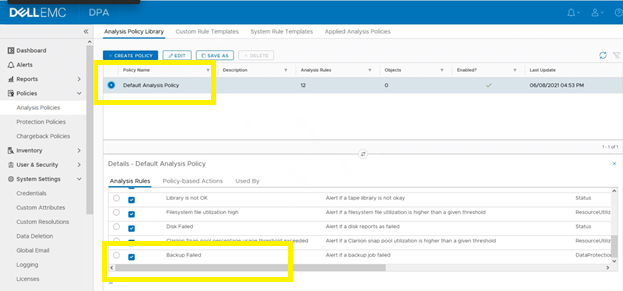
- Select Default Analysis Policy and click on EDIT.

- Click on EDIT POLICY-BASED ACTIONS.

- Click on Send Email and provide receiver’s email ID. And click on ok to close Edit Policy-Based Actions and click on ok to close Edit Analysis Policy.

- Click on Apply Analysis Policies tab.

- Expand Object Library and click on Applied policy for Avamar object (Avamar server hostname).

- Select Default Analysis Policy and click on ok.


- Click on Yes.

- Verify Policy is turned on for Avamar object (Avamar server hostname).

Additional Information
This solution is applicable only where DPA is present and Avamar been integrated in it. And also note DPA works nearby timeline.
Affected Products
Avamar Server, Data Protection Advisor, Integrated Data Protection Appliance Family, Integrated Data Protection Appliance SoftwareArticle Properties
Article Number: 000197521
Article Type: How To
Last Modified: 30 Nov 2022
Version: 5
Find answers to your questions from other Dell users
Support Services
Check if your device is covered by Support Services.