How to Install the Secureworks Red Cloak Endpoint Agent
Summary: Learn step-by-step instructions to install the Secureworks Red Cloak Endpoint agent on either Windows or Linux.
This article applies to
This article does not apply to
This article is not tied to any specific product.
Not all product versions are identified in this article.
Instructions
This article covers the installation process for the Secureworks Red Cloak Endpoint agent.
Affected Product:
- Secureworks Red Cloak Endpoint
Affected Operating Systems:
- Windows
- Linux
Note:
- Before installation, ensure that system requirements are validated. For more information, refer to Secureworks Red Cloak Endpoint Agent System Requirements.
- For more information about how to download the agent, refer to How to Download the Secureworks Red Cloak Endpoint Agent.
Click either Windows or Linux for the steps to install the Secureworks Red Cloak Endpoint agent.
Windows
The Secureworks Red Cloak Endpoint agent can be installed on Windows through the user interface (UI) or command-line interface (CLI). An administrator may then Confirm the agent installation. Click the appropriate process for more information.
UI
- As an administrator, go to the
redcloak.msiinstaller file and then double-click it.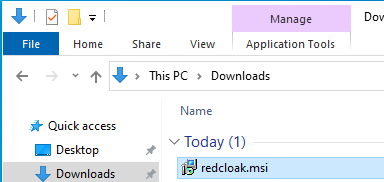
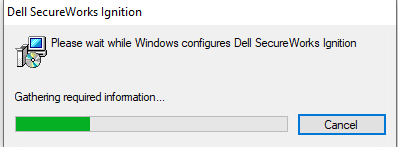
- While the Secureworks Red Cloak Endpoint agent installer runs, an installation window displays for a moment. Wait for the installation to complete.
CLI
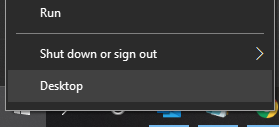
- As an administrator, right-click the Windows start menu and then click Run.
- In the Run UI, type
cmdand then press Enter.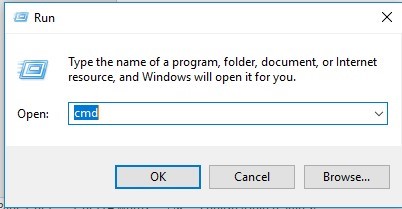
- Type
msiexec /i <PATH>\redcloak.msi /quiet /qnand then press Enter.Note:<PATH>= the full directory path to where theredcloak.msifile is located
Confirm the agent installation
- As an administrator, right-click the Windows start menu and then click Run.
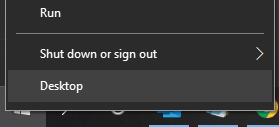
- In the Run UI, type
cmdand then press Enter.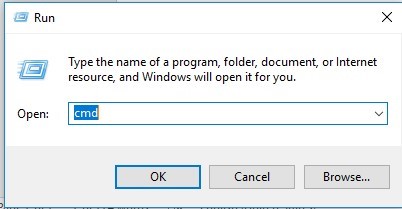
- Type
cd "<PATH>"and then press Enter. Note:
Note:<PATH>= The Secureworks Red Cloak Endpoint setup folder- By default, the setup folder is
C:\Program Files (x86)\Dell SecureWorks\Red Cloak.
- Type
redcloak.exe --checkand then press Enter.
- Command Prompt outputs information similar to the below example output. If you see errors or do not see a
[SUCCESS]message at the end, contact Dell Support.…
[ INFO ] Secureworks Red Cloak
[ INFO ] Communications Check
[ INFO ]
[ INFO ] This process will check the communications channel between
[ INFO ] this system and the servers.
…
[SUCCESS] connection activeNote: For more information about contacting support, reference How to Get Support for Secureworks Taegis XDR.
Linux
The Secureworks Red Cloak Endpoint agent can be installed on Linux using the DEB file or the RPM file. An administrator may then Confirm the agent installation. Click the appropriate process for more information.
DEB file
- Open Terminal.
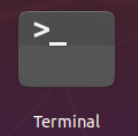 Note: Optionally, the CTRL+ALT+T keyboard combination can be used to launch Terminal.
 - Import the GPG key by typing
gpg -import <GPGKEYFILE>and then press Enter. Note:
Note:<GPGKEYFILE>= Path to the GPG key- The GPG key is available when downloading the Secureworks Red Cloak Endpoint agent. For more information, reference How to Download the Secureworks Red Cloak Endpoint Agent.
- Type
sudo apt install <DEB>and then press Enter. Note:
Note:<DEB>= Path to the .deb file
RPM file
- Open Terminal.
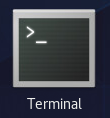
- Import the GPG key by typing
rpm --import <GPGKEYFILE>and then press Enter. Note:
Note:<GPGKEYFILE>= Path to the GPG key- The GPG key is available when downloading the Secureworks Red Cloak Endpoint agent. For more information, reference How to Download the Secureworks Red Cloak Endpoint Agent.
- Type
yum localinstall <RPM>and then press Enter. Note:
Note:<RPM>= Path to the RPM file
Confirm the agent installation
- Open Terminal.
- Type
service redcloak statusand then press Enter to verify the status of theredcloakservice.
- Type
/opt/secureworks/redcloak/bin/redcloak --checkand then press Enter to verify agent connectivity.
To contact support, reference Dell Data Security International Support Phone Numbers.
Go to TechDirect to generate a technical support request online.
For additional insights and resources, join the Dell Security Community Forum.
Affected Products
SecureworksArticle Properties
Article Number: 000201846
Article Type: How To
Last Modified: 11 Aug 2025
Version: 3
Find answers to your questions from other Dell users
Support Services
Check if your device is covered by Support Services.