Windows Server Gets TSR Logs Using the Command Line Locally (RACADM/ISM/IPMITOOL)
Summary: This section describes how to install iDRAC Tools and use racadm/ipmitool to get logs, and install iDRAC Service Module to use Invoke-SupportAssistCollection to get logs.
This article applies to
This article does not apply to
This article is not tied to any specific product.
Not all product versions are identified in this article.
Instructions
Directories:
- Applicable scenarios
- Installing iDRAC Tools uses the racadm command to get the TSR logs
- Installing iDRAC Service Module Getting TSR Logs Using Invoke-SupportAssistCollection.exe (Only for iDRAC9)
- Getting TSR Logs with IPMITool Command (Only for iDRAC9)
Applicable scenarios
Windows Server uses the command line to obtain TSR logs locally, which is applicable to the following scenarios:iDRAC web is inaccessible or does not work properly;
The iDRAC is not configured, the iDRAC cable is not connected;
The iDRAC is connected and configured, but the customer does not know the username password;
NOTE:
- The iDRAC Tools or iDRAC Service Module involved in this article need to be installed in the system with administrator rights, and please be sure to read the software installation instructions carefully during the installation process.
- When racadm saves TSR logs to the local computer, iDRAC will briefly insert a USB storage medium into the operating system for Avocent Mass Storage Function to transfer TSR log files.
- By installing ISM, the OS to iDRAC Pass-through function of USB NIC will be enabled by default, and a Remote NDIS Compatible Device will be added to the system to communicate with iDRAC.
- In general, installing iDRAC Tools or iDRAC Service Module will not affect the business environment, if you cannot assess the associated risks or do not want to make any changes to the OS, please give priority to using iDRAC to obtain TSR logs.
Installing iDRAC Tools uses the racadm command to get the TSR logs
Double-click Run the iDRAC Tools installer and complete the installation.
-
racadm techsupreport collect (iDRAC7,8,9 recommended)
racadm techsupreport collect -t sysinfo,ttylog

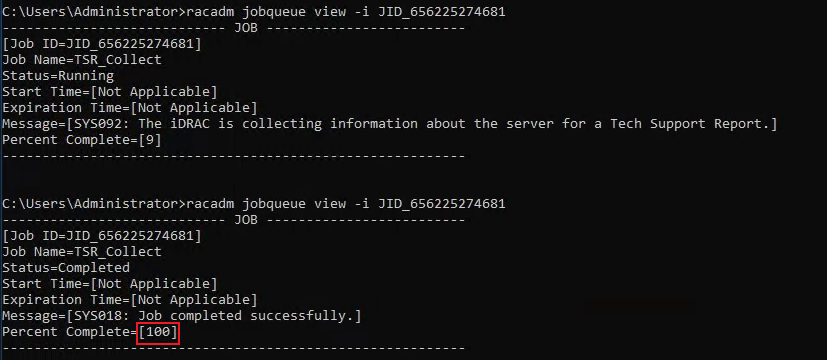
View the progress of the job queue and wait until it reaches 100%.
racadm jobqueue view -i JID_656225274681
Export TSR logs to the root directory of the local C drive of the server and name it to TSR.zip.
racadm techsupreport export -f c:\TSR.zip

NOTE: During the process of file saving, IDRAC will briefly insert a USB storage medium into the operating system, Avocent Mass Storage Function, which is used to transfer TSR log files
(for more information about racadm techsupreport parameters, please refer to the racadm user manual).
- racadm SupportAssist Collect (for IDRAC9 only)
Accept EULA
racadm supportassist accepteula

racadm supportassist collect -t sysinfo,ttylog,debug

View the progress of the job queue and wait until it reaches 100%.
racadm jobqueue view -i JID_656371010394
Export TSR logs with the tsrlog.zip command and save them in the root directory of drive C.
racadm supportassist exportlastcollection -f c:\tsrlog.zip

Installing iDRAC Service Module Getting TSR Logs Using Invoke-SupportAssistCollection.exe (Only for iDRAC9)
Double-click the iDRAC Service Module installer and follow the installation wizard to complete the installation. Open the CMD command line window, enter cd C:\Program Files\Dell\SysMgt\iSM\shared\bin to switch directories.Execute Invoke-SupportAssistCollection.exe procedures.

The TSR logs collected by this method do not contain TTY logs, for more information about Invoke-SupportAssistCollection please refer to page 43 of the ISM User Manual.
Getting TSR Logs with IPMITool Command (Only for iDRAC9)
IPMITool can be used by double-clicking to run the iDRAC Tools installer and complete the installation.
Using this method, the iDRAC will place the TSR log on a read-only virtual removable USB media and insert it into the operating system, and you need to manually copy the TSR log file for storage.
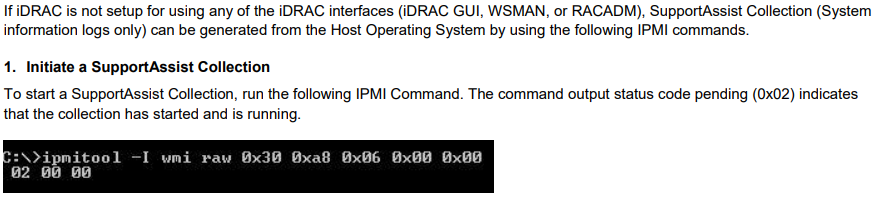

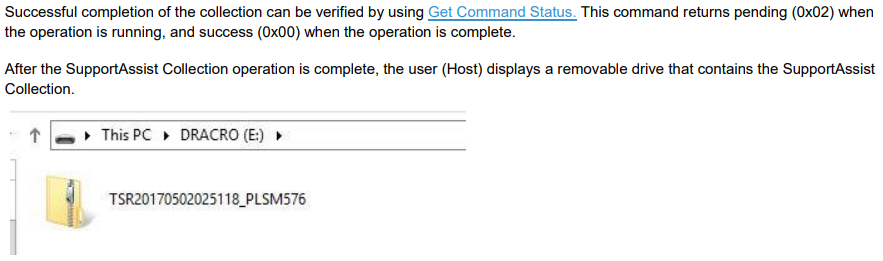




Using this method, the iDRAC will place the TSR log on a read-only virtual removable USB media and insert it into the operating system, and you need to manually copy the TSR log file for storage.
Affected Products
PowerEdge, Enterprise Systems ManagementArticle Properties
Article Number: 000204214
Article Type: How To
Last Modified: 13 Dec 2022
Version: 4
Find answers to your questions from other Dell users
Support Services
Check if your device is covered by Support Services.