BIOS管理者パスワードが設定されているコンピューターでDell UpdateツールがBIOSのアップグレードに失敗する
Summary: この記事では、Dell Update (DU)ツールを使用してBIOSアップグレードを有効にする方法について説明します。
This article applies to
This article does not apply to
This article is not tied to any specific product.
Not all product versions are identified in this article.
Symptoms
BIOSが管理者パスワードで設定されているDellクライアント コンピューターでは、DUツールはコンピューターのBIOSをアップグレードできません。
DUに「Installation Complete: X(アップデート数)のアップデートに失敗しました。BIOSのインストールが選択され、失敗しました。
これは、BIOSとオペレーティング システムの両方で発生するエラーです(図1)。
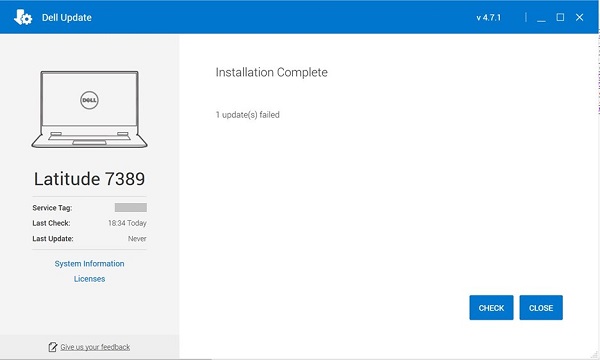
図1: DUツールがBIOSのアップグレードに失敗する。
影響を受ける製品:
| 製品名 | モデル名 |
| Dellゲーミング ノートパソコン | Dell G5 5505 |
| Dellゲーミング ノートパソコン | Dell G15 5515 |
| Inspironデスクトップ | Inspiron 5415 |
| Inspironデスクトップ | Inspiron 3671 |
| Inspironデスクトップ | Inspiron 3471 |
| Inspironデスクトップ | Inspiron 22-3275 |
| Inspironデスクトップ | Inspiron 3280 |
| Inspironデスクトップ | Inspiron 24-3475 |
| Inspironノートパソコン | Inspiron 7425 |
| Inspironノートパソコン | Inspiron 5485 2-in-1 |
| Inspironノートパソコン | Inspiron 5485 |
| Inspironノートパソコン | Inspiron 5585 |
| Inspironノートパソコン | Inspiron 3505 |
| Inspironノートパソコン | Inspiron 3502 |
| Inspironノートパソコン | Inspiron 5415 |
| Inspironノートパソコン | Inspiron 5515 |
| Inspironノートパソコン | Inspiron 7405 2 in 1 |
| Inspironノートパソコン | Inspiron 3195 2 in 1 |
| Inspironノートパソコン | Inspiron 5570 |
| Inspironノートパソコン | Inspiron 5770 |
| Inspironノートパソコン | Inspiron 3482 |
| Inspironノートパソコン | Inspiron 3481 |
| Inspironノートパソコン | Inspiron 3585 |
| Inspironノートパソコン | Inspiron 3582 |
| Inspironノートパソコン | Inspiron 3581 |
| Inspironノートパソコン | Inspiron 3584 |
| Inspironノートパソコン | Inspiron 3595 |
| Inspironノートパソコン | Inspiron 3785 |
| Inspironノートパソコン | Inspiron 3782 |
| Inspironノートパソコン | Inspiron 3781 |
| Inspironノートパソコン | Dell G3 3579 |
| Inspironノートパソコン | Dell G3 3779 |
| Inspironノートパソコン | Inspiron 3480 |
| Inspironノートパソコン | Inspiron 3580 |
| Inspironノートパソコン | Inspiron 3583 |
| Inspironノートパソコン | Inspiron 3780 |
| Inspironノートパソコン | Inspiron 5505 |
| Inspironノートパソコン | Inspiron 5405 |
| Inspironノートパソコン | Inspiron 5425 |
| Inspironノートパソコン | Inspiron 3525 |
| Inspironノートパソコン | Dell™ Inspiron 3521 |
| Inspironノートパソコン | Inspiron 3515 |
| Inspironノートパソコン | Inspiron 3510 |
| Inspironノートパソコン | Inspiron 7415 |
| Vostroデスクトップ | Vostro 3471 |
| Vostroデスクトップ | Vostro 3671 |
| Vostroデスクトップ | Vostro 3669 |
| Vostroデスクトップ | Vostro 3668 |
| Vostroデスクトップ | Vostro 3667 |
| Vostroデスクトップ | Vostro 3268 |
Cause
BIOS管理者パスワードを設定する機能は、DUでは提供されていません。
Resolution
Dell Updateを使用してBIOSアップグレードを有効にするには、次のいずれかのソリューションを実行します。
- コンピューターで設定されているBIOSパスワードを削除します。
- BIOSを手動でアップグレードします。
注意:デル・テクノロジーズは、BIOSをアップデートする前に、外付けハード ドライブ、プリンター、スキャナーなどのデバイスを取り外しておくことを推奨します。
注意:Dell製ノートパソコンの場合は、BIOSのアップデートを開始する前に、バッテリーを取り付けて10%以上充電しておく必要があります。また、アップデート プロセスは、ノートパソコンにAC電源を接続してから開始することをお勧めします。
注:Dell製コンピューターでBIOSをアップデートする方法の詳細については、Dellの記事「 BIOSアップデート ガイド」を参照してください。
注:BIOSをインストールするには、ユーザー アカウントに管理者権限が必要です。
- 最新のBIOSをダウンロードしてインストールする方法
- Dellの [ドライバーおよびダウンロード]にアクセスします。
- お使いのDell製PCを指定します。
- お使いのDell PCを自動検出するには、[Download & Install SupportAssist]をクリックします。画面の指示に従って、Dell SupportAssistをインストールします。詳細については、Dellの記事 「Dell SupportAssist(旧Dell System Detect): 概要および一般的な質問」を参照してください。
- ノートパソコンのサービス タグを入力して、[検索]をクリックします。
- または、[すべての製品の参照]をクリックして、リストからお使いのDell製PCを選択します。
- Dell PCにインストールされているオペレーティング システムを選択します。
- [カテゴリー]で[BIOS]を選択します。
- 最新のシステムBIOSを見つけます。
- [ダウンロード]をクリックして、ファイルをコンピューターに保存します。
- [エクスプローラー]を開き、ダウンロードしたファイルが保存されている場所を参照します。
- BIOSセットアップ ファイルをダブルクリックし、画面の指示に従ってインストール プロセスを完了します。
Affected Products
Dell Update, Dell G3 3579, Dell G5 SE 5505, Dell G15 5515 Ryzen Edition, Dell G3 3779, Inspiron 3195 2-in-1, Inspiron 3480, Inspiron 3481, Inspiron 3482, Inspiron 5405, Inspiron 5415, Inspiron 14 5425, Inspiron 14 5485 2-in-1, Inspiron 14 5485
, Inspiron 7405 2-in-1, Inspiron 7415 2-in-1, Inspiron 14 7425 2-in-1, Inspiron 3502, Inspiron 3505, Inspiron 15 3510, Inspiron 15 3515, Inspiron 15 3521, Inspiron 15 3525, Inspiron 3580, Inspiron 3581, Inspiron 3582, Inspiron 3583, Inspiron 3585, Inspiron 3595, Inspiron 5505, Inspiron 5515, Inspiron 5570, Inspiron 15 5585, Inspiron 3780, Inspiron 3781, Inspiron 3782, Inspiron 3785, Inspiron 5770, Inspiron 3275, Inspiron 3280 AIO, Inspiron 3475, Inspiron 3471, Inspiron 3671, Vostro 3268, Vostro 3471, Vostro 3667, Vostro 3668, Vostro 3669, Vostro 3671
...
Products
Inspiron 3195 2-in-1, Inspiron 3480, Inspiron 3481, Inspiron 3482, Inspiron 5405, Inspiron 5415, Inspiron 7405 2-in-1, Inspiron 7415 2-in-1, Inspiron 3502, Inspiron 3505, Inspiron 15 3515, Inspiron 15 3521, Inspiron 15 3525, Inspiron 3580
, Inspiron 3581, Inspiron 3582, Inspiron 3583, Inspiron 3585, Inspiron 3595, Inspiron 5505, Inspiron 5515, Inspiron 5570, Inspiron 15 5585, Inspiron 3780, Inspiron 3781, Inspiron 3782, Inspiron 3785, Inspiron 5770, Inspiron 3275, Inspiron 3280 AIO, Inspiron 3475, Inspiron 3471, Inspiron 3671, Vostro 3268, Vostro 3471, Vostro 3667, Vostro 3668, Vostro 3669, Vostro 3671
...
Article Properties
Article Number: 000206452
Article Type: Solution
Last Modified: 26 Nov 2025
Version: 8
Find answers to your questions from other Dell users
Support Services
Check if your device is covered by Support Services.