Dell Update-verktøyet kan ikke oppgradere BIOS på datamaskiner som har BIOS-administratorpassord konfigurert
Summary: Denne artikkelen inneholder informasjon om hvordan du aktiverer BIOS-oppgradering via Dell Update-verktøyet (DU).
This article applies to
This article does not apply to
This article is not tied to any specific product.
Not all product versions are identified in this article.
Symptoms
På Dell-klientdatamaskiner der BIOS er konfigurert med administratorpassord, kan ikke DU-verktøyet oppgradere BIOS på datamaskinen.
DU viser "Installasjonen er fullført: X (antall oppdateringer) oppdateringer mislyktes" der BIOS ble valgt for å bli installert og mislyktes.
Dette er en feil som oppstår både i BIOS og operativsystemet (figur 1).
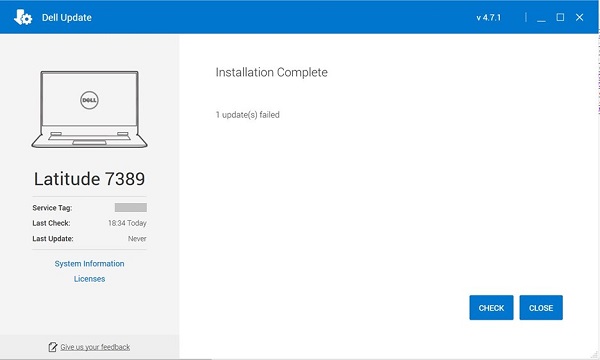
Figur 1: DU-verktøyet kan ikke oppgradere BIOS.
Berørte produkter:
| Produktnavn | Modellnavn |
| Dell bærbar spill-PC | Dell G5 5505 |
| Dell bærbar spill-PC | Dell G15 5515 |
| Inspiron stasjonær PC | Inspiron 5415 |
| Inspiron stasjonær PC | Inspiron 3671 |
| Inspiron stasjonær PC | Inspiron 3471 |
| Inspiron stasjonær PC | Inspiron 22-3275 |
| Inspiron stasjonær PC | Inspiron 3280 |
| Inspiron stasjonær PC | Inspiron 24-3475 |
| Inspiron bærbar PC | Inspiron 7425 |
| Inspiron bærbar PC | Inspiron 5485 2-i-1 |
| Inspiron bærbar PC | Inspiron 5485 |
| Inspiron bærbar PC | Inspiron 5585 |
| Inspiron bærbar PC | Inspiron 3505 |
| Inspiron bærbar PC | Inspiron 3502 |
| Inspiron bærbar PC | Inspiron 5415 |
| Inspiron bærbar PC | Inspiron 5515 |
| Inspiron bærbar PC | Inspiron 7405 2-i-1 |
| Inspiron bærbar PC | Inspiron 3195 2-i-1 |
| Inspiron bærbar PC | Inspiron 5570 |
| Inspiron bærbar PC | Inspiron 5770 |
| Inspiron bærbar PC | Inspiron 3482 |
| Inspiron bærbar PC | Inspiron 3481 |
| Inspiron bærbar PC | Inspiron 3585 |
| Inspiron bærbar PC | Inspiron 3582 |
| Inspiron bærbar PC | Inspiron 3581 |
| Inspiron bærbar PC | Inspiron 3584 |
| Inspiron bærbar PC | Inspiron 3595 |
| Inspiron bærbar PC | Inspiron 3785 |
| Inspiron bærbar PC | Inspiron 3782 |
| Inspiron bærbar PC | Inspiron 3781 |
| Inspiron bærbar PC | Dell G3 3579 |
| Inspiron bærbar PC | Dell G3 3779 |
| Inspiron bærbar PC | Inspiron 3480 |
| Inspiron bærbar PC | Inspiron 3580 |
| Inspiron bærbar PC | Inspiron 3583 |
| Inspiron bærbar PC | Inspiron 3780 |
| Inspiron bærbar PC | Inspiron 5505 |
| Inspiron bærbar PC | Inspiron 5405 |
| Inspiron bærbar PC | Inspiron 5425 |
| Inspiron bærbar PC | Inspiron 3525 |
| Inspiron bærbar PC | Inspiron 3521 |
| Inspiron bærbar PC | Inspiron 3515 |
| Inspiron bærbar PC | Inspiron 3510 |
| Inspiron bærbar PC | Inspiron 7415 |
| Vostro stasjonær PC | Vostro 3471 |
| Vostro stasjonær PC | Vostro 3671 |
| Vostro stasjonær PC | Vostro 3669 |
| Vostro stasjonær PC | Vostro 3668 |
| Vostro stasjonær PC | Vostro 3667 |
| Vostro stasjonær PC | Vostro 3268 |
Cause
Funksjonen for å konfigurere BIOS-administratorpassordet er ikke angitt på DU.
Resolution
Hvis du vil aktivere BIOS-oppgraderinger via Dell Update, utfører du én av følgende løsninger:
- Fjern det konfigurerte BIOS-passordet på datamaskinen.
- Oppgrader BIOS manuelt:
Forsiktig: Dell Technologies anbefaler at du kobler fra enheter som eksterne harddisker, skrivere, skannere osv. før du oppdaterer BIOS.
Forsiktig: Batteriet i bærbare Dell-PC-er må være installert og minst 10 % oppladet før du starter BIOS-oppdateringen. Dell Technologies anbefaler at du kobler den bærbare PC-en på nettstrøm før du fortsetter med oppdateringsprosessen.
Merk: Hvis du vil vite mer om hvordan du oppdaterer BIOS på en Dell-datamaskin, kan du se Dells artikkel om BIOS-oppdateringsveiledning.
Merk: Hvis du skal installere BIOS, må brukerkontoen ha administratorrettigheter.
- Slik laster du ned og installerer nyeste BIOS:
- Bla til Dell-drivere og -nedlastinger.
- Identifiser Dell-datamaskinen din.
- Klikk på Last ned og installer SupportAssist for å finne Dell-PC-en automatisk. Følg instruksjonene på skjermen for å installere Dell SupportAssist. Du finner mer informasjon i Dell-artikkelen Dell SupportAssist (tidligere kalt Dell System Detect): Oversikt og vanlige spørsmål
- Skriv inn service-ID-en til den bærbare PC-en, og klikk på Søk.
- Du kan også klikke på Bla gjennom alle produkter og velge Dell-datamaskinen din fra listen.
- Velg operativsystemet som er installert på Dell-datamaskinen.
- Under Kategori velger du BIOS.
- Finn den nyeste system-BIOS-en.
- Klikk på Last ned, og lagre filen på datamaskinen.
- Åpne Filutforsker, og gå til plasseringen der den nedlastede filen er lagret.
- Dobbeltklikk på BIOS-installasjonsfilen, og følg instruksjonene på skjermen for å fullføre installasjonsprosessen.
Affected Products
Dell Update, Dell G3 3579, Dell G5 SE 5505, Dell G15 5515 Ryzen Edition, Dell G3 3779, Inspiron 3195 2-in-1, Inspiron 3480, Inspiron 3481, Inspiron 3482, Inspiron 5405, Inspiron 5415, Inspiron 14 5425, Inspiron 14 5485 2-in-1, Inspiron 14 5485
, Inspiron 7405 2-in-1, Inspiron 7415 2-in-1, Inspiron 14 7425 2-in-1, Inspiron 3502, Inspiron 3505, Inspiron 15 3510, Inspiron 15 3515, Inspiron 15 3521, Inspiron 15 3525, Inspiron 3580, Inspiron 3581, Inspiron 3582, Inspiron 3583, Inspiron 3585, Inspiron 3595, Inspiron 5505, Inspiron 5515, Inspiron 5570, Inspiron 15 5585, Inspiron 3780, Inspiron 3781, Inspiron 3782, Inspiron 3785, Inspiron 5770, Inspiron 3275, Inspiron 3280 AIO, Inspiron 3475, Inspiron 3471, Inspiron 3671, Vostro 3268, Vostro 3471, Vostro 3667, Vostro 3668, Vostro 3669, Vostro 3671
...
Products
Inspiron 3195 2-in-1, Inspiron 3480, Inspiron 3481, Inspiron 3482, Inspiron 5405, Inspiron 5415, Inspiron 7405 2-in-1, Inspiron 7415 2-in-1, Inspiron 3502, Inspiron 3505, Inspiron 15 3515, Inspiron 15 3521, Inspiron 15 3525, Inspiron 3580
, Inspiron 3581, Inspiron 3582, Inspiron 3583, Inspiron 3585, Inspiron 3595, Inspiron 5505, Inspiron 5515, Inspiron 5570, Inspiron 15 5585, Inspiron 3780, Inspiron 3781, Inspiron 3782, Inspiron 3785, Inspiron 5770, Inspiron 3275, Inspiron 3280 AIO, Inspiron 3475, Inspiron 3471, Inspiron 3671, Vostro 3268, Vostro 3471, Vostro 3667, Vostro 3668, Vostro 3669, Vostro 3671
...
Article Properties
Article Number: 000206452
Article Type: Solution
Last Modified: 26 Nov 2025
Version: 8
Find answers to your questions from other Dell users
Support Services
Check if your device is covered by Support Services.