SSL Certificate shows the warning "Your connection is not private" when browsing a web server UI
Summary: SSL Certificate shows the warning "Your connection is not private" when browsing a web server UI.
This article applies to
This article does not apply to
This article is not tied to any specific product.
Not all product versions are identified in this article.
Symptoms
Note: This KB article applies to all products and or services if SSL is used to secure communication to web servers and or services.
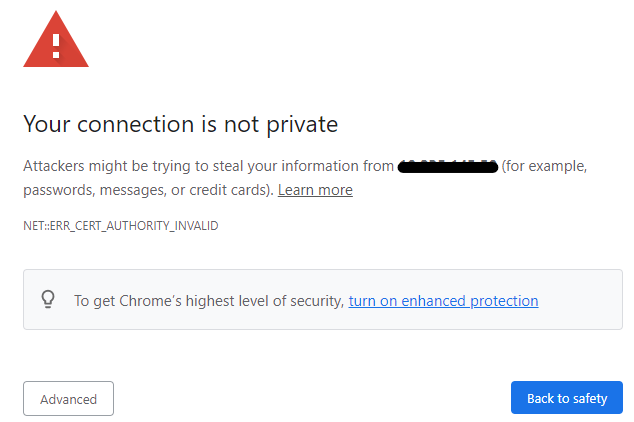
Symptom: SSL Certificate shows the warning "Your connection is not private" when browsing a web server UI (Chrome browser).
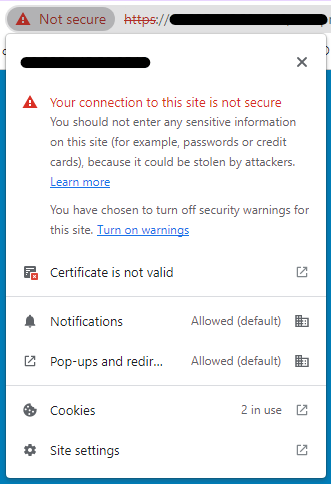
And if clicking "Not secure" on the left side of the browser address field, it shows the following warning information (Chrome browser).
Cause
One of the following conditions causes this certificate warning:
- The certificate is self-signed
- The client browser does not trust the CA certificate
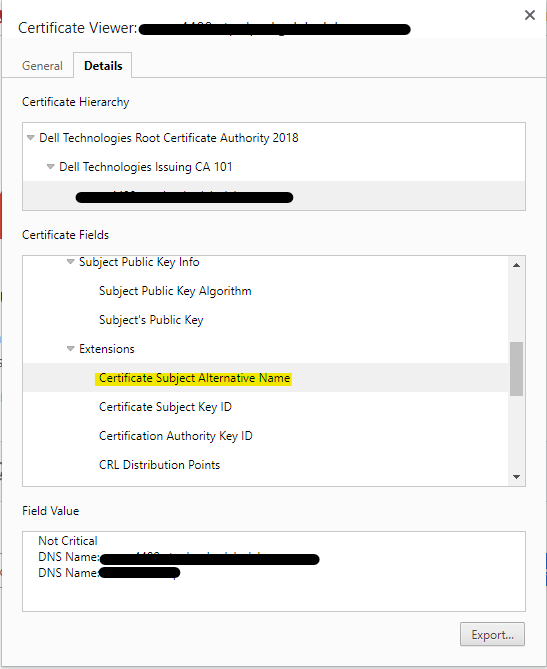
- The FQDN, Hostname, or IP typed in the browser address field does not match any of the entries in certificate subject alternative names
Resolution
Scenario #1: Self-signed certificate
Scenario #2: Internal CA signed certificate.
Scenario #3: Third-party CA signed the certificate.
- When a browser shows an invalid certificate error for a self-signed certificate, it means that the certificate presented by the server is not signed by a trusted certificate authority. Self-signed certificates are not signed by a trusted certificate authority, but instead, they are signed by the entity that generated them.
Scenario #2: Internal CA signed certificate.
- If the web browser is displaying an "invalid certificate" error for an internal CA signed certificate, it may be because the certificate is not trusted by the browser.
To resolve this issue, add the internal CA to your browser's list of trusted root authorities. This can typically be done by exporting the CA certificate from your internal CA server and then importing it into your browser's certificate store.
The specific steps to do this depend on your browser and operating system. Here are some general steps:
The specific steps to do this depend on your browser and operating system. Here are some general steps:
-
Export the CA certificate from your internal CA server. Access the CA server's web interface, go to the CA certificate, and then export it in a format that can be imported into your browser.
-
Import the CA certificate into your browser. Open your Windows Control Panel, then select Internet Options, Content tab, click Certificate at bottom, then Trusted Root Certificate Authorities. Click Import to import the CA certificate into the trusted store
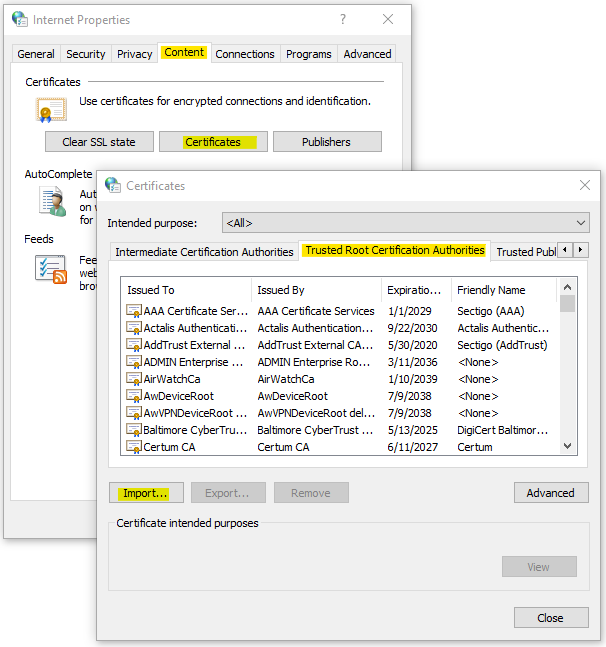
Once the internal CA certificate is added to the browser's list of trusted root authorities, the "invalid certificate" error should not be displayed when accessing sites secured with certificates signed by that CA.
Scenario #3: Third-party CA signed the certificate.
-
If a third-party CA-signed certificate is showing as invalid, it could be due to several reasons. Here are a few things that you can check:
-
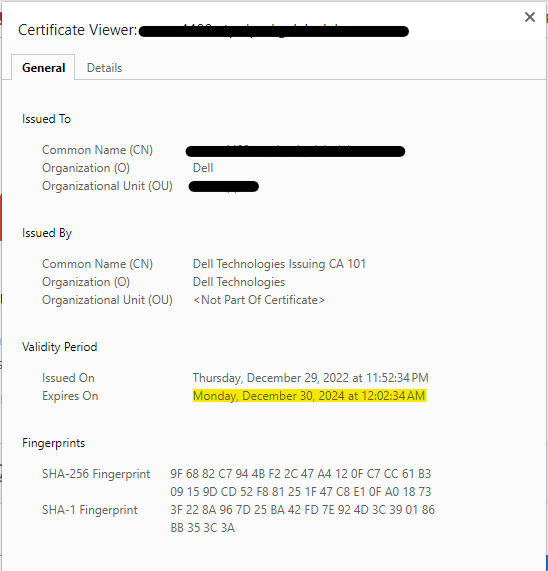
Expiration Date: Ensure that the certificate is still valid and has not expired. Check the expiration date of the certificate to ensure it is still valid.
-
Certificate Chain: Check if the certificate chain is complete and correctly installed on the server. A certificate chain includes the SSL certificate, intermediate certificates, and root certificate. Ensure that all certificates in the chain are valid and installed correctly.

-
Domain Name Mismatch: Ensure that the domain name on the certificate (Subject Alternative Name) matches the domain name of the server you are trying to access. If there is a mismatch, the certificate shows as invalid.
-
Certificate Revocation: Check if the certificate has been revoked by the issuing CA. A revoked certificate shows as invalid.
-
Certificate Authority: Ensure that the CA that issued the certificate is trusted by your browser or device. If the CA is not trusted, the certificate shows as invalid.
-
If you still have issues after checking the above, you want to contact the support team of the CA that issued the certificate for further assistance.
Affected Products
Converged Infrastructure, Data Center Infrastructure, Desktops & All-in-Ones, Gateways & Embedded PCs, Electronics & Accessories, Laptops, Networking, Security, C Series, HS Series, Modular Infrastructure, Rack Servers, Tower Servers, XE Servers
, XR Servers, Software, Solutions, OEM Server Solutions, Storage, Tablets, Thin Clients, Workstations
...
Article Properties
Article Number: 000211960
Article Type: Solution
Last Modified: 11 Jun 2025
Version: 5
Find answers to your questions from other Dell users
Support Services
Check if your device is covered by Support Services.