PowerFlex 3.6 Clearing Disk Errors in PowerFlex Presentation Server
Summary: These are the steps for Clearing Disk Errors in the PowerFlex Presentation Server.
This article applies to
This article does not apply to
This article is not tied to any specific product.
Not all product versions are identified in this article.
Instructions
Clearing Disk Errors in PowerFlex Presentation Server
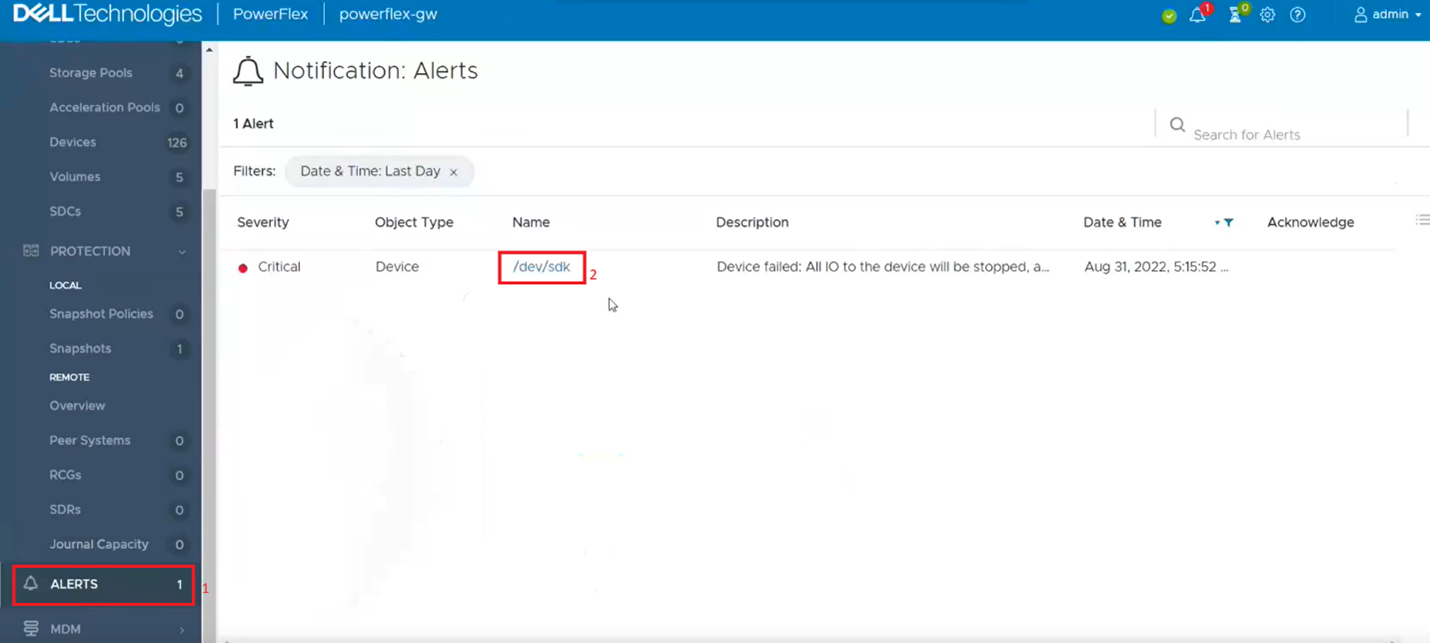
1. Log in to the Presentation server and click the 'Alerts' tab on the left side of the user interface. This shows you the drives that are showing errors. Next, click on the drive that has an error. If multiple drives are listed, then you will have to go back and repeat this step to clear the next drive error.
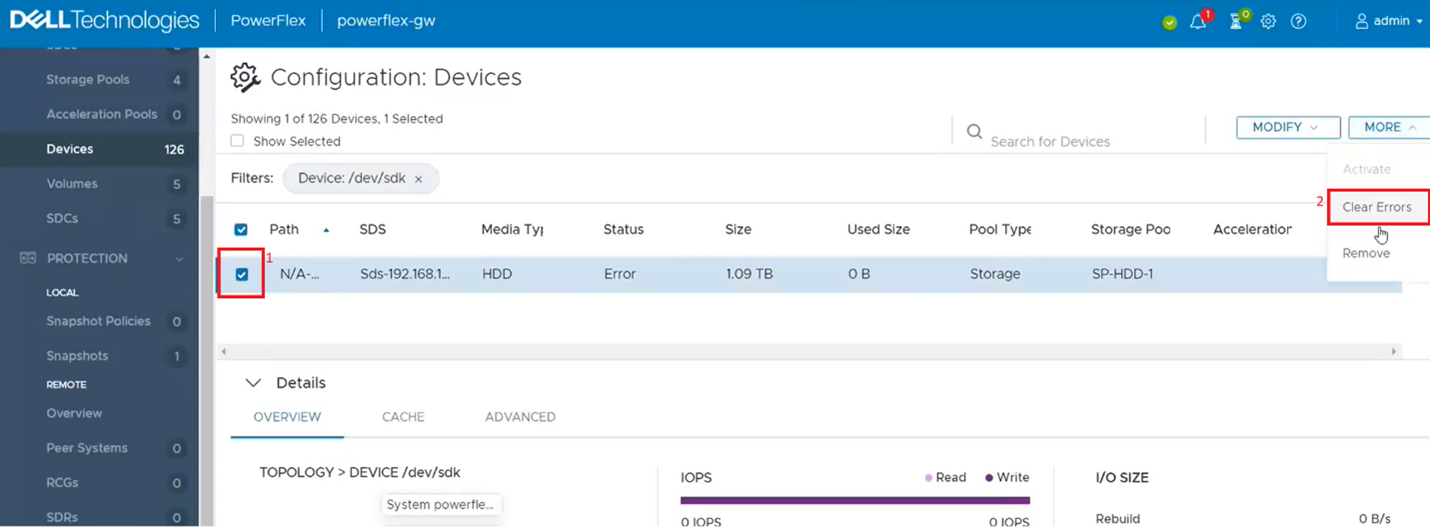
2. This filters out the single dive from the devices list. Click on the singled drive check box (1) and then from the 'More' menu, click on clear errors (2).
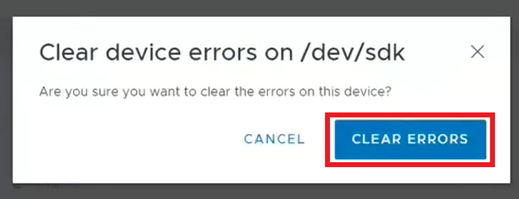
3. On the pop-up box click on CLEAR ERRORs.
4. It should now show as OK.
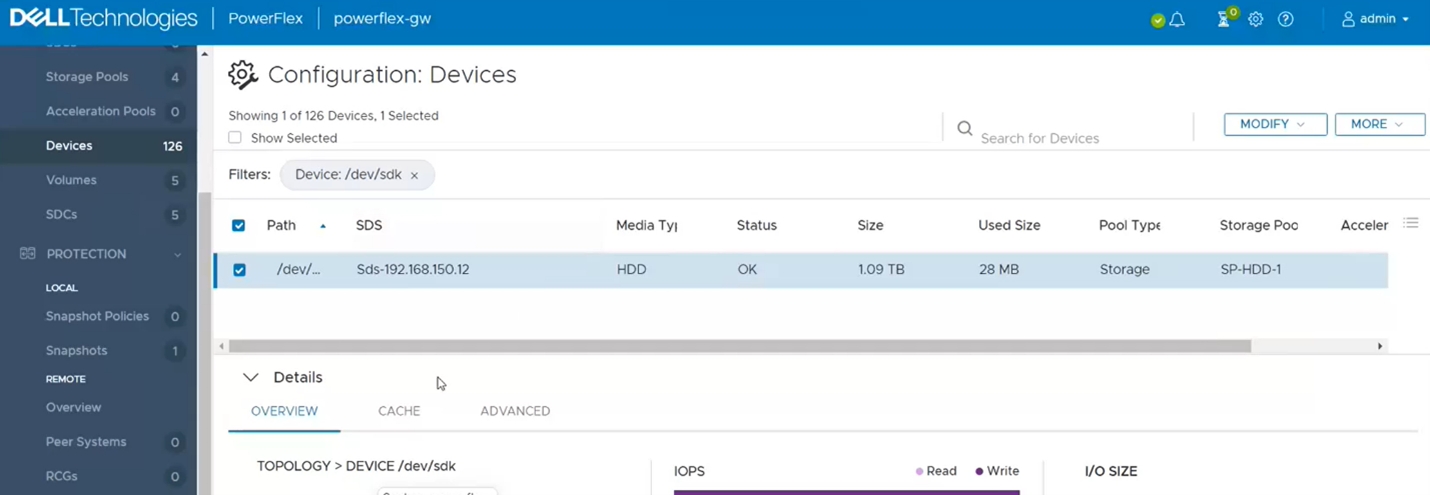
5. If you go back to the Alerts sections, it should be now clear. If not, repeat the above steps for any other drives that show as errored.
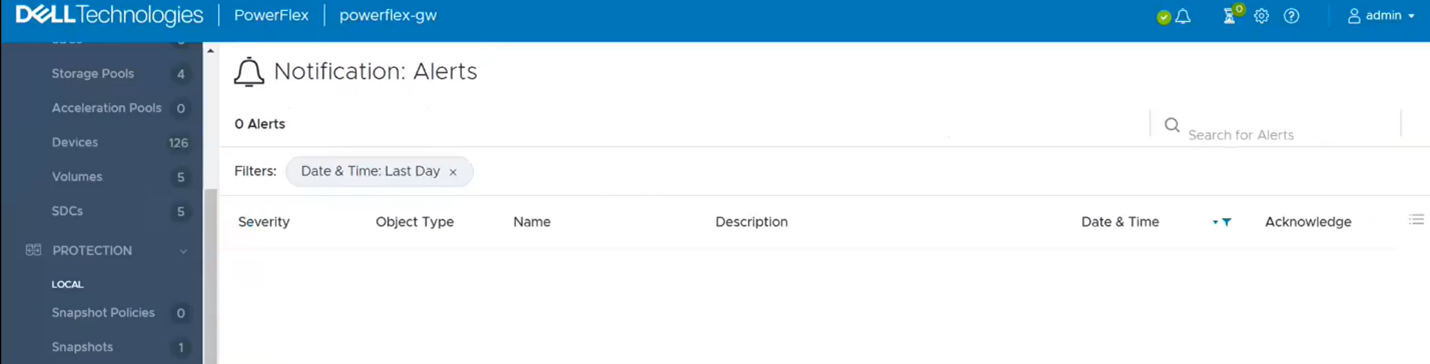
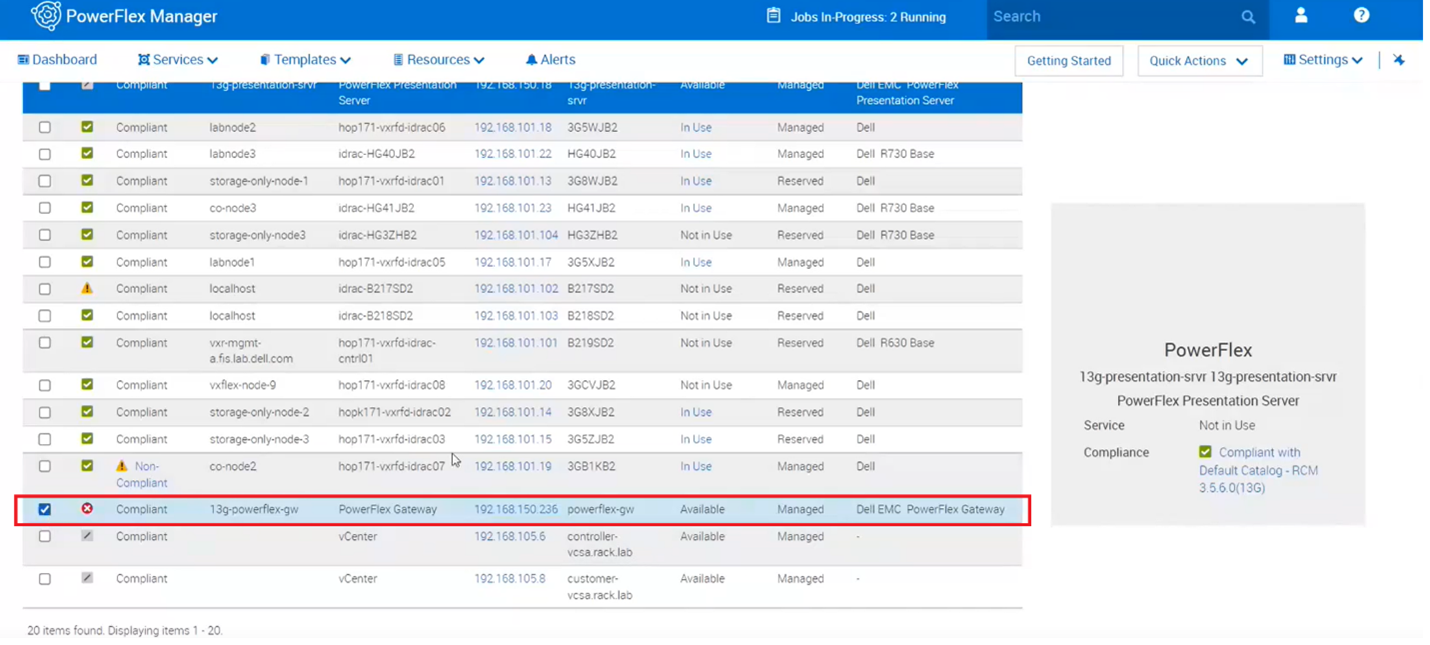
6. One last step to take is to go back to PowerFlex Manager and run an inventory on the gateway to verify whether it shows healthy.
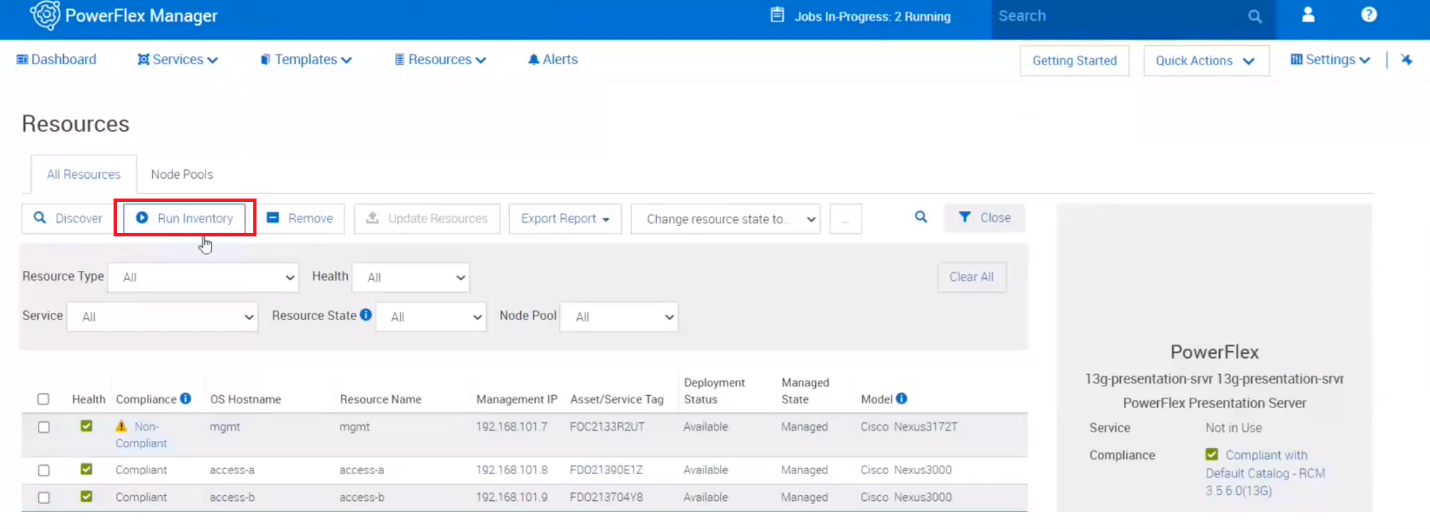
7. Near the top, click on run inventory.
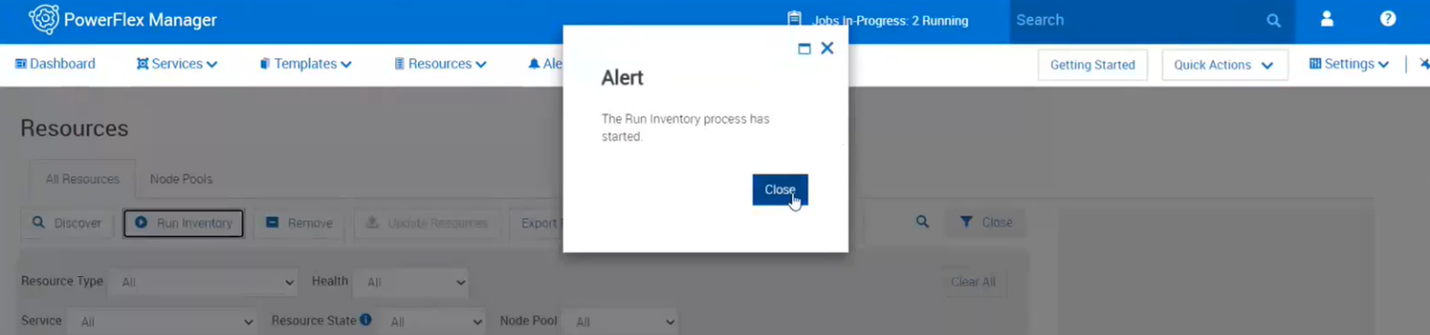
8. Close the box and click on the job. Wait for it to complete.
9. Monitor the Resources in PowerFlex Manager and the alerts in the Presentation Server to see if the error comes returns.
Additional Information
For PowerFlex 4.X see KB https://www.dell.com/support/kbdoc/000256801
Relevant Error : The disk generated a failed state message at some time in the past, indicating a potential issue or that it is no longer working
Affected Products
PowerFlex rack HW, VxRack Flex-PowerEdge 14GArticle Properties
Article Number: 000213016
Article Type: How To
Last Modified: 07 Apr 2026
Version: 5
Find answers to your questions from other Dell users
Support Services
Check if your device is covered by Support Services.