Steps to Roll Back iDRAC9 Firmware using the iDRAC9 user interface and RACADM
Summary: This KBA includes the steps to roll back iDRAC9 firmware by using the iDRAC9 user interface and RACADM.
This article applies to
This article does not apply to
This article is not tied to any specific product.
Not all product versions are identified in this article.
Instructions
Rolling Back iDRAC9 Firmware using iDRAC9 the user interface or RACADM -
For both procedures (using the user interface or using RACADM), a server reboot is not required to downgrade iDRAC9 firmware.
To roll back iDRAC9 firmware using iDRAC9 user interface:
1. Log in to the iDRAC of the server.
2. In the iDRAC Web interface, go to Maintenance > System Update > Rollback. The Rollback page displays the devices for which you can rollback the firmware. You can view the device name, associated devices, installed firmware version, and the available firmware rollback version.

3. Select Integrated Remote Access Controller, then click Install.
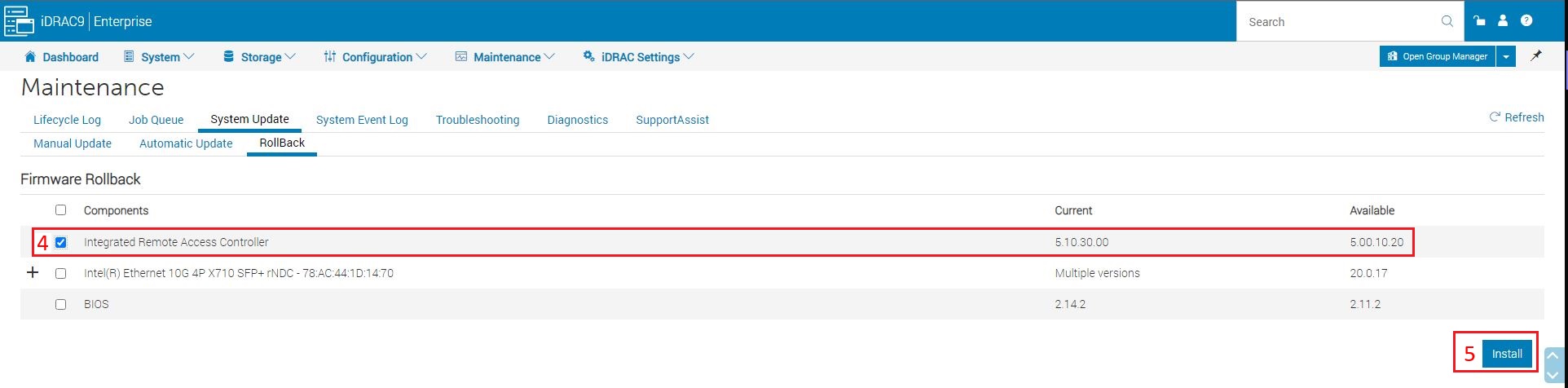
An error message appears if:
- You do not have Server Control privilege to rollback any firmware other than the iDRAC or Configure privilege to rollback iDRAC firmware.
- Firmware rollback is already in-progress in another session.
- Updates are staged to run or already in running state.
To roll back iDRAC9 firmware using iDRAC9 RACADM:
1. SSH to the IP Address of the Server
2. Run 'swinventory' to confirm the FQDD of the iDRAC and check the available Rollback version:
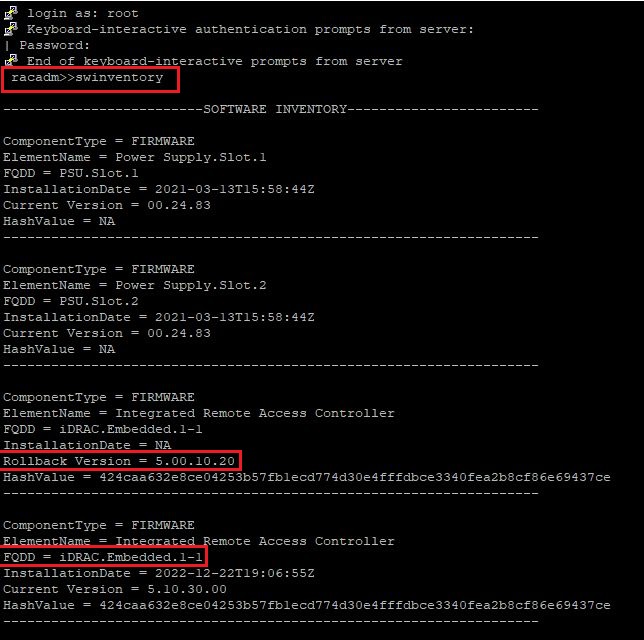
3. Run 'racadm rollback <FQDD>' (Ex. 'racadam rollback iDRAC.Embedded.1-1') to initiate the downgrade.
Affected Products
PowerFlex rack connectivity, PowerFlex rack HWArticle Properties
Article Number: 000213056
Article Type: How To
Last Modified: 27 Jul 2023
Version: 3
Find answers to your questions from other Dell users
Support Services
Check if your device is covered by Support Services.