BIOS Settings Prerequisites for Ubuntu 22.04 Full Disk Encryption Operating System Installation or Booting
Summary: Ubuntu 22.04 Full Disk Encryption (FDE) is a special version of Ubuntu that provides Trusted Platform Module (TPM) full disk encryption support on select Dell computers. With current computer designs, specific BIOS settings are required before performing a fresh Operating System (OS) installation or booting into the OS. ...
This article applies to
This article does not apply to
This article is not tied to any specific product.
Not all product versions are identified in this article.
Instructions
Ubuntu Full Disk Encryption
To apply the required settings, boot into the BIOS setup by pressing F12 after powering on the computer. In the BIOS setup menu, perform the following steps:
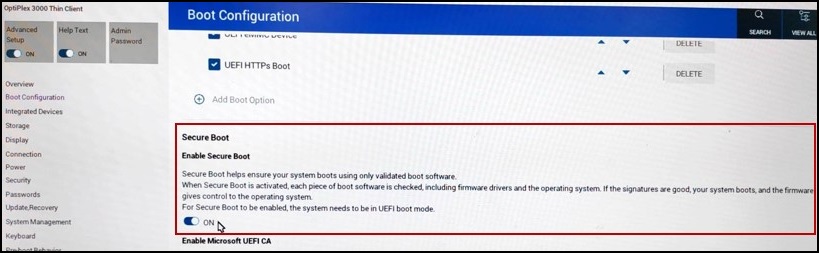
- Turn "Secure Boot" "On":
- On the left pane, click "Boot Configuration."
- Scroll to the right pane and find the "Secure Boot - Enable Secure Boot" setting. Click the switch to "ON."
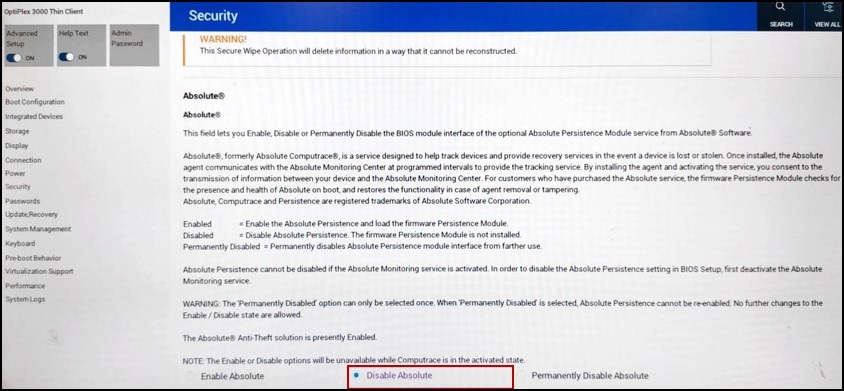
- Turn "Absolute" "Off":
- On the left pane, click "Security."
- Scroll to the right pane and find the "Absolute" settings. Check the radio button to "Disable Absolute."
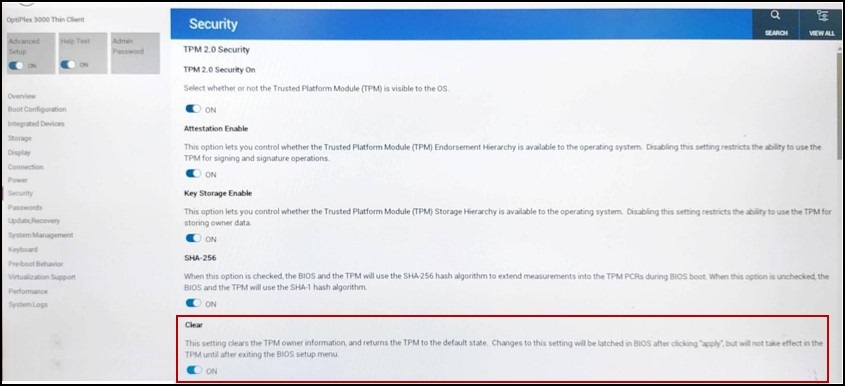
- Clear the "TPM":
- On the left pane, click "Security."
- Scroll the right pane and find the "TPM 2.0 Security - Clear" setting and click the switch to ">ON."
After applying the changes and rebooting the computer, you can continue with an OS installation or booting to the OS.
Note: Without the correct BIOS settings, you are blocked from booting into the OS desktop.
Affected Products
OptiPlex 3000 Thin ClientArticle Properties
Article Number: 000213375
Article Type: How To
Last Modified: 31 Oct 2025
Version: 2
Find answers to your questions from other Dell users
Support Services
Check if your device is covered by Support Services.