PowerStore: PowerStore Drive Firmware Upgrades and Frequently Asked Questions (FAQ)
Summary: This article answers frequently asked questions associated with drive firmware packages and releases.
This article applies to
This article does not apply to
This article is not tied to any specific product.
Not all product versions are identified in this article.
Instructions
(Updated: 2026-Mar-25)
- What versions of PowerStoreOS are compatible with each Drive Firmware version?
Table 1: PowerStore Drive Firmware Upgrade - PowerStoreOS - CompatibilityDisk Firmware Version PowerStoreOS
v1.x to v3.0PowerStoreOS
v3.2.x to v3.6.xPowerStoreOS
v4.0.xPowerStoreOS
v4.1.x to v4.4.xNotes 4.0.0.0-2299541 No Yes Yes No 4.1.0.0-2435323 No No No Yes No longer available. Replaced by version 4.2.x. 4.2.0.0-2563584 No No No Yes
- Why apply drive firmware to my cluster?
In general, the drive firmware upgrade improves the security and reliability of the drives. See the release notes for the PowerStore Drive Firmware Package for fixes by drive part number.
- What happens if the wrong version is used to try to upgrade the drives?
The upgrade or the pre-upgrade health checks fail. Possible failure messages include:- Incompatible package's build version" (0xE04030010069)
- Pre-upgrade health check failed to run. (0xE0403001004F)
- Pre-upgrade health check failed on node A - ["xxxx-appliance-1"] node B - ["xxxx-appliance-1"]. Please review the health check steps for more details (0xE0403001000C)
- Should the PowerStore drive firmware upgrade be run before or after a PowerStoreOS firmware upgrade?
Dell suggests installing the drive firmware package after the PowerStoreOS package.
- Does the PowerStore drive firmware upgrade require a reboot?
The drive firmware upgrade does not require any reboots.
- How to find the PowerStore Drive Firmware Upgrade package?
Use the following steps to download the drive firmware package:- Go to Dell Support
- Log in to your business account
- Select Support
- Select Support Home
- Enter your service tag into the product identifier and search
- Under Drivers & Downloads > go to the disk firmware or search with the keyword disk
- How to find the PowerStore Drive Firmware Upgrade release notes?
Use the following steps to download the release notes:- Go to Dell Support
- Log in to your business account
- Select Support > Support Home
- Enter your service tag into the product identifier and search
- Under Documentation > Manuals and Documents, look for PowerStore Drive Firmware Upgrade xxxxx Release Notes
- Why use the "Disable Support Notifications" (Maintenance Window) feature during the PowerStore Drive Firmware Upgrade?
Dell suggests enabling the maintenance window feature during the drive upgrade. A maintenance window can prevent an unnecessary alert going to Dell remote support (a list of possible alerts seen during the drive firmware upgrade is shown below). Dell suggests picking a period of time that is longer than the drive firmware upgrade is expected to take. By default, the PowerStore Drive Firmware Upgrade automatically enables a maintenance window of 8 hours. The default maintenance window is set internally and is not reflected in the PowerStore User Interface (UI). To estimate how long the drive firmware upgrade may take, see below.
If errors persist beyond the upgrade, contact Dell Support.
- How to set a maintenance window of greater than 8 hours?
If you believe that the drive firmware upgrade may take longer than 8 hours, you can set a maintenance window in the PowerStore UI:- Go to Settings > Support > Disable Support Notifications
- Select the checkbox next to all appliances.
- Select MODIFY
- Check Enable Maintenance Mode and select a maintenance window longer than the expected upgrade time
When the upgrade finishes, you should manually disable the maintenance mode.
- How long does the PowerStore Drive Firmware Upgrade take?
Drive firmware upgrades take a variable amount of time. Upgrade times depend on I/O Activity, types of drives, number of drives, and layout of the RAID resiliency set. The drives must upgrade serially to maintain high availability. Internal testing has seen the drive firmware upgrades take as little as 30 minutes with an idle, minimally configured PowerStore. A fully populated single PowerStore appliance with no external enclosures running with high I/O activity can take up to 10 hours to complete.The first 4 minutes of the drive firmware upgrade are part of the overhead of unpacking the package and preprocessing. When estimating the time the upgrade takes, those first 4 minutes should not be part of the calculation.
- Does the Drive Firmware package name with build number indicate the order of installation when updating the PowerStoreOS and Drive Firmware?
No. The version nomenclature indicates when the software was built, not the install order of files. See the release notes for specific compatibility.
- Are there release notes for the PowerStore Drive Firmware Upgrade?
Yes, the newest version of the release notes should be located on your product support page.
- The drive firmware upgrade ran and took less than 10-15 minutes. It states that the drive firmware upgrade ran successfully. Is there reason for concern?
This happens when there are no drives to upgrade.
There is also an issue on PowerStoreOS 3.0.x and 3.2.0.x where the drive firmware does not upgrade drives. The upgrade utility prepares for a drive firmware upgrade, then checks the PowerStoreOS version and exits. The process of unpacking and running the software is successful but no firmware is upgraded. You must upgrade PowerStoreOS to a version that supports the upgrade and try again. See the release notes for more information.
- Why is the drive firmware upgrade taking a long time?
Many factors go into the time that it takes to upgrade drive firmware. These factors can include: The number of drives in the RAID resiliency set, single or dual parity, rebuild priority, drive performance, and especially I/O activity during the drive firmware upgrade. Intensive I/O during an online drive firmware upgrade can prolong the normal activity of the rapid reconstruction process.
- The drive firmware upgrade has already run. A drive is replaced in the PowerStore appliance. Should the drive firmware upgrade be rerun?
PowerStoreOS 4.1+ added support for automatically upgrading the drive firmware of a new drive when it is added to a PowerStore cluster. The automated drive firmware upgrade is nondisruptive, and it is performed before the drive is used by the PowerStoreOS. If this does not happen automatically, or an alert is generated, rerun the drive firmware upgrade, or contact Dell Technical Support or your Authorized Service Representative.
- Where to check my drive firmware version?
From the PowerStore dashboard, go to Hardware > Drives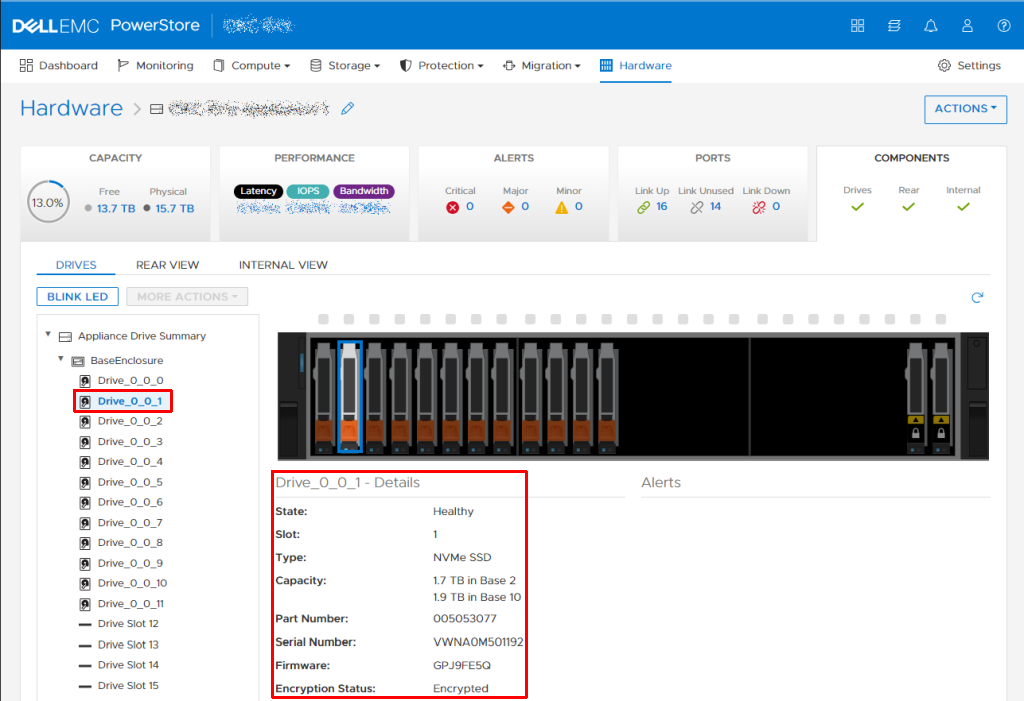 Figure 1: Example of a checking the drive firmware in the PowerStore UI
- Alerts were seen during the PowerStore drive firmware upgrade, is there reason for concern?
The following alerts occur in the PowerStore UI during the Drive Firmware Upgrade. This is considered normal (unless they persist more than 5 minutes after the PowerStore drive firmware upgrade completes).- In the PowerStore UI, drives are located in Hardware > Appliance > Components > Drives
- 0x00201201 - Severity Critical Write cache is degraded. An NVRAM device has been removed or is offline
- 0x00307203 - Severity: Major Firmware version of the drive in bus x enclosure x is incompatible
- 0x00307204 - Severity: Minor Firmware version of the drive in bus x enclosure x slot xx is out-of-date.
- 0x00307104 - Severity: Major Drive in bus x enclosure x slot xx has been removed.
- 0x00307108 - Severity: Minor Drive in bus x enclosure x slot xx needs reset after the drive firmware upgrade.
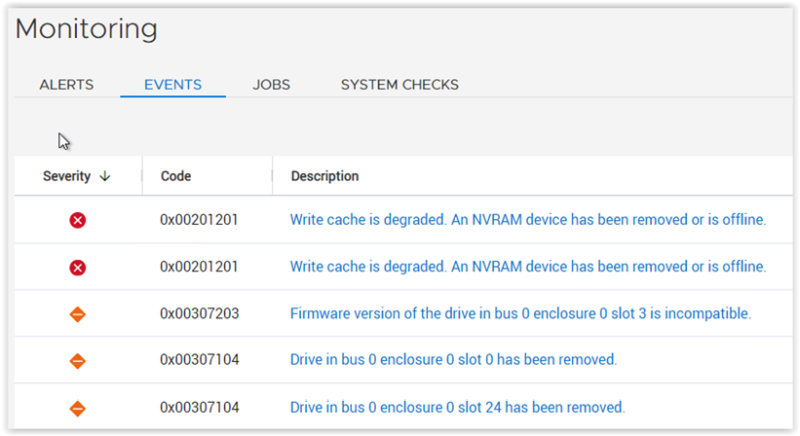 Figure 2: Example of a transitory set of alerts that are expected during the drive firmware upgrade.
- Does the drive firmware upgrade all applicable drives on the PowerStore Cluster?
Yes, the upgrade process upgrades all applicable drives. See the release notes for the specific models and versions of drives.
- What version of the drive firmware do the drives upgrade to?
See the release notes for the specific drive firmware versions. - What does this drive firmware upgrade do?
This depends on the type and model of the drive. See the release notes for the specifics. - Does this drive firmware upgrade my drive to Federal Information Processing Standard (FIPS) compliant?
This depends on the drive type and model. Some drives receive FIPS security enhancements as part of this drive firmware upgrade. See the release notes for the specifics. PowerStoreOS prepares for the drive upgrade for approximately 4 minutes and the begin upgrading the drives. You may be able to estimate the time once you see how long a single drive upgrade takes in your environment. Multiply the resulting time of a single drive upgrade time to the number of drives in your PowerStore configuration.
- Is there a drive firmware package for PowerStoreOS v4.0.x.x?
Yes. The 4.0.0.0-2299541 version is compatible with PowerStoreOS v4.0 (Released on 2024-Jul-18).
- I updated my system with PowerStore Drive Firmware upgrade on PowerStoreOS v4.1 and my node rebooted, what should I do?
See PowerStore: Drive firmware upgrade on PowerStoreOS v4.1 or v4.2 may lead to an unexpected node reboot for a full description and troubleshooting steps.
Affected Products
PowerStore, PowerStore 1000X, PowerStore 1000T, PowerStore 1200T, PowerStore 3000X, PowerStore 3000T, PowerStore 3200T, PowerStore 5000X, PowerStore 5000T, PowerStore 500T, PowerStore 5200T, PowerStore 7000X, PowerStore 7000T, PowerStore 9000X
, PowerStore 9000T, PowerStore 9200T
...
Article Properties
Article Number: 000214519
Article Type: How To
Last Modified: 25 Mar 2026
Version: 29
Find answers to your questions from other Dell users
Support Services
Check if your device is covered by Support Services.