Intermittent or Distorted Audio When Sharing Multimedia Content in a Conference Call
Summary: This article provides information about multimedia audio content that is shared during a conference call which may become distorted or intermittent for other participants. This occurs when using Desktops and Laptops with Intel 12th and 13th Generation Processors. ...
This article applies to
This article does not apply to
This article is not tied to any specific product.
Not all product versions are identified in this article.
Symptoms
Users may experience the audio from the multimedia content (streaming online or stored locally) become distorted or intermittent. This occurs when using conference applications, such as Teams and Zoom.
Using a USB headset? Check the USB Headset Audio Issues While Using Video Conference Applications in Windows 11.
Affected Models:
- Dell DCXXXXX
- Dell 14 DC14250
- Dell 15 DC15250
- Dell Pro Essential
- Dell Pro 14 Essential PV14250
- Dell Pro 15 Essential PV15250
- Inspiron
- Inspiron 13 5320
- Inspiron 13 5330
- Inspiron 14 5420
- Inspiron 14 5430
- Inspiron 14 7420 2-in-1
- Inspiron 14 7430 2-in-1
- Inspiron 14 Plus 7420
- Inspiron 14 Plus 7430
- Inspiron 14R 5421
- Inspiron 15 3520
- Inspiron 15 3530
- Inspiron 16 5620
- Inspiron 16 5630
- Inspiron 16 7620 2-in-1
- Inspiron 16 7630 2-in-1
- Inspiron 16 Plus 7620
- Inspiron 16 Plus 7630
- Inspiron 24 5410 All-in-One
- Inspiron 27 7710 All-in-One
- Inspiron 27 7720 All-in-One
- Latitude
- Latitude 3140
- Latitude 3330
- Latitude 3340
- Latitude 3430
- Latitude 3440
- Latitude 3530
- Latitude 3540
- Latitude 5330
- Latitude 5340
- Latitude 5430
- Latitude 5431
- Latitude 5440
- Latitude 5530
- Latitude 5531
- Latitude 5540
- Latitude 7230 Rugged Extreme Tablet
- Latitude 7330
- Latitude 7340
- Latitude 7430
- Latitude 7440
- Latitude 7530
- Latitude 7640
- Latitude 9330
- Latitude 9430
- Latitude 9440 2-in-1
- Dell Pro 13 Premium
- OptiPlex
- OptiPlex 3000 Micro
- OptiPlex 5000 Micro
- OptiPlex 5400 All-In-One
- OptiPlex 7000 Micro
- OptiPlex 7010 Tower
- OptiPlex 7400 All-In-One
- OptiPlex All-in-One 7410
- OptiPlex Micro 7010
- OptiPlex Small Form Factor 7010
- Precision
- Precision 3260 Compact
- Precision 3460 Small Form Factor
- Precision 3470
- Precision 3570
- Precision 3571
- Precision 3580
- Precision 3581
- Precision 3660 Tower
- Precision 3660 XE Tower
- Precision 5470
- Precision 5480
- Precision 5570
- Precision 5680
- Precision 5770
- Precision 7670
- Precision 7680
- Precision 7770
- Precision 7780
- Vostro
- Vostro 14 3430
- Vostro 15 3530
- Vostro 16 5630
- Vostro 3420
- Vostro 3520
- Vostro 5320
- Vostro 5620
- Vostro 7620
- XPS
- XPS 13 9315
- XPS 13 9315 2-in-1
- XPS 13 Plus 9320
- XPS 15 9520
- XPS 15 9530
- XPS 17 9720
- XPS 17 9730
Cause
The Remove Others' Background Noise feature in Dell Optimizer or MyDell, and the Remove Noise setting in Waves MaxxAudio Pro applications, attempts to remove nonhuman voices from conference call listening participants.
The audio from the multimedia content may be treated as nonhuman voices, and these features remove the audio.
Resolution
Check for one of the following applications installed on your computer; Dell Optimizer, MyDell, or Waves MaxxAudio Pro. If the Dell Optimizer or MyDell application is installed, check if the Remove Others' Background Noise setting is enabled. If the Waves MaxxAudio Pro application is installed, check if the Remove Noise setting is enabled.
To address the issue using the Dell Optimizer application, disable Remove Others' Background Noise function.
- Open the Dell Optimizer Application.
- Select Audio in the Elevate Your Dell Experience section (Figure 1.)
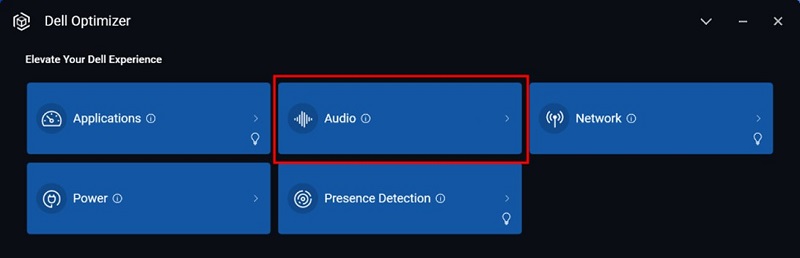
Figure 1. Selecting Audio in the Elevate Your Dell Experience section
- Set the Remove Others' Background Noise function to OFF (Figure 2).
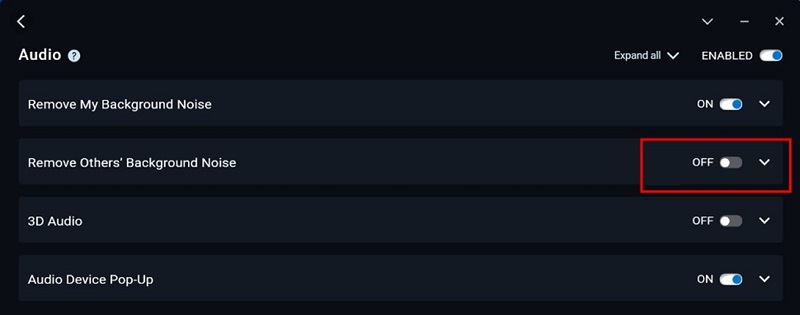
Figure 2. Setting the Remove Others' Background Noise function to OFF.
To address the issue using the MyDell application, disable Remove Others' Background Noise function.
- Open the MyDell Application. Select Audio on the Welcome Page (Figure 3).
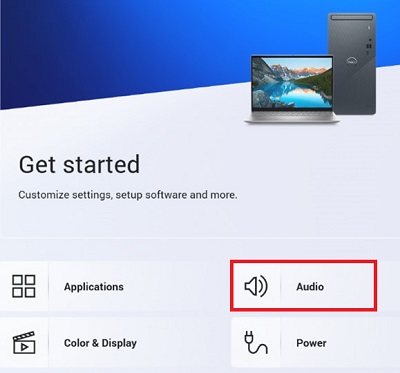
Figure 3. Selecting Audio
- Select the Voice Quality tab (Figure 4).
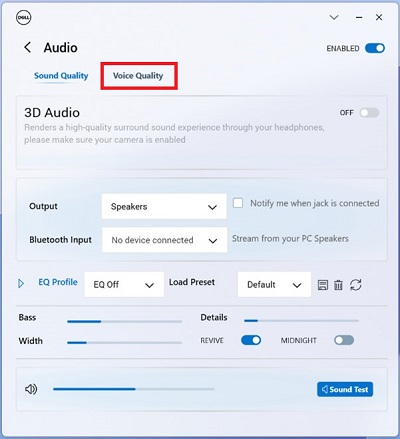
Figure 4. Voice Quality tab
- Set the Remove Others' Background Noise function to OFF (Figure 5).
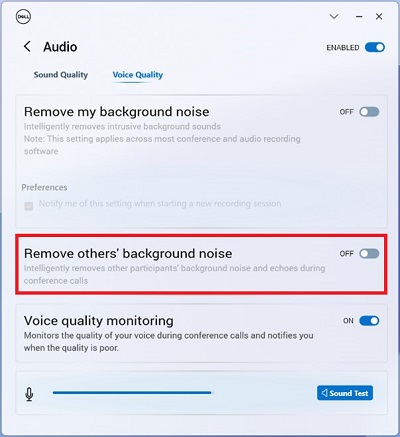
Figure 5. Remove Others' Background Noise function.
To resolve with the Waves MaxxAudio Pro application, disable the Remove Noise function.
- Open the Waves MaxxAudio Pro Application.
- Select the Voice tab.
- Under Speaker setting, set the Remove Noise function to OFF (Figure 6).
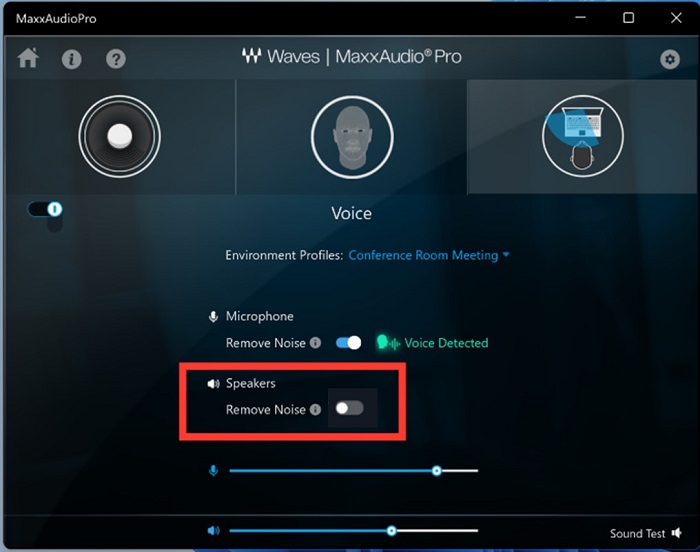
Figure 6. Setting the Remove Noise function to OFF.
Note: If the Waves Maxx Audio settings are unavailable, go to Windows Control Panel > System Sound and turn on Enhance Audio for microphone or speaker that is used.
Affected Products
Dell 14 DC14250, Dell 15 DC15250, Dell Optimizer, Dell Pro 13 Premium PA13250, Dell Pro 14 Essential PV14250, Dell Pro 15 Essential PV15250, Inspiron 13 5320, Inspiron 13 5330, Inspiron 14 5420, Inspiron 14 5430, Inspiron 14 7420 2-in-1
, Inspiron 14 Plus 7420, Inspiron 14 7430 2-in-1, Inspiron 14 Plus 7430, Inspiron 14R 5421, Inspiron 15 3520, Inspiron 15 3530, Inspiron 16 5620, Inspiron 16 5630, Inspiron 16 7620 2-in-1, Inspiron 16 Plus 7620, Inspiron 16 7630 2-in-1, Inspiron 16 Plus 7630, Inspiron 24 5410 All-in-One, Inspiron 27 7710 All-in-One, Inspiron 27 7720 All-in-One, Latitude 3140, Latitude 7230 Rugged Extreme Tablet, Latitude 3330, Latitude 3340, Latitude 5330, Latitude 5340, Latitude 7330, Latitude 7340, Latitude 9330, Latitude 3430, Latitude 3440, Latitude 5431, Latitude 5440, Latitude 7430, Latitude 7440, Latitude 9430, Latitude 9440 2-in-1, Latitude 3530, Latitude 3540, Latitude 5530, Latitude 5531, Latitude 5540, Latitude 7530, Latitude 7640, Latitude 5430, MyDell, OptiPlex 3000 Micro, OptiPlex 5000 Micro, OptiPlex 5400 All-In-One, OptiPlex 7000 Micro, OptiPlex Tower 7010, OptiPlex Micro 7010, OptiPlex Small Form Factor 7010, OptiPlex 7400 All-In-One, OptiPlex All-In-One 7410, Precision 3660 XE Tower, Precision 3470, Precision 5470, Precision 5480, Precision 3570, Precision 3571, Precision 3580, Precision 3581, Precision 5570, Precision 5680, Precision 7670, Precision 7680, Precision 5770, Precision 7770, Precision 7780, Precision 3260 Compact, Precision 3460 Small Form Factor, Precision 3660 Tower, Vostro 5320, Vostro 3420, Vostro 14 3430, Vostro 3520, Vostro 15 3530, Vostro 5620, Vostro 16 5630, Vostro 7620, XPS 13 9315 2-in-1, XPS 13 9315, XPS 13 Plus 9320, XPS 15 9520, XPS 15 9530, XPS 17 9720, XPS 17 9730
...
Article Properties
Article Number: 000215376
Article Type: Solution
Last Modified: 17 Oct 2025
Version: 17
Find answers to your questions from other Dell users
Support Services
Check if your device is covered by Support Services.