NVP vProxy: VM Disk is Removed or Restored as an Empty Drive
Summary: Virtual Machine (VM) restore fails, and VM disk file is removed or zeroed out during VM restore operation. The vProxy VM was vMotioned in VMware due to VMware Distributed Resource Scheduler (DRS) settings. ...
This article applies to
This article does not apply to
This article is not tied to any specific product.
Not all product versions are identified in this article.
Symptoms
A VM restore performed using the NetWorker VMware Protection (NVP) vProxy appliance. One of the following conditions appears:
- The VM restore fails, and the VM shows a missing or zeroed out disk.
- The VM restore succeeds; however, the recovered VM fails to power on because the OS disk is missing.
- The VM restore succeeds, and the VM powers on; however, one of the data disks is missing from the recovered VM.
The recovered VM shows "zeroed out" disk: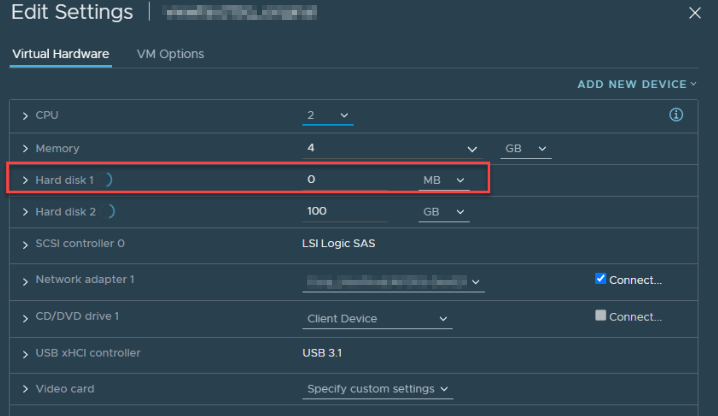
Figure 1: VM Shows a Missing or Zeroed Out Disk.
VM Restore fails with the following error seen in the VM recover session log:
YYYY-MM-DDTHH:MM:SSZ DEBUG: [105] Data Mover: Hard disk 3: Reporting disk status error: Failed to initialize Block Writer. Failed to open source VMDK '[DATASTORE] VM_NAME/VM_NAME_2.vmdk': VDDK Error: 13: You do not have access rights to this file.
The vProxy's /opt/emc/vproxy/runtime/logs/vrecoverd/vrecoverd-vddk.log may show a "Not found" alert.
YYYY-MM-DDTHH:MM:SSZ NOTICE: VDDK INFO YYYY-MM-DDTHH:MM:SSZ3Z error -[13331] [Originator@6876 sub=transport] Unmounting 42126e5f-f18a-8243-01ea-6a29456f8ecb using transport hotadd failed : Got bad HTTP response during feteching file (Not Found).
The vProxy VMs vmware.log shows a vMotion was initiated during the restore.
YYYY-MM-DDTHH:MM:SSZ In(05) vmx - SVMotion: Enter Phase 1
....
YYYY-MM-DDTHH:MM:SSZ In(05) worker-2107995 - SVMotionCleanupThread: Cleanup complete.
NOTE: vmware.log files are stored in the same location as the VM configuration files. In the vSphere web client, go to the VM's datastore and open the VM folder, the vmware.log files can be downloaded from here. The vmware.log file is logged in UTC format, where the vProxy time zone can be configured during deployment. This may cause a mismatch in the time observed in the vProxy log with the vmware.log. Convert the time from the vProxy time zone to UTC to align the vMotion event with the VM restore window. The specific issue observed with the VM can vary depending on the point-in-time the vMotion occurred during the restore session.
Cause
VMware Distributed Resource Scheduler (DRS) is enabled. The vProxy VM is vMotioned in the VMware environment during the restore operation. When a VM is vMotioned, it claims any disks attached to it. During a VM restore, the VM's disks attach to the vProxy. If a vMotion occurs during the restore, the disks are renamed to belong to the vProxy.
Depending on how many disks the VM has and when the vMotion occurs on the vProxy, it is possible that some disks may restore correctly. When vMotion starts, any pending disks fail. The VM disk is renamed, so the recovery process cannot find the VMware Virtual Machine Disk (VMDK) using the VM name.
This is expected functionality based on vMotion design. See VMware article 1029513.

Resolution
Automatic vMotion operations should be avoided for vProxy VMs. If a vProxy VM is vMotioned mid backup or restore, it may cause unexpected issues. Disable DRS on the vProxy VM.
Consult with your VMware administrator or support team for making these changes.
Additional Information
Similar issues may appear due to Change Block Tracking (CBT) File (CTK) corruption: NVP-vProxy: VM recovery is marked as successful but the VM does not boot with the error: Missing Operating System
Affected Products
NetWorkerProducts
NetWorker Family, NetWorker SeriesArticle Properties
Article Number: 000215502
Article Type: Solution
Last Modified: 12 Aug 2025
Version: 9
Find answers to your questions from other Dell users
Support Services
Check if your device is covered by Support Services.