How to Remove Dell ThinOS Packages using Wyse Management Suite
Summary: Customers can uninstall Dell ThinOS packages like, WVD/AVS, PCoIP, Citrix, Horizon, and others, using Wyse Management Suite (WMS).
This article applies to
This article does not apply to
This article is not tied to any specific product.
Not all product versions are identified in this article.
Instructions
Affected Platforms:
- Wyse 5060
- Wyse 5070
- Wyse 5470
- OptiPlex 3000
Affected Operating Systems:
- Dell ThinOS
In cases where customers only want one broker installed, it is possible to uninstall other brokers from ThinOS with Application Policies.
Prerequisites:
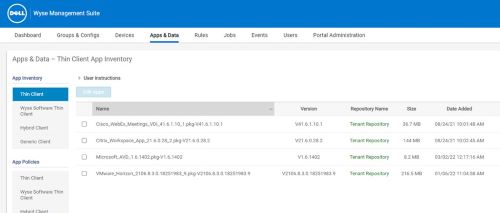
- WMS must have matching versions of the packages in its repository
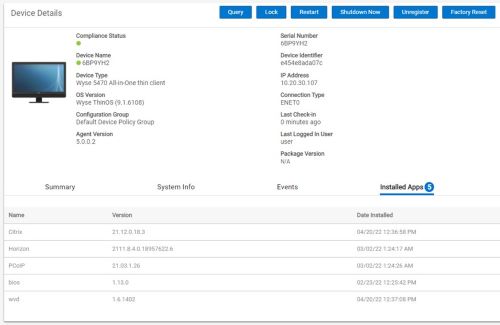
You see the installed packages and their versions. Ensure that these packages with matching versions are in the WMS Thin Client App Inventory.
Create Advance Policy:
- With matching Packages in the WMS Thin Client App Inventory, create a Thin Client WMS App Policy by selecting Add Advance Policy.
Note: The next steps will only cover the minimal entries required to uninstall packages, by completing Platform Filter and Apply Policy Automatically you can target specific devices and automate package removal.
- Provide Policy Name
- Select a Group to apply the policy, in the example we use the Default Group.
- Check Sub-Groups if you want to apply to devices in sub-groups beneath the group in the Group Selection Window.
- Task: Change from Install Application to Uninstall Application.
- OS Type: Select ThinOS
- Application: Click the Add app button to create application entry fields, add entry fields for each package you want to uninstall. In the example, the following packages are uninstalled:
- Microsoft AVD 1.6.1402
- Teradici_PCoIP_21.03.1.26
- VMware_Horizon_2.111.8.4
Note: This App Policy does not use the OS Subtype Filter.
- Platform Filter targets specific device models, not used in this example.
- Apply Policy Automatically further automates the removal of packages not used in this example. Set to Do not apply automatically.

- Click Save and then Later buttons, the Application Policy is now ready to deploy.
- Verify that your package is now in the App Policies Thin Client section
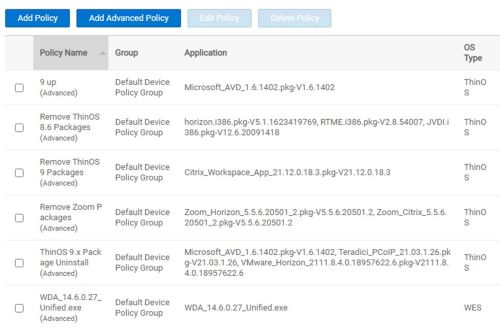
Testing Uninstall App Policy
- Test Application Policy by selecting a single device and select Schedule App Policy in More Actions
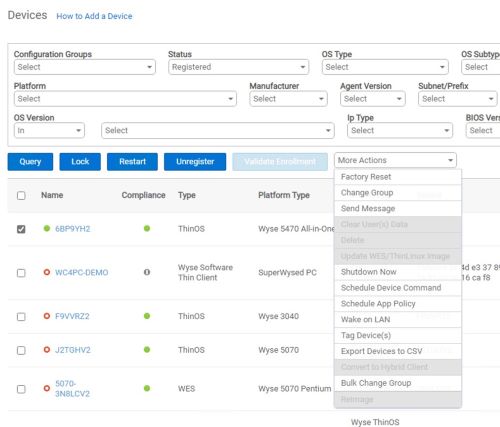
- Select a newly created Application Policy and set run type (in this example using Immediately.)
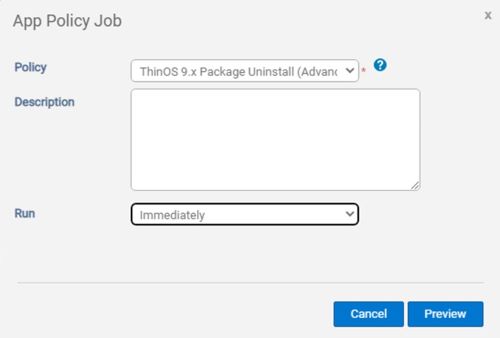
- Click Preview to review the job summary and click Schedule if all is correct.
The testing device receives the Application Policy Job and uninstall packages. You can verify by reviewing the device directly with Settings > System Tools > Packages with or without WMS. WMS may have to refresh device inventory with a query to reflect uninstallation of Packages.
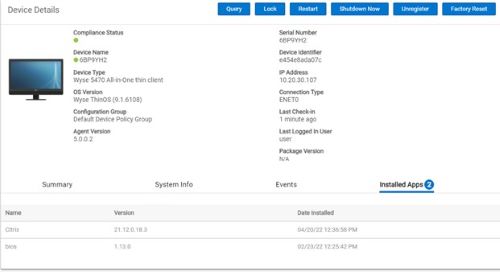
With successfully testing, Application Policy is now ready for mass deployment using either Automation or by Job Scheduling.
Affected Products
OptiPlex 3000 Thin Client, Wyse 5060 Thin Client, Wyse 5070 Thin Client, Wyse 5470Article Properties
Article Number: 000216159
Article Type: How To
Last Modified: 24 Apr 2025
Version: 3
Find answers to your questions from other Dell users
Support Services
Check if your device is covered by Support Services.