PowerProtect: SQL - How to perform a Self-Service backup
Summary: This article provides a step-by-step guide explaining how to perform a Self-Service backup from an SQL server using the PowerProtect Data Manager (PPDM) SQL agent.
This article applies to
This article does not apply to
This article is not tied to any specific product.
Not all product versions are identified in this article.
Instructions
To perform a Self-Service SQL backup
You must have previously installed PPDM SQL agent with SMS Plugin option selected, which installs SMS Plugin within SQL Management Studio.
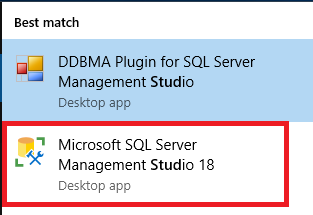

You must have previously installed PPDM SQL agent with SMS Plugin option selected, which installs SMS Plugin within SQL Management Studio.
- Open SQL Management Studio:
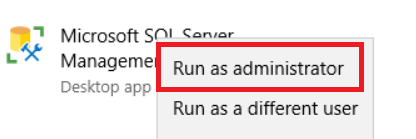
Make sure that SQL Management Studio is launched as administrator:
- Open the SMS plug-in Icon to access the SMS console:
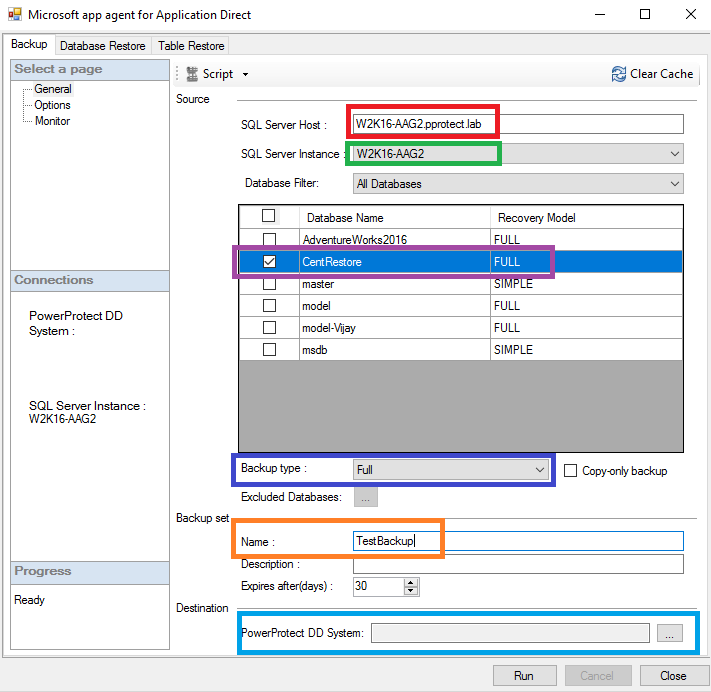
- Under the backup tab, General section, configure your backup settings:
- SQL Server Host: Select the SQL Server where the backup is performed. For AAG, ensure that the Windows cluster name is selected.
- SQL Server Instance: Select the SQL server to be protected. For AAG, ensure that the Windows cluster name is selected.
- Database Filter: Add a filter to display all or some DB-s only, either AAG or non AAG. Select the database for the backup.
- Backup type: Define the backup level to be performed, either full, Differential, or Tnx logs.
- Backup Set: Define the name for the backup piece.
- PowerProtect DD System: Define the DD where the backup is stored.
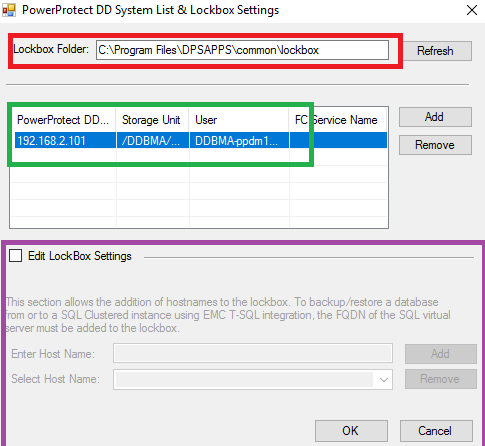
- Select PowerProtect DD System to select the DD to be used for the backup, and configure lockbox settings:
- Lockbox Folder: Define the path to the lockbox file used
- Select the DD system to be used
- Edit Lockbox Settings: Allows addition of a hostname to the lockbox
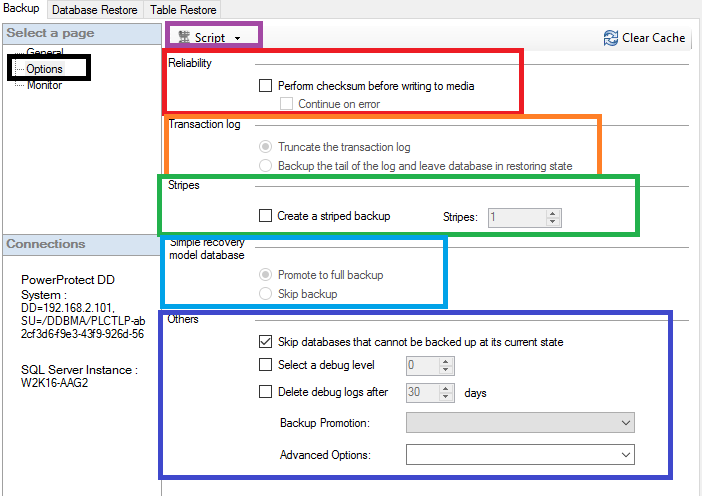
- Under Backup Tab, Options, configure the different options for the backup:
- Reliability: Define if a checksum of data must be performed before writing data to media, and how to behave if there is an error
- Transaction Log: Defines whether to truncate the transaction log after the backup or not
- Stripes: Used to configure striped backup and number of streams used if required
- Simple recovery model database: Defines how the backup should perform should a database is configured with a Simple recovery model
- Others: Other useful options like enabling debug for troubleshooting purposes, and backup promotion options
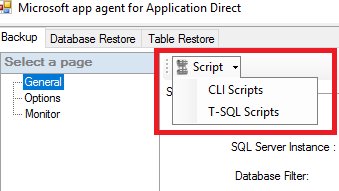
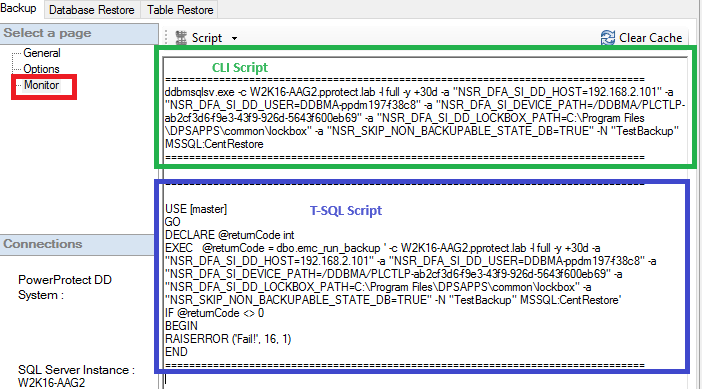
- On top of the SMS plug-in, we have Scripts generator tool that allows us to select between two script types:
- CLI Scripts: PPDM SQL module command-line scripts to be run on the command line.
- T-SQL Scripts: T-SQL scripts that can be run from an SQL server.
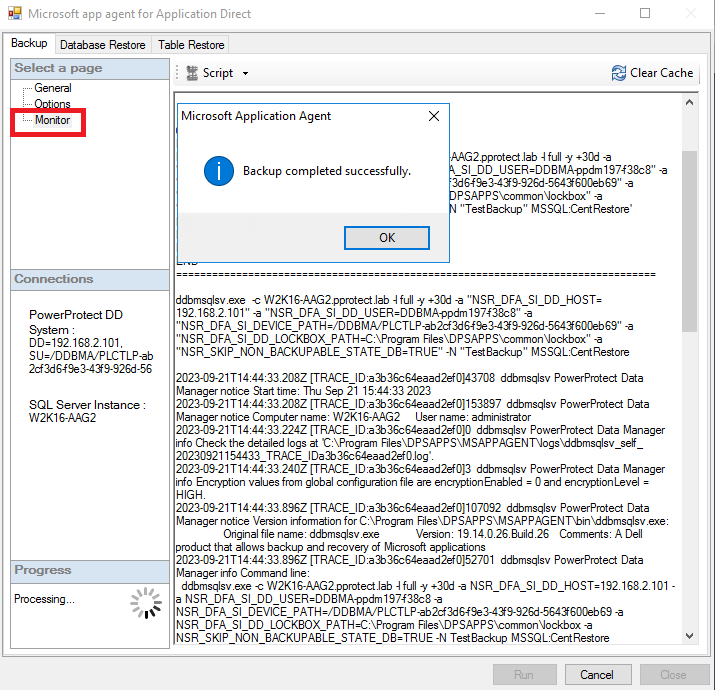
- The monitoring tab is used to monitor the status of the operation once it has been started or completed:
Additional Information
Article Properties
Article Number: 000217886
Article Type: How To
Last Modified: 13 Dec 2023
Version: 2
Find answers to your questions from other Dell users
Support Services
Check if your device is covered by Support Services.