Dell VxRail:VxRailのアップグレードが「Bad script return code: 1"
Summary: 4.7.X、7.0.X、または8.0.XのVxRailアップグレード中に、次のエラー「Bad script return code: 1".
This article applies to
This article does not apply to
This article is not tied to any specific product.
Not all product versions are identified in this article.
Symptoms
4.7.X、7.0.X、または8.0.XのVxRailアップグレード中に、次のエラー「Bad script return code: 1インチ
lcm-web.log:
vCenter VAMIを確認すると、VMware vSphereプロファイル主導型ストレージ サービスに[Healthy with errors](または警告)と[Started]と表示されます。
VAMIを確認するには、https://vCenter FQDNまたはIPアドレス:5480を使用して、WebブラウザーからvCenter VAMIにrootとしてログインします。
[Services]をクリックします。
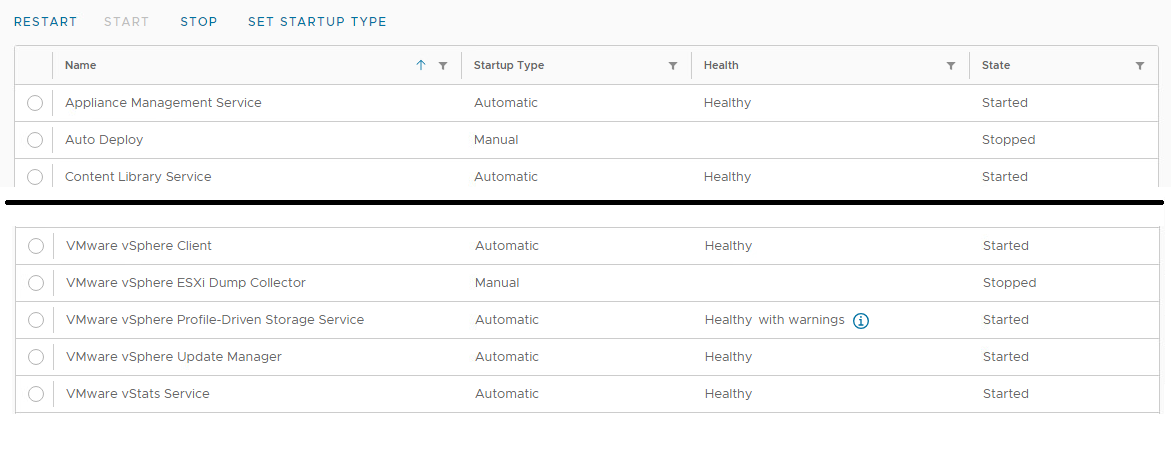
lcm-web.log:
INFO : Starting adding new disk sdc
INFO : Checkiing whether sdc exists ...
INFO : No sdc disk on VXM, need to perform add.
INFO : Handling VM <VxM Name Here>
INFO : Get VM Storage Profile name VXRAIL-SYSTEM-STORAGE-PROFILE, id <Long string of characters>.
INFO : Vm profileId is <Long string of characters>.
ERROR : Failed to add a new disk: (vodl.fault.SystemError)
{
dynamicType = <unset>
dynamicProperty = (vmodl.DynamicProperty) []
Msg = 'A general system error occurred: PBM error occurred during Pre-ReconfigureCallback: Fault cause: vmodl.fault.SystemError\n;\n'
faultCause = <unset>
faultMessage = (vmodl.LocalizableMessage) []
Reason = 'PBM error occurred during Pre-ReconfigurCallback: Fault cause: vmodl.fault.SystemError\n;\n'
}
VAMIを確認するには、https://vCenter FQDNまたはIPアドレス:5480を使用して、WebブラウザーからvCenter VAMIにrootとしてログインします。
[Services]をクリックします。
Cause
VMware vSphereプロファイル主導型ストレージ サービスが正しく起動しませんでした。 これにより、vSphere Clientでストレージ プロファイルを表示する際に問題が発生します。
Resolution
この問題を解決するには、次の手順に従ってvCenter(および6.7以下のPSC)
を再起動します。vCenterのバージョンが6.7.X以下の場合は、次の手順を実行します。
vCenterバージョンが7.0以降の場合は、次の手順を実行します。
を再起動します。vCenterのバージョンが6.7.X以下の場合は、次の手順を実行します。
- vSphereクライアントで、vCenter VMをクリックします。
- vCenter VMが実行されているホストを検索します。
- 次に、PSC VMをクリックします。
- PSC VMをvCenter VMと同じESXiホストに移行します。
- httpsとESXi FQDNまたは管理IPアドレスを使用して、WebブラウザーからESXiホストにrootとしてログインします。
- [Virtual Machines]を左クリックします。
- vCenter VMのボックスを左クリックします。
- [アクション]を左クリックします。
- ゲスト オペレーティング システムにカーソルを合わせます。
- [ シャットダウン ]を左クリックします。
- [Virtual Machines]を左クリックします。
- vCenter VMのボックスを左クリックしてクリアします。
- PSC VMのボックスを左クリックします。
- [アクション]を左クリックします。
- ゲスト オペレーティング システムにカーソルを合わせます。
- [ 再起動 ]を左クリックします。
- 約3~5分待ちます。
- PSC VMのボックスを左クリックしてクリアします。
- vCenter VMのボックスを左クリックします。
- [アクション]を左クリックします。
- ゲスト オペレーティング システムにカーソルを合わせます。
- [ 再起動 ]を左クリックします。
vCenterバージョンが7.0以降の場合は、次の手順を実行します。
- vSphereで、vCenter VMをクリックします。
- vCenter VMが実行されているホストを検索します。
- httpsとESXi FQDNまたは管理IPアドレスを使用して、WebブラウザーからESXiホストにrootとしてログインします。
- [Virtual Machines]を左クリックします。
- vCenter VMのボックスを左クリックします。
- [アクション]を左クリックします。
- ゲスト オペレーティング システムにカーソルを合わせます。
- [ 再起動 ]を左クリックします。
Article Properties
Article Number: 000218572
Article Type: Solution
Last Modified: 14 Jul 2026
Version: 2
Find answers to your questions from other Dell users
Support Services
Check if your device is covered by Support Services.