Avamar: How to Disable and Re Enable Cluster Load Balancing during Hyper V Backups
Summary: This article provides detailed instructions for deactivating and reactivating cluster load balancing. These procedures are useful for Avamar Hyper-V Resilient Change Tracking (RCT) backups. ...
This article applies to
This article does not apply to
This article is not tied to any specific product.
Not all product versions are identified in this article.
Instructions
Avamar Hyper-V RCT backups may fail due to vVrtual Machines (VMs) Live Migrating during the Avamar Hyper-V backups:
avhypervvss Error < 43940 >: Failed to get the RCT extents for Virtual machine
Or
avhypervvss Error <43426>: Checkpoint creation for Virtual machine 'AVAMARPROD01v<GUID>' has failed and will be skipped from backup.
If a Hyper-V virtual machine (VM) resides on a particular cluster node, it gets added to that node’s vmgroup during the backup. If the VM Live Migrates to a different cluster node during the backup, it exists as a vmgroup member on the source node. Before the end of the backup, the Windows operating system attempts to remove the vmgroup. If the VM that Live Migrated previously is no longer running on the original source node, the vmgroup for that node fails to remove. This leaves the vmgroup orphaned as a result.
The Hyper-V plug-in cannot prevent Live Migration of VMs during the backup. The workaround uses PowerShell scripts to disable cluster load balancing before the scheduled backup job window. The next step is to create a PowerShell script to reenable cluster load balancing after the backup job completes.
These scripts can be scheduled using the integrated Microsoft Task Scheduler application.
The scripts to disable and then reenable cluster load balancing depends on the presence of System Center Virtual Machine Manager (SCVMM) in the environment.
Steps for scheduling PowerShell scripts to disable cluster load balancing.
- Open Notepad and copy the following lines into the document:
SCVMM in the environment
$HostGroup = Get-SCVMHostGroup "Hyper-V"
$DOConfig = Get-SCDynamicOptimizationConfiguration -VMHostGroup $HostGroup
Set-SCDynamicOptimizationConfiguration -DynamicOptimizationConfiguration $DOConfig -ManualMode
-
No
SCVMMin the environment
(Get-Cluster).AutoBalancerMode = 0
Close and save as a PowerShell script file, with the file extension. "ps1."
For example, name this script as shown below to disable cluster load balancing before the Avamar Hyper-V scheduled backup job.
Disable_loadbalancer.ps1
-
Open Task Scheduler (Start > Windows Administrative Tools > Task Scheduler) on one of the Hyper-V cluster nodes.
-
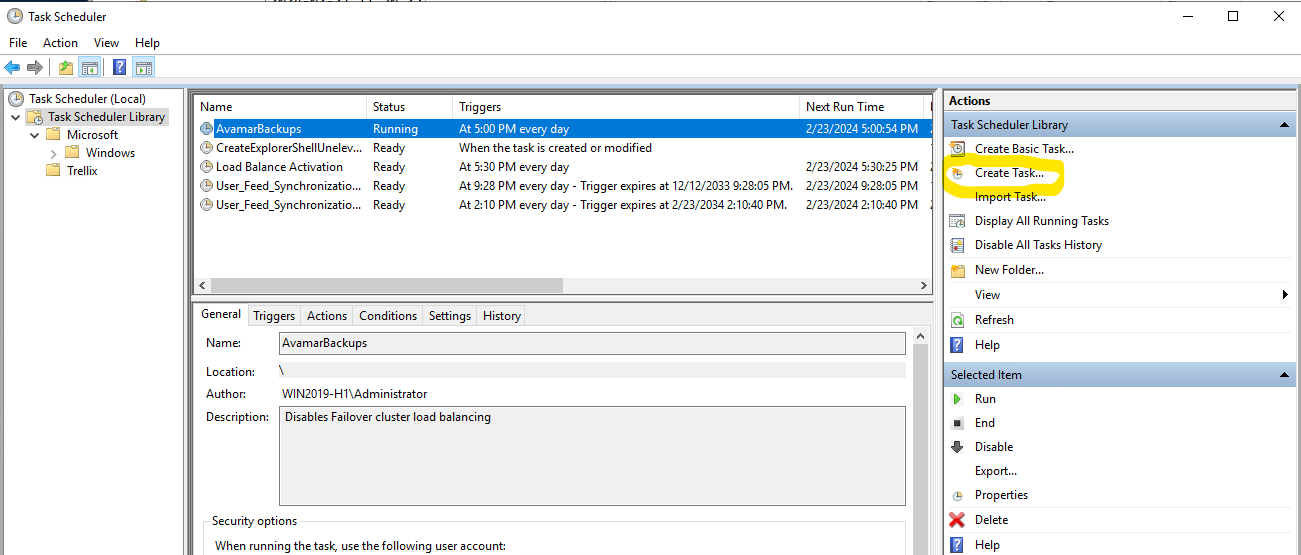
Select the Task Scheduler Library and click the Create Task button:
-
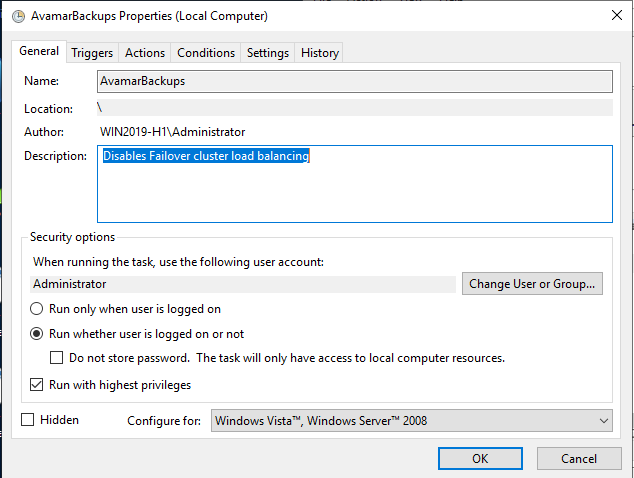
Name the task and select the option Run whether the user is logged on or not, and enable the option Run with highest privileges:
-
On the Triggers tab, click New and select Daily option. Configure the scheduled start time to before or simultaneously to the time that the Avamar Hyper-V scheduled backup job starts:
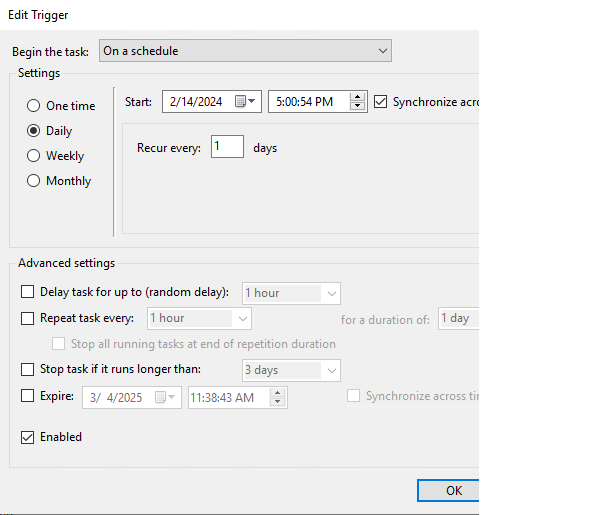
For example, if the Avamar scheduled backup starts at 5:30 PM everyday, then schedule the PowerShell prescript to run at 5 PM.
-
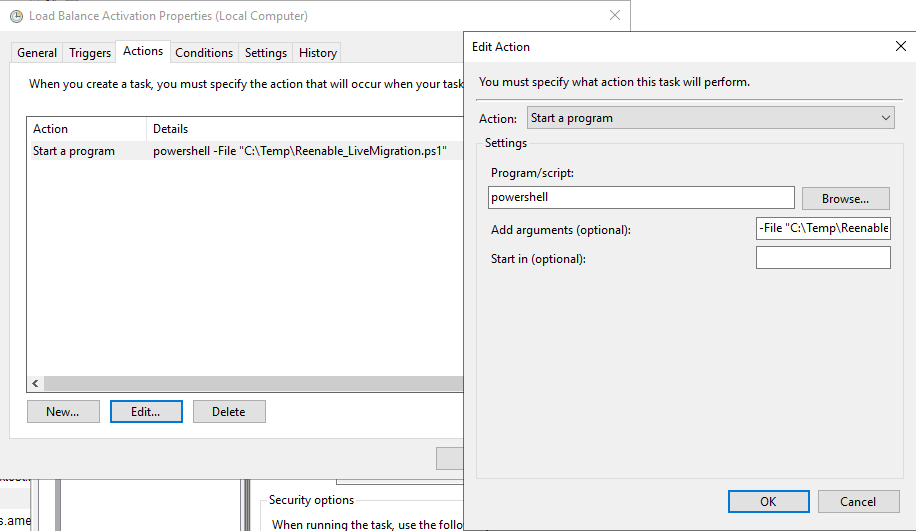
On the Actions tab, click the New button.
- In the Program/script field, type PowerShell
- In the Add arguments field, type -File <<location of the PowerShell pre-script>>.
For example:
-File C:\Temp\Disable_LiveMigration.ps1
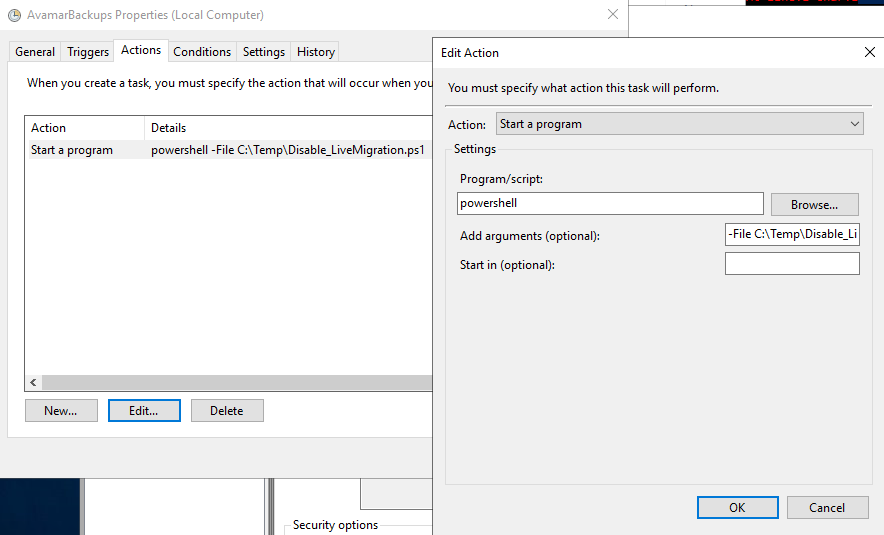
- Click the OK button to save the task.
Steps for scheduling PowerShell scripts to reenable cluster load balancing.
- Open Notepad and copy the following lines into the document:
SCVMM in the environment
$HostGroup = Get-SCVMHostGroup "Hyper-V"
$DOConfig = Get-SCDynamicOptimizationConfiguration -VMHostGroup $HostGroup
Set-SCDynamicOptimizationConfiguration -DynamicOptimizationConfiguration $DOConfig -AutomaticMode
No SCVMM in the environment
(Get-Cluster).AutoBalancerMode = 2
- Close and save as a PowerShell script file with the file extension.
"ps1."
For example, name this script as shown below to reenable cluster load balancing after the Avamar Hyper-V scheduled backup job has finished.
Reenable_loadbalancer.ps1
Note: It may take several days to determine how long the Avamar Hyper-V scheduled backup job completes. If the scheduled backup starts at 5 PM and finishes at 6 PM everyday, then schedule the start time for the PowerShell script for 6:15 PM.
Use the same steps in the previous section to schedule the PowerShell script to reenable cluster load balancing.
For the PowerShell script file location, specify the newly-created location.
For example:
C:\Temp\Reenable_LiveMigration.ps1
Affected Products
Avamar, Avamar Plug-in for Hyper-V VSSArticle Properties
Article Number: 000222154
Article Type: How To
Last Modified: 20 Feb 2026
Version: 3
Find answers to your questions from other Dell users
Support Services
Check if your device is covered by Support Services.