What is Dell Audio?
Summary: The following article provides information about the Dell Audio software. This is software to make connecting to your Dell Bluetooth headsets easier on a Mobile device.
This article applies to
This article does not apply to
This article is not tied to any specific product.
Not all product versions are identified in this article.
Instructions
Table of Contents:
- Introduction
- Installing your Dell Audio
- Connecting for the first time
- Dell Audio Features
- Software Updates
- Supported Peripherals
- Additional Information
Introduction
Dell Audio is a companion mobile app for Dell wireless headsets. Dell Audio enables you to personalize and enable various headset features. It supports both iOS and Android smartphones globally.* The application is compatible with Android 11 and above, and iOS14 and above.
Note: * This application may not be available in your location. Check the availability in the appropriate App Store.
Installing your Dell Audio
You can download and install Dell Audio from:
- Apple Application Store (iPhone Operating System (iOS))
- Google Play Store (Android Operating System)
(Search in the correct store for your phone using the keywords Dell and Audio.
Connecting for the first time
The application displays a walkthrough when installing the application for the first time. You get to the main menu on completion of the walkthrough. A complete list of the application features becomes available.

Connecting your Headset:
The following on-screen instructions take you through pairing the headset using Bluetooth.
-
Enable Bluetooth in your Mobile Systems settings.

-
Power on the headset. Press and hold the power button for three seconds to start the pairing mode. (You should hear a Bluetooth pairing voice prompt.) The power LED blinks blue in a fast pace while pairing. Once paired, the power LED lights up for three seconds and slowly blinks in blue.

-
Search for the Dell headset in your Mobile Bluetooth page and make the connection.

Note: The mobile device may detect multiple names when the headset is in pairing mode. The following headset names may appear: (Ensure that you select and connect to Dell WL5024 Headset.)
- Dell WL5024 Headset
- WL5024
- LEA-Dell WL5024 Headset
-
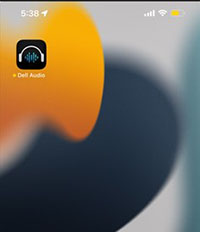
Go to the Mobile home page and click the Dell Audio app icon. It shall start to scan, connect, and display the headsets accordingly.

Note: The Dell Audio mobile application can only connect with one headset at one time. You must disconnect the paired headset if you want to connect to another headset.
Forgetting a headset:
-
You can remove the headset connection record from Dell Audio using Forget Device.
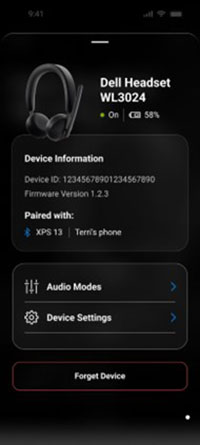
Note: The Bluetooth pair information remains on the Mobile devices Bluetooth page.
Dell Audio Features
Manage Noise
Active Noise Cancellation:
- Turning on the active noise cancellation feature eliminates any background or surrounding noise.
- Adjusting the transparency controls the level of ambient sound heard.
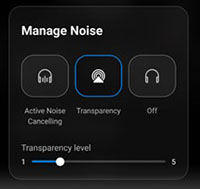
- The application provides customization of the Microphone noise cancellation. You can control the noise from both the outgoing audio (near-end) and incoming audio (far-end).

Note: These features are only available for select headsets.
You can view or change other headset settings that are shown under Audio Modes.


Collaboration:
- Turning on the noise cancellation feature for the intelligent microphone removes any background noise and they can clearly hear your voice.
- Adjusting the Sidetone slider controls how loud you hear your own voice while on a call.
Note: These features only apply during a phone or conference call.

Multimedia:
- The following speaker preset modes are available depending on the required sound enhancements in your Mobile Application supported headset:
- Default
- Bass Boost
- Speech Boost
- Treble Boost
- Custom
- Under Audio Equalizer you can change the bass, middle-range, and treble levels by moving the slider to achieve the audio range you want.
Note: These features only apply when streaming media. (For example: Music, Podcasts, Audiobooks, and so on.)

Note: You can open the Audio Preset feature using the shortcut in your home page.

Automated Actions
Wear Detection:
You can turn on wear detection to enable automatic actions when you remove your headset.
- Turning on the pause music feature automatically pauses the playback of music when you take the headset off. The music resumes when you put the headset back on.
- Turning on the mute microphone feature automatically mutes the microphone whenever you take the headset off. The microphone resumes when you put the headset back on.
- Turning on the Quick Pause feature pauses music or mutes the microphone when you lift the ear cup off your ear.
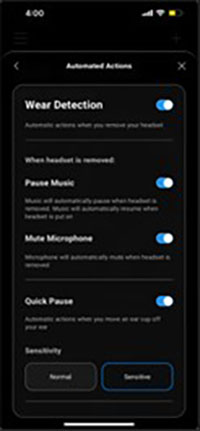
Note: This feature is only available for select headsets.
Device Settings:
- Turning on the busy light feature enables an indicator light when on a call.
- Turning on the voice guidance feature enables audible prompts and announcements for the following device features:
- Full: Full set of voice prompts
- Minimal: Essential only voice prompts

Device information or status:
It displays information about the headset device after connecting the headset. The information includes:
- Battery level
- Device ID
- Firmware version

Software Updates
The Software update is available from the Apple App and Google Play stores. You can check if there is any recent updates available on either of these App stores.
Application Settings:
You can update the device firmware using the application settings:

Supported Peripherals
| Supported Peripherals |
|---|
| Dell Pro Premium Wireless Active Noise Cancellation (ANC) Headset (WL7024): Alternatively, the Dell Premier Wireless ANC Headset |
| Dell Pro Plus Wireless ANC Headset (WL5024): Alternatively, the Dell Pro Wireless ANC Headset |
| Dell Pro Wireless Headset (WL3024): Alternatively, the Dell Wireless Headset |
| Dell Pro Plus Wireless Speakerphone SL525 |
| Dell Pro Plus Earbuds EB525 |
Additional Information
Bluetooth Troubleshooting Support
Learn how to use and troubleshoot problems with your Bluetooth connection. You can find information about Troubleshooting steps, How-To guides, and relevant Support Videos for assistance.
For the Dell Audio User Guide, browse to the Dell Audio Application Documentation Page. Touch or click the View PDF button across from the User Guide on right edge of the screen. The guide is listed in the Manuals and Documents section.
Affected Products
Dell Audio, Dell Pro Plus Earbuds EB525, Dell Pro Plus Wireless Speakerphone SL525, Dell Pro Wireless Headset WL3024, Dell Pro Plus Wireless ANC Headset WL5024, Dell Pro Premium Wireless ANC Headset WL7024Article Properties
Article Number: 000222464
Article Type: How To
Last Modified: 26 Sep 2025
Version: 7
Find answers to your questions from other Dell users
Support Services
Check if your device is covered by Support Services.