Dell Unity: Local Replication Fails For A NAS Server
Summary: Local replication fails for a NAS server: The system cannot find an appropriate pool to create the destination storage resource.
This article applies to
This article does not apply to
This article is not tied to any specific product.
Not all product versions are identified in this article.
Symptoms
User wants to copy the file system from one NAS server to another NAS server locally.
Cause
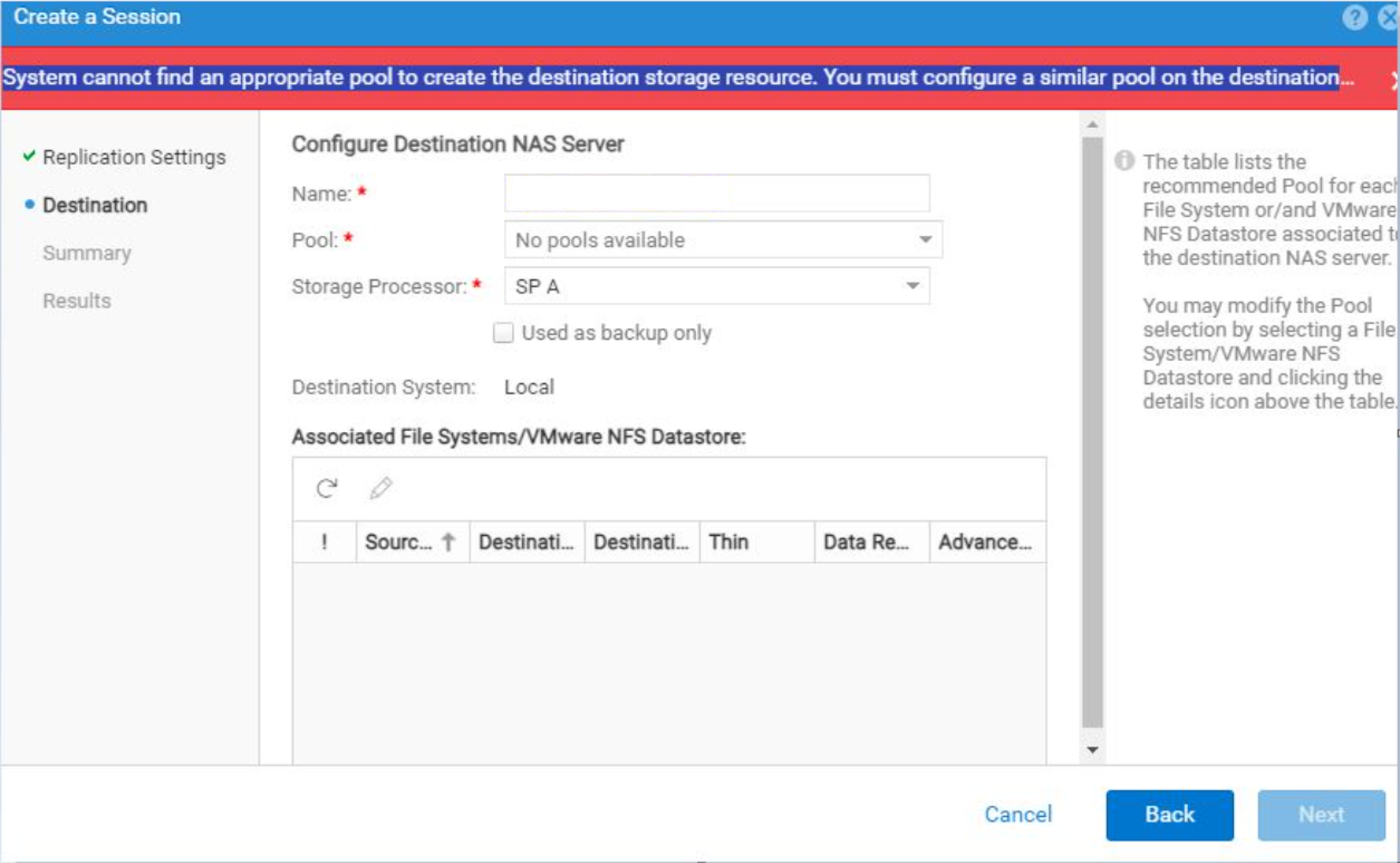
Local replication requires a secondary pool for the destination NAS server. If there is only one pool configured, local replication fails with the below error:
System cannot find an appropriate pool to create the destination storage resource. You must configure a similar pool on the destination or configure replication later.
Resolution
Create a new pool for the destination NAS server.
Additional Information
Query:
How to copy the file system from one NAS server to another server locally?
Possibility:
- Local Replication
- Host-based migration
Local Replication:
Requirement:
- Two different pools before configuring the local replication; NAS server local replication can work only on different pool NAS server. In this case, if we try to initiate the local replication for the NAS servers within the same pool, it fails with an error.
See article: Unity: How to setup or create local replication (User Correctable)
While configuring the local replication, we must monitor the type of replication and the Recover Point Objective (RPO):
- To configure a local Replication Mode, choose either Asynchronous or Manual (Synchronous cannot be used for local replication).
- If using Asynchronous mode, choose RPO (how often do you want to have the destination update); the default is every 60 minutes.
- Creating replication on the NAS Servers automatically creates matching replication sessions on each file system on that NAS Server. You can then delete or remove any replication sessions on individual file systems that you do not want replicating.
In order to delete a NAS Server replication, you must first delete each file system replication first. If the file system created on the destination NAS server after deleting the session you can delete the destination file system. (No impact as the replication session has been deleted from the source)
NOTE: When configuring local replication, the source and destination storage resources cannot exist within the same Pool. A storage resource is protected against the unlikely event that the source Pool encounters a data unavailable situation by replicating to a different Pool. All asynchronous replication operations are supported when local replication is configured. Replication Connections and Interfaces are not required when local replication is configured.
Figure represents Local Replication from one pool to another pool.
See page 44 for detailed information in Replication Technologies Host based migration.
- Verify if the user has a host access full permission for the file system which is required to be copied.
- If the user has access, they can prefer Host based Migrations like
EMCopy,RoboCopy, orDatadobi.EMCopyandRoboCopy- Free softwareDatadobi- Purchased
If the user has commands in hand and support available, they can perform the host-based copy operation. For further assistance on migration, the user must engage the Professional Services team with the help of the accounts team.
We can only move the required file system to the same pool or different pool from one NAS server to another NAS server by Host-based migration.
See Dell Unity: Migration Technologies for detailed information
See these documents for detailed information:
Affected Products
Dell EMC Unity Family |Dell EMC Unity All Flash, Dell EMC Unity Family, Dell EMC Unity HybridArticle Properties
Article Number: 000224910
Article Type: Solution
Last Modified: 30 Oct 2025
Version: 4
Find answers to your questions from other Dell users
Support Services
Check if your device is covered by Support Services.