Live Optics | HPE 3PAR | Performing a 3PAR Storage Array Profile
Summary: Live Optics supports the profiling of competitive hardware storage arrays, including HPE 3PAR. Using the Live Optics collector, configuration and performance data is captured, analyzed, and compiled into a Project. The output can be viewed from the XLSX and PPT. This document outlines the process to produce an HPE 3PAR array storage profile. ...
This article applies to
This article does not apply to
This article is not tied to any specific product.
Not all product versions are identified in this article.
Instructions
Detailed Instructions
Download and run the Live Optics Windows collector software.
- There are two methods to download the collector software:
- From the invitation email received from a consultant by clicking the Download Collector link
- From the Live Optics portal, select Collectors from the left menu, then Download Collector. For more information about how to download a Live Optics collector, see knowledge base article Download the Live Optics Collector. Either option results in the Download Collectors page.
NOTE: The collector can run on any host with IP connectivity to the storage array being profiled
Start Profile Selection Process.
- Select Storage from the list of Profile Category and Select 3PAR from the list of storage array assets.
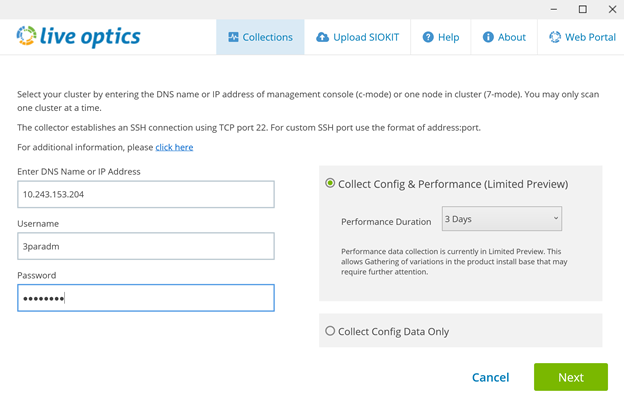
Identify the Array to Gather the Data.
- Enter the array IP address, username, and password. The username should be the admin or admin equivalent account
- There is a choice to Collect Config and Performance or Collect Config Data only
- For Collect Config and Performance select the Performance Duration from the drop-down box. The duration is the time period that the collector runs in order to collect the real time performance data. Once entered, click Next
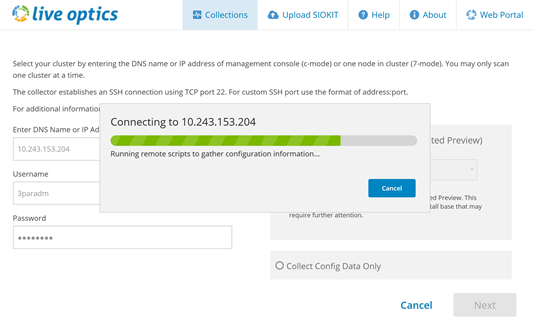
Start the Configuration Collection.
- The collector connects to the array and capture the data here
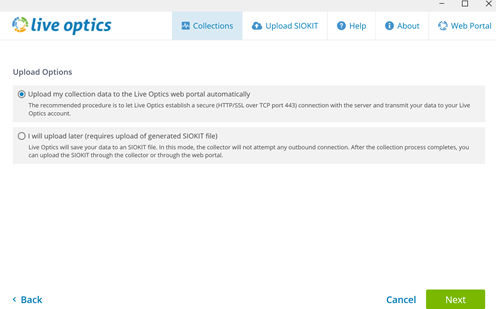
Select the Method to Upload to the Live Optics Portal for Processing.
- Selecting the default, "Upload my collection data to the Live Optics web portal automatically" this is the recommended method. Once the collection is complete, the data is automatically uploaded to the Live Optics portal. Use this option when the host running the collector has Internet access
- There is an option to upload later. This saves the configuration and performance data to an encrypted file, named [hostname]_3PAR.siokit. The file is written to the same folder that the collector was run. Use this option when the host running the collector does not have Internet. Instructions for uploading the SIOKIT can be found at the end of these instructions
- Once selected, click Next.
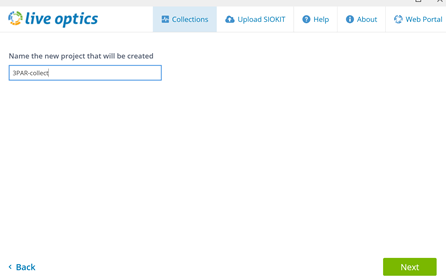
- Enter the name of the project created in the Live Optics portal
- Click Next
Upload the data to the Live Optics portal.
- Once the collection has processed and automatically uploaded to the web portal
- During the upload, a status bar indicates the progress. The upload may take some time to complete depending on the speed of the Internet connection
- The collector indicates when the upload completes
Create a backup file of the data.
- A choice is provided to back up the project to a SIOKIT. There is a choice to skip this option or create the backup file.
- Identify the file name and save location of this file
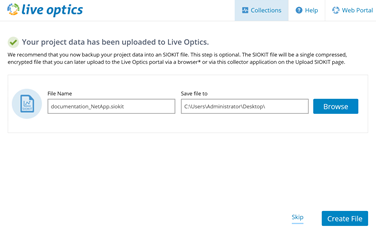
The process has been completed successfully.
- Once the upload completes, click Quit to close the collector
- An email from Live Optics is sent when the project is ready for viewing on the web portal
Uploading the SIOKIT (applies only if the "upload later" was selected)
- The Live Optics collector software is used to upload the SIOKIT files using the Windows collector. See knowledge base article Uploading SIOKIT file in the Live Optics collector
View Project Results
- Log in to the Live Optics web portal https://app.liveoptics.com
- Recent projects are listed on the dashboard
- Select the project
- Click the project page to view the output options. From here download the Config and Performance Excel file (XLXS), share the project with other Live Optics accounts or delete the project
Affected Products
AnalyticsArticle Properties
Article Number: 000231450
Article Type: How To
Last Modified: 25 Mar 2025
Version: 3
Find answers to your questions from other Dell users
Support Services
Check if your device is covered by Support Services.