No Audio When Cirrus Logic High Definition Audio Driver is Not Updated Successfully on Inspiron or Vostro Laptop
Summary: This article provides information about no audio issue after updating Cirrus Logic High Definition audio driver on Inspiron or Vostro laptops.
This article applies to
This article does not apply to
This article is not tied to any specific product.
Not all product versions are identified in this article.
Symptoms
You may observe on of the following audio issues when playing music or video:
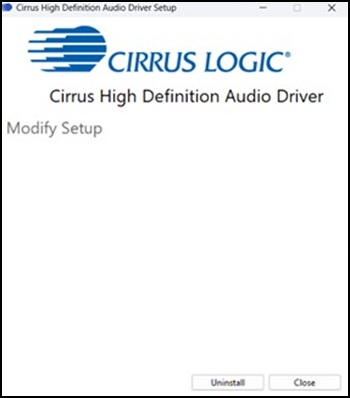
- Situation 1: When you update the Cirrus Logic High-Definition Audio driver (same version update), after clicking the audio driver package. It will uninstall the current audio driver and require a reboot but will not auto start the new audio driver install User Interface (UI) after the reboot. This leads to not finishing the install process, so there is no audio when playing music or video.
- Situation 2: There is no audio after reinstalling Windows and finishing the updates through Windows Update.
- Situation 3: When you upgrade the Cirrus Logic High-Definition Audio driver from an old version to version 10.0.7.56 or 10.0.7.59 in Windows 11 24H2. The process is successful, in Device Manager there are no issues, but there is no audio when playing music or video.
- Situation 4: When you update the Cirrus Logic High-Definition Audio driver using the SupportAssist application, some of the audio driver components may not be installed before the reboot. Then there is no audio when playing music or video.
Affected Systems:
- Inspiron 14 5420
- Inspiron 15 3520
- Inspiron 16 5620
- Vostro 3420
- Vostro 3520
- Vostro 5620
Cause
In scenario 1 and 2, the Cirrus Logic Audio driver is not installed successfully.
In scenario 3 and 4, the Cirrus Logic Audio driver installation encountered an error.
Resolution
Check if the Cirrus Logic High-Definition Audio driver is displayed in the Control Panel first.
Solution for Situation 1 - 3:
- If the Cirrus Logic High-Definition Audio driver is Not displayed, download the latest Audio Driver Package from the Dell Support Site.
Double-click the Audio Driver Package that you downloaded to install it. Reboot the system after the driver install is complete. - If the Cirrus Logic High-Definition Audio driver Is displayed, use the following steps to uninstall the Cirrus Logic High-Definition Audio driver and reinstall it.
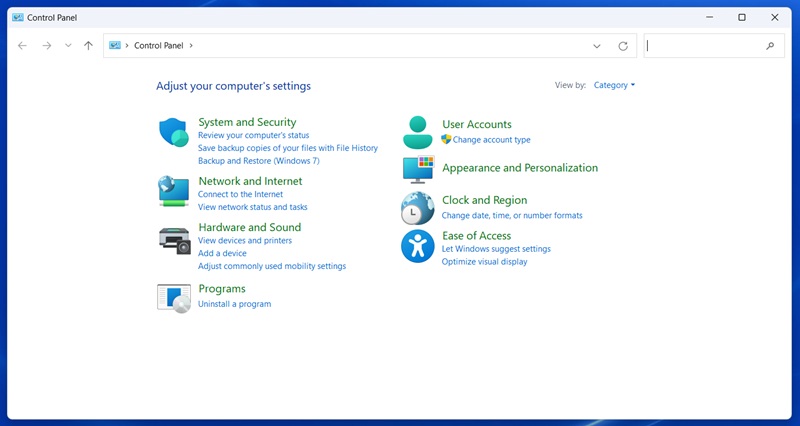
- In the Search Box, search for Control Panel and open the Control Panel.

- Click "Uninstall a Program."
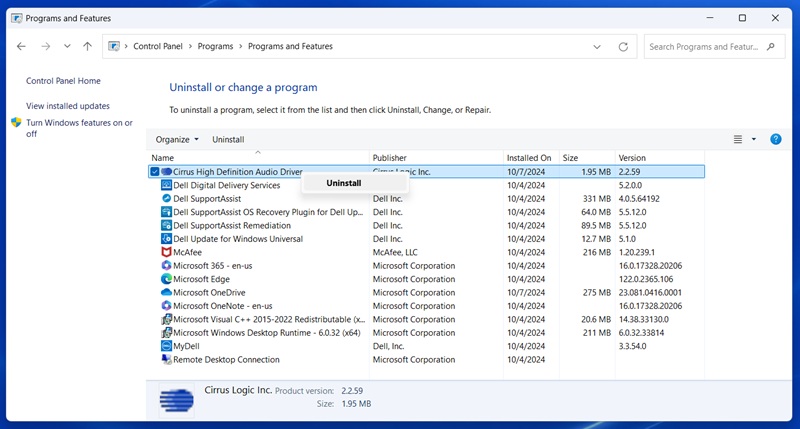
- Right click "Cirrus High-Definition Audio Driver" and then click Uninstall.
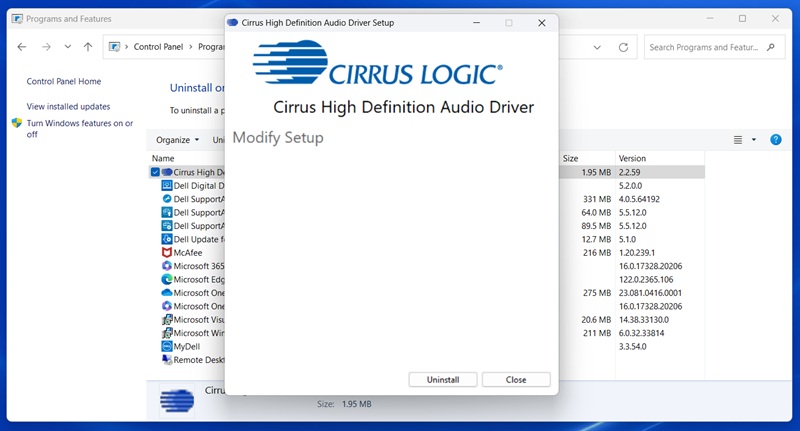
- Select Uninstall and wait for the process to finish and then reboot system.
- Download the latest Audio Driver Package from the Dell Support Site.
- Double-click the Audio Driver Package that you downloaded to install it. Reboot the system after the driver install is complete.
- In the Search Box, search for Control Panel and open the Control Panel.
Solution for Situation 4:
- Restart Windows and the audio should work.
- If step 1 does not work, follow the steps above for Situation 1 - 3:
Affected Products
Inspiron 14 5420, Inspiron 15 3520, Inspiron 16 5620, Vostro 3420, Vostro 3520, Vostro 5620Article Properties
Article Number: 000242003
Article Type: Solution
Last Modified: 09 Dec 2025
Version: 5
Find answers to your questions from other Dell users
Support Services
Check if your device is covered by Support Services.