How to Extract Dell Client Device Manager
Summary: This article provides information about how to extract Dell Client Device Manager (DCDM).
This article applies to
This article does not apply to
This article is not tied to any specific product.
Not all product versions are identified in this article.
Instructions
There are several options for extracting the contents from a .cab file: Windows Explorer, Command Line, or any third-party archive applications that support .cab files.
Note: Due to the broad availability of third-party applications, no examples are provided.
Using Windows Explorer:
- From the folder where Dell Client Device Manager was downloaded, right click the cab file and select Open With > Windows Explorer.
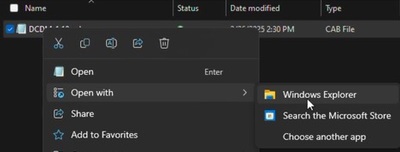 Note: For information about downloading Dell Client Device Manager, see How to Download Dell Client Device Manager.
 - Select all files, right click, and click Extract.

- Go to where you would like to extract the contents to using the Select a Destination window and click the Extract button.
 Note: The folder structure is lost, and the DCDM_Deployment.ps1 script does not work as designed when using Windows Explorer to extract the cabinet files. If you intend to deploy DCDM using the provided PowerShell script, you must create a new folder named Installers then move Dell.Core.Services.Installer_64bit.msi, DellCommandUpdateApp_Setup.exe, and TrustedDevice-64Bit.msi into it.
Using Command Line:
- Open the command prompt and set the directory focus to the folder where the cab file was downloaded.
 Note: For information about downloading Dell Client Device Manager, see How to Download Dell Client Device Manager.
 - Type the following command:
expand -F:* cabfile_path existing_destination_folder
cabfile_path is the name of the Dell Client Device Manager cab file, and existing_destination_folder is the full path to a folder where the contents are to be extracted.
Affected Products
Dell Client Device ManagerArticle Properties
Article Number: 000299313
Article Type: How To
Last Modified: 27 Mar 2025
Version: 1
Find answers to your questions from other Dell users
Support Services
Check if your device is covered by Support Services.