How to Obtain the MSI Installer for Dell Trusted Device
Summary: This article provides steps on retrieving the MSI installer from the Dell Trusted Device executable.
This article applies to
This article does not apply to
This article is not tied to any specific product.
Not all product versions are identified in this article.
Instructions
MSI Installer
The following steps can be used to get the MSI installer:
- Go to the Dell Trusted Device Driver & Downloads page.
- Download the latest version that is available.

- Run the .exe file and go through the installation prompts.
- Proceed with the .NET installation.

- Leave the Dell Trusted Device installation window open.

- Open Windows Explorer and go to
%temp%.Note: Some versions the folder path may beC:\Users\User_Profile\AppData\Local\Downloadedinstallations.
- Browse to the {GUID} folder with the current date.
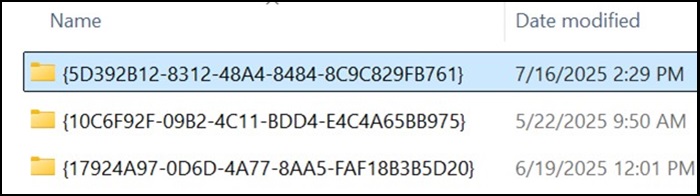
- Locate the TrustedDevice-64bit.msi file.

Affected Products
OptiPlex, XPS, Latitude, XPS, Fixed Workstations, Mobile Workstations, Dell Trusted DeviceArticle Properties
Article Number: 000348330
Article Type: How To
Last Modified: 23 Jul 2025
Version: 2
Find answers to your questions from other Dell users
Support Services
Check if your device is covered by Support Services.