File Explorer Not Responding in Windows 10
Riepilogo: Having trouble with File Explorer not responding in Windows 10? Follow this guide to resolve issues by clearing history, resetting folders, and restoring default settings. Restart your computer to fix the problem. ...
Questo articolo si applica a
Questo articolo non si applica a
Questo articolo non è legato a un prodotto specifico.
Non tutte le versioni del prodotto sono identificate in questo articolo.
Sintomi
Affected Operating Systems:
- Windows 10
Does Windows 10 File Explorer fail to respond, continues in a working loop and then the non-responding message appears?
Causa
This problem occurs because of certain applications downloaded to the computer that can cause some settings to be changed, causing FILE EXPLORER locking and slow computer performance. To resolve the issue, follow the steps below:
Risoluzione
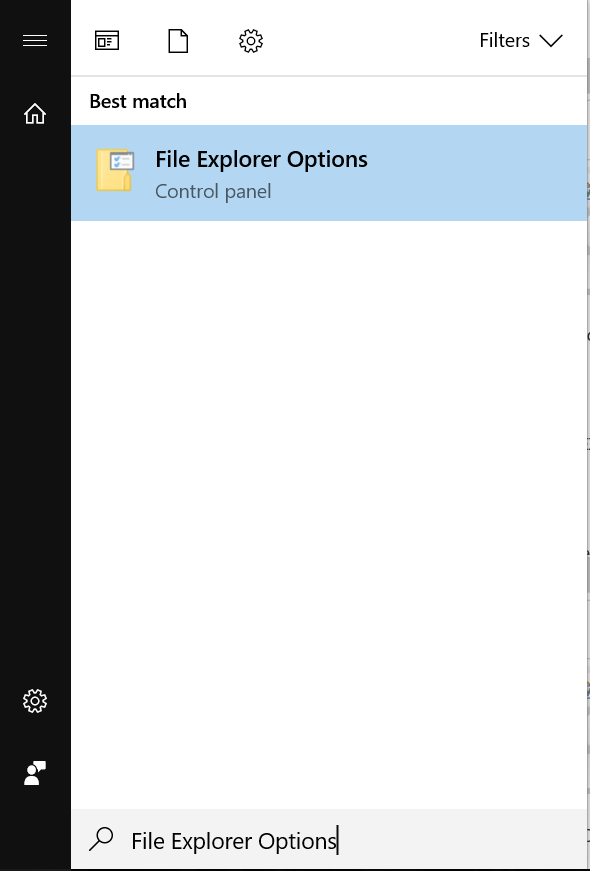
- Click the Start button and type FILE EXPLORER OPTIONS:
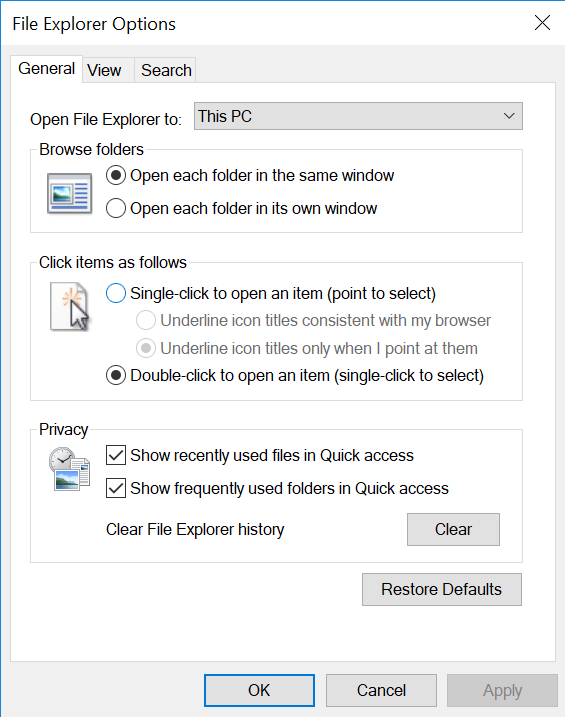
- Click the GENERAL tab, in the Clear File Explorer History option click CLEAR, then click RESTORE DEFAULTS, and finally click APPLY.
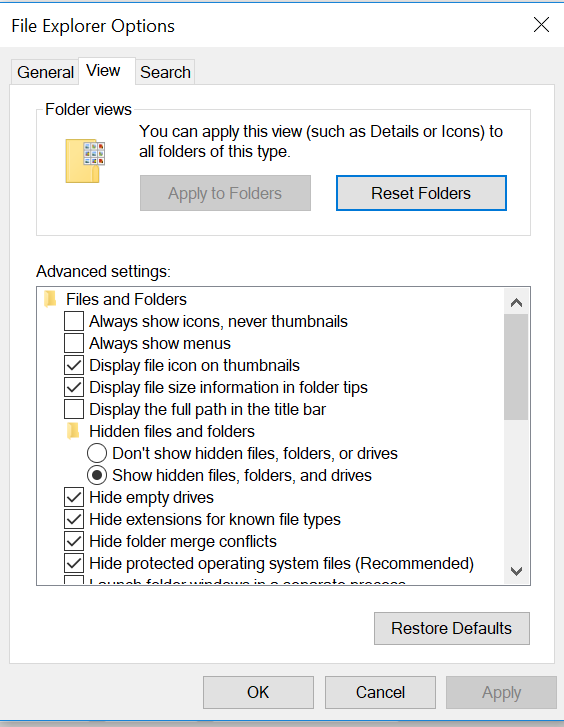
- Now click the VIEW tab, select RESET FOLDERS, and then click YES. Then click RESTORE DEFAULTS, and then APPLY.
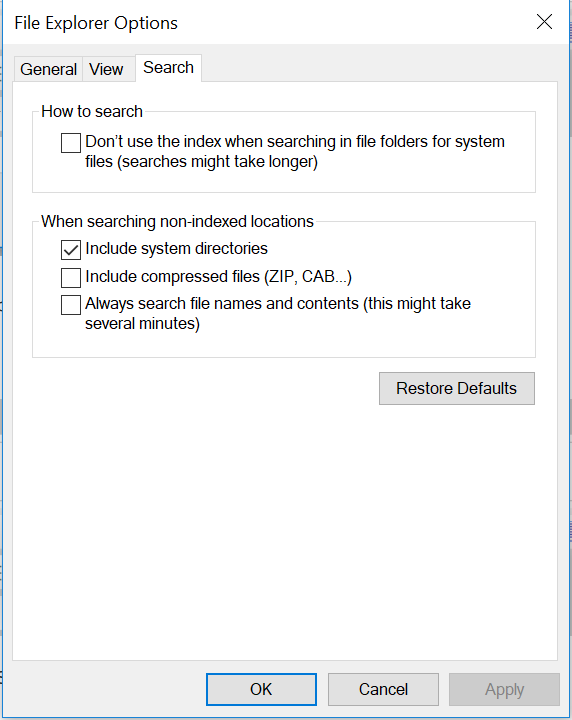
- In the SEARCH tab, click RESTORE DEFAULTS after this click APPLY.
- Once this is done, restart the computer, and the issue should be resolved.
Prodotti interessati
Alienware, Inspiron, Legacy Desktop Models, OptiPlex, Vostro, XPS, G Series, G Series, Alienware, Inspiron, Latitude, Vostro, XPS, Legacy Laptop Models, Fixed Workstations, Mobile WorkstationsProprietà dell'articolo
Numero articolo: 000148462
Tipo di articolo: Solution
Ultima modifica: 03 mag 2026
Versione: 9
Trova risposta alle tue domande dagli altri utenti Dell
Support Services
Verifica che il dispositivo sia coperto dai Servizi di supporto.