How to Permanently Disable Windows Defender in Windows with Group Policy Editor
概要: Discover how to disable Windows Defender when using a third-party antivirus. Follow these steps to permanently disable Defender in Windows using the Group Policy Editor.
この記事は次に適用されます:
この記事は次には適用されません:
この記事は、特定の製品に関連付けられていません。
すべての製品パージョンがこの記事に記載されているわけではありません。
手順
Affected Platforms:
- OptiPlex
- Latitude
- Precision Workstations
- Inspiron
- XPS
- Vostro
- Dell G-Series
- Alienware
Affected Operating Systems:
- Windows
If you have a third-party anti-virus that is installed and active on your computer, you may want to disable Windows Defender. This article walks you through disabling Windows Defender using the Group Policy Editor within Windows.
Disabling Windows Defender using Group Policy Editor
Caution: It is recommended you follow these steps to disable Windows Defender ONLY if you are running a third-party anti-virus program on your computer.
If you are running a third-party anti-virus and want to disable Windows Defender, you can do so using the Group Policy Editor in Windows following the steps below:
- Open a command prompt by pressing the Windows + R keys on the keyboard, type
cmdin the search box, and click OK. - Type gpedit.msc at the command prompt and press Enter.
- Confirm the UAC prompt to continue.
- Navigate through the following path to open the Windows Defender settings: Local Computer Policy > Computer Configuration > Administrative Templates > Windows Components > Windows Defender
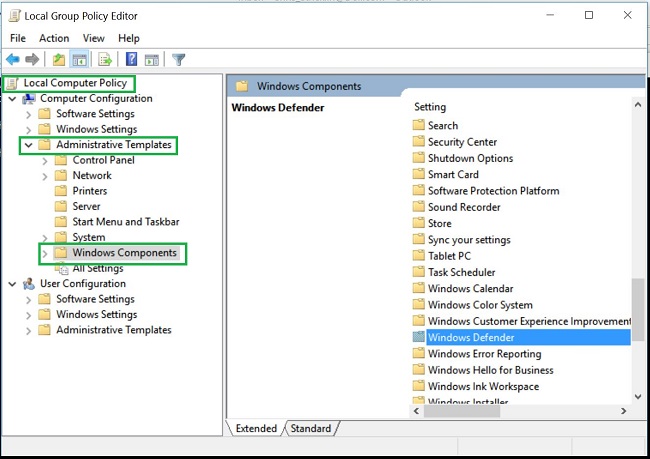
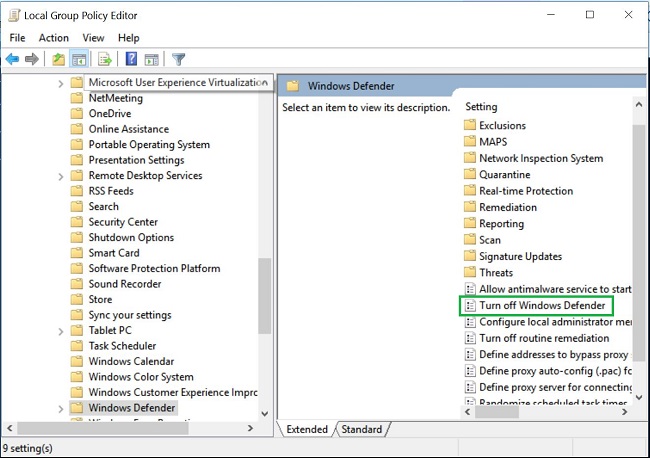
- Double-click the Windows Defender folder to open the settings and look for the Turn off Windows Defender policy setting
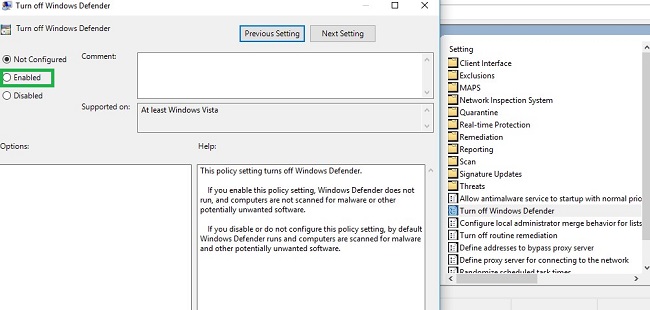
- Select Enabled to enable this policy and turn off Windows Defender
- Restart your computer for the changes to take effect.
Note: If you remove your third-party anti-virus and want to reenable Windows Defender on your computer, follow the steps above using the group policy editor. Select either Not Configured or Disabled for the Turn off Windows Defender policy.
対象製品
Alienware, Inspiron, OptiPlex, Vostro, XPS, G Series, G Series, Alienware, Inspiron, Latitude, Vostro, XPS, Fixed Workstations, Mobile Workstations文書のプロパティ
文書番号: 000108754
文書の種類: How To
最終更新: 31 7月 2025
バージョン: 7
質問に対する他のDellユーザーからの回答を見つける
サポート サービス
お使いのデバイスがサポート サービスの対象かどうかを確認してください。