Dell Networking X Series - How to upgrade the firmware using USB
概要: How to upgrade the firmware for Dell X-Series switches using a USB flash drive.
この記事は次に適用されます:
この記事は次には適用されません:
この記事は、特定の製品に関連付けられていません。
すべての製品パージョンがこの記事に記載されているわけではありません。
現象
This article explains how to upgrade the firmware on the Dell X-series switch.
Procedure:
Step 1: Copy the firmware file (.ros) and boot code file (.rfb) to the USB
 Note: Verify that the USB flash drive is using the fat32 format.

Step: 2: Log in to the switch web interface Switch management -> File update and backup. Select option USB. The ros file must be updated by selecting software image.


Step 3: Update the rfb file by selecting the boot code option for boot code update.
Step 4: Select the version of the firmware to be upgraded after switch reload. Active firmware image->Apply version after reboot. 

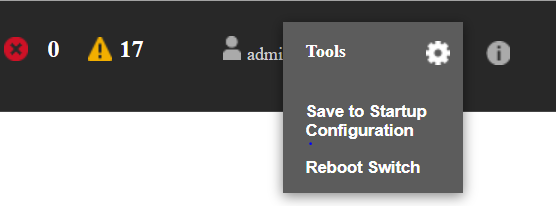
Step 5: Save the configuration before reload. Reload the switch by using the option "reboot" on the setting option available on upper right.
Caution: After saving the configuration, verify that the switch configurations is backed up. Check out this article that explains how to back up your configuration externally - How to save, backup, and restore configuration to X1000 and X4000 series switches
原因
.
解決方法
.
対象製品
Dell Networking X1000 Series, Dell Networking X4000 Series文書のプロパティ
文書番号: 000131982
文書の種類: Solution
最終更新: 02 4月 2025
バージョン: 4
質問に対する他のDellユーザーからの回答を見つける
サポート サービス
お使いのデバイスがサポート サービスの対象かどうかを確認してください。