File Explorer Not Responding in Windows 10
概要: Having trouble with File Explorer not responding in Windows 10? Follow this guide to resolve issues by clearing history, resetting folders, and restoring default settings. Restart your computer to fix the problem. ...
この記事は次に適用されます:
この記事は次には適用されません:
この記事は、特定の製品に関連付けられていません。
すべての製品パージョンがこの記事に記載されているわけではありません。
現象
Affected Operating Systems:
- Windows 10
Does Windows 10 File Explorer fail to respond, continues in a working loop and then the non-responding message appears?
原因
This problem occurs because of certain applications downloaded to the computer that can cause some settings to be changed, causing FILE EXPLORER locking and slow computer performance. To resolve the issue, follow the steps below:
解決方法
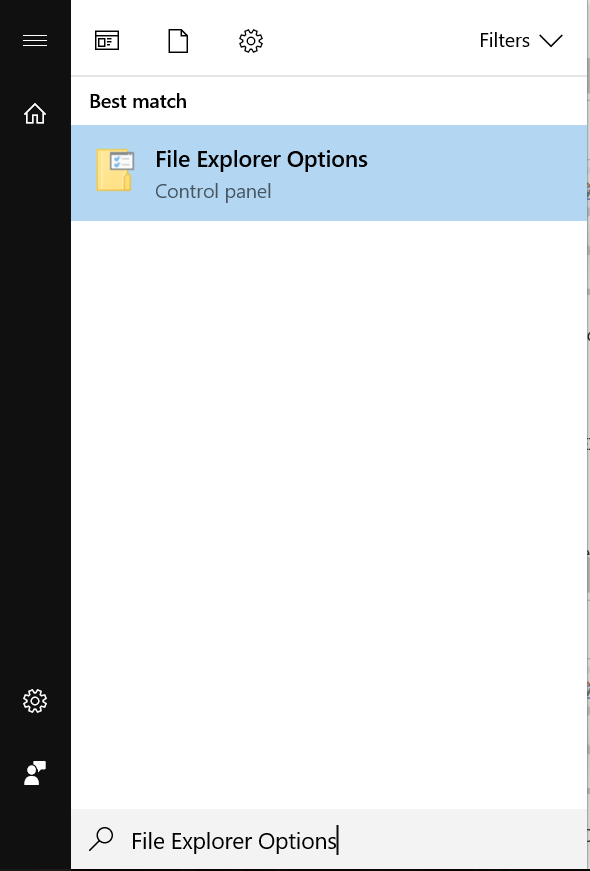
- Click the Start button and type FILE EXPLORER OPTIONS:
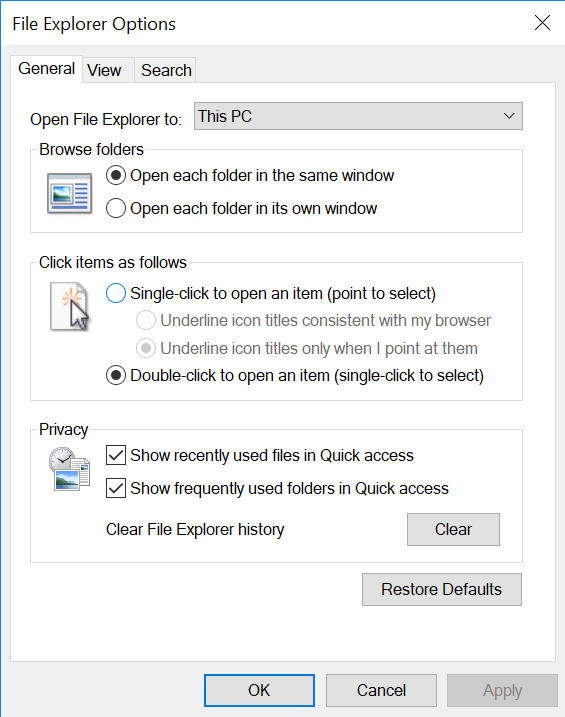
- Click the GENERAL tab, in the Clear File Explorer History option click CLEAR, then click RESTORE DEFAULTS, and finally click APPLY.
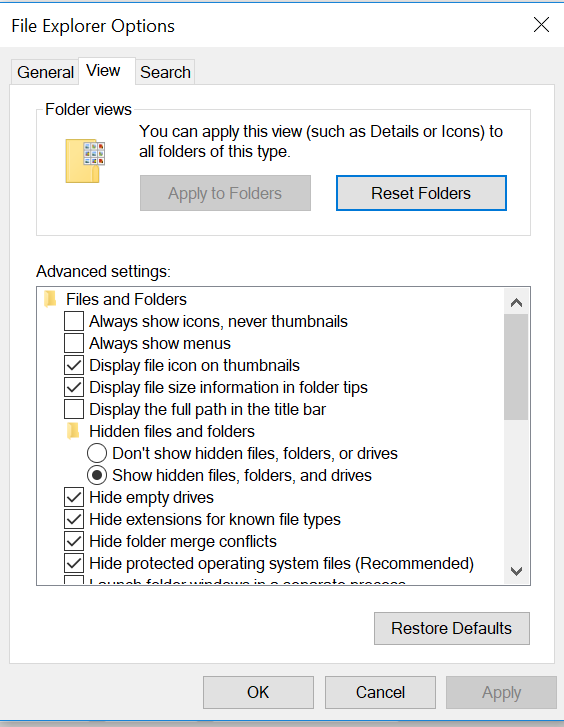
- Now click the VIEW tab, select RESET FOLDERS, and then click YES. Then click RESTORE DEFAULTS, and then APPLY.
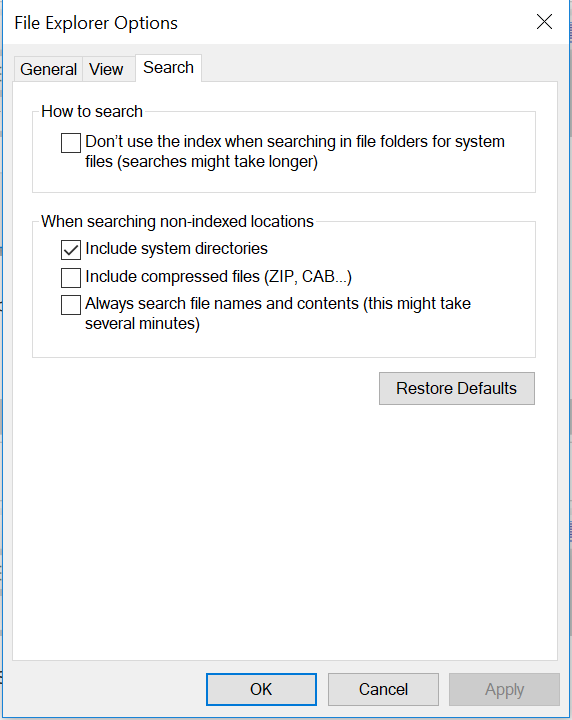
- In the SEARCH tab, click RESTORE DEFAULTS after this click APPLY.
- Once this is done, restart the computer, and the issue should be resolved.
対象製品
Alienware, Inspiron, Legacy Desktop Models, OptiPlex, Vostro, XPS, G Series, G Series, Alienware, Inspiron, Latitude, Vostro, XPS, Legacy Laptop Models, Fixed Workstations, Mobile Workstations文書のプロパティ
文書番号: 000148462
文書の種類: Solution
最終更新: 17 7月 2025
バージョン: 8
質問に対する他のDellユーザーからの回答を見つける
サポート サービス
お使いのデバイスがサポート サービスの対象かどうかを確認してください。