How to Roll Back a Device Driver on Dell Windows Computers
概要: Learn how to roll back a device driver to a previous version on Dell computers running Windows. Restore stability by following these simple steps to resolve driver conflicts or issues after an update. ...
この記事は次に適用されます:
この記事は次には適用されません:
この記事は、特定の製品に関連付けられていません。
すべての製品パージョンがこの記事に記載されているわけではありません。
手順
In some rare instances, a device can become unstable or stop functioning correctly when the device driver is updated.
Driver rollback feature in Microsoft Windows helps restore the device driver to a previous version. This helps avoid potential conflicts or issues with the new driver that is installed on the computer.
Driver issues can occur if the driver is corrupt or if another device driver is in conflicting with the updated version.
To roll back a device driver to a previous working version, follow these steps:
-
Press the Windows + R key on the keyboard.
-
In the Run dialog box, type
devmgmt.mscand press Enter. -
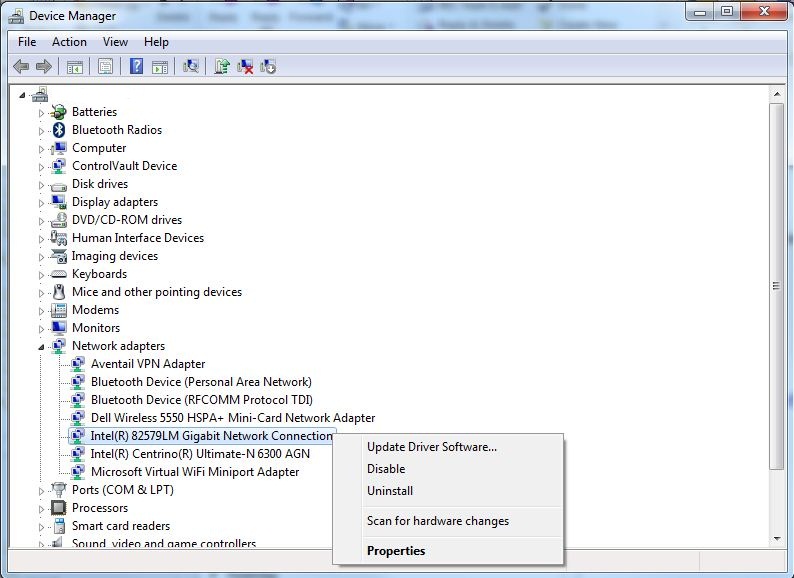
In the Device Manager window, right-click the suspected driver name and select Properties.
-
The device driver that has stopped functioning may be displayed in the Device Manager with an exclamation mark or a red cross. See the Dell knowledge base article Drivers and Downloads FAQs for troubleshooting device manager errors.
- Go to the Driver tab and click Roll Back Driver.
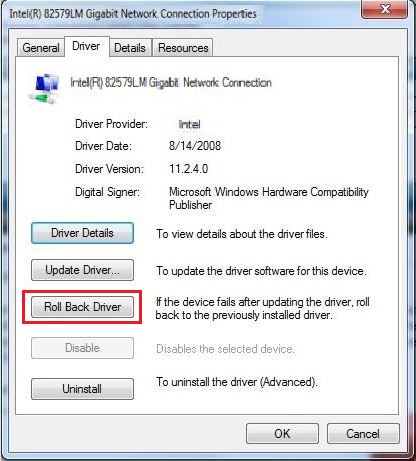 Note: If the rollback driver button is not available (disabled), it indicates that a previous version of the driver is not available on the computer. Uninstall the driver and install the latest version from the Dell Drivers & Downloads website.
 -
Restart the computer.
For more information about Dell drivers, refer to these articles:
対象製品
Chromebox, Alienware, Dell All-in-One, Dell Pro All-in-One, Dell Pro Max Micro, Dell Pro Max Slim, Dell Pro Max Tower, Dell Pro Micro, Dell Pro Slim, Dell Pro Tower, Dell Slim, Dell Tower, Inspiron, Legacy Desktop Models, OptiPlex, Vostro, XPS
, G Series, PC & Tablet Accessories, Printers & Accessories, Chromebook, G Series, Alienware, Dell Plus, Dell Pro, Dell Pro Max, Dell Pro Plus, Dell Pro Premium, Inspiron, Latitude, Dell Pro Rugged, Vostro, XPS, Legacy Laptop Models, Fixed Workstations, Mobile Workstations, Dell Pro Max Micro XE FCM2250, Dell Pro Max Slim XE FCS1250, Dell Pro Max Tower T2 XE FCT2250, Dell Pro Max 16 XE MC16250, Dell Pro Micro Plus XE QBM1250, Dell Pro Slim Plus XE5 QBS1250, Dell Pro Tower Plus XE5 QBT1250
...
文書のプロパティ
文書番号: 000148845
文書の種類: How To
最終更新: 30 7月 2025
バージョン: 11
質問に対する他のDellユーザーからの回答を見つける
サポート サービス
お使いのデバイスがサポート サービスの対象かどうかを確認してください。